

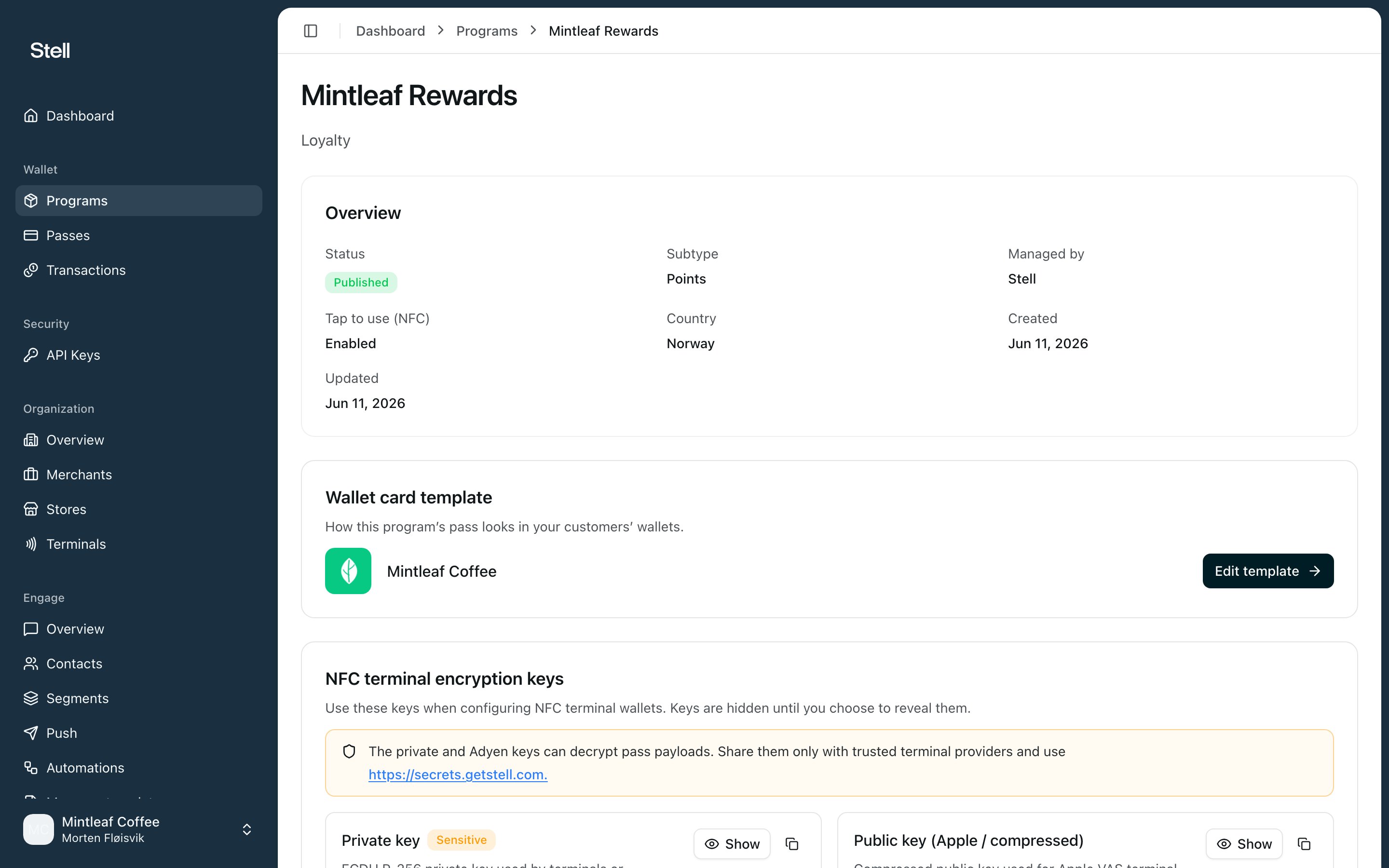
Overview
The first card sums up the program:
A description is shown below the fields when one is set.
Wallet card template
How this program’s pass looks in your customers’ wallets, shown with the pass logo and your organization name. Click Edit template to open the pass template editor, where you can adjust colours, the logo, and the details your customers see. If the template hasn’t been set up yet, the card says so — once it’s in place, this is where you fine-tune the look.Wallet certificate
The Apple certificate that signs this program’s passes. You’ll see the Pass Type Identifier, Team Identifier, who manages the certificate (Stell or Your account), its expiry date with a Valid, Expiring soon, or Expired badge, and whether it’s NFC capable.- Stell-managed — renewal is handled for you; there’s nothing to do here.
- Managed by your account — click Replace certificate to upload a new
.p12file and passphrase before the current one expires.
Program passes
Every pass issued under this program, newest first, with the same details as the main passes list. Click a row to open the pass detail page.Event webhooks
Send this program’s pass events — passes being added, used, or changed — to your own HTTPS endpoints. Useful when your systems should react to pass activity. Click Configure to subscribe your first endpoint, or Manage to edit existing subscriptions; the card shows how many are active. See event webhooks in the API reference for the full setup guide.Sections you may also see
Depending on how the program is set up, extra cards can appear:- NFC terminal encryption keys — shown when tap to use (NFC) is enabled. Holds the keys you need when configuring NFC terminal providers: a Private key, an Apple (compressed) and a Google (uncompressed) public key, and an Adyen key. Each is hidden until you click reveal, and can be copied from there.
- iCloud Account Binding — when enabled, passes lock to the customer’s iCloud account as they’re added to Apple Wallet, so a pass can’t be shared between accounts. Requires NFC to be enabled.