

Barcode or NFC?
- NFC (tap to use) — the pass works through a tap, like a payment card. Whether NFC is available depends on your program’s setup (it requires NFC-capable terminals and certificates); when active, the pass shows a small tap icon instead of a barcode.
- Barcode — works with any scanner your stores already have. This is the default for most programs.
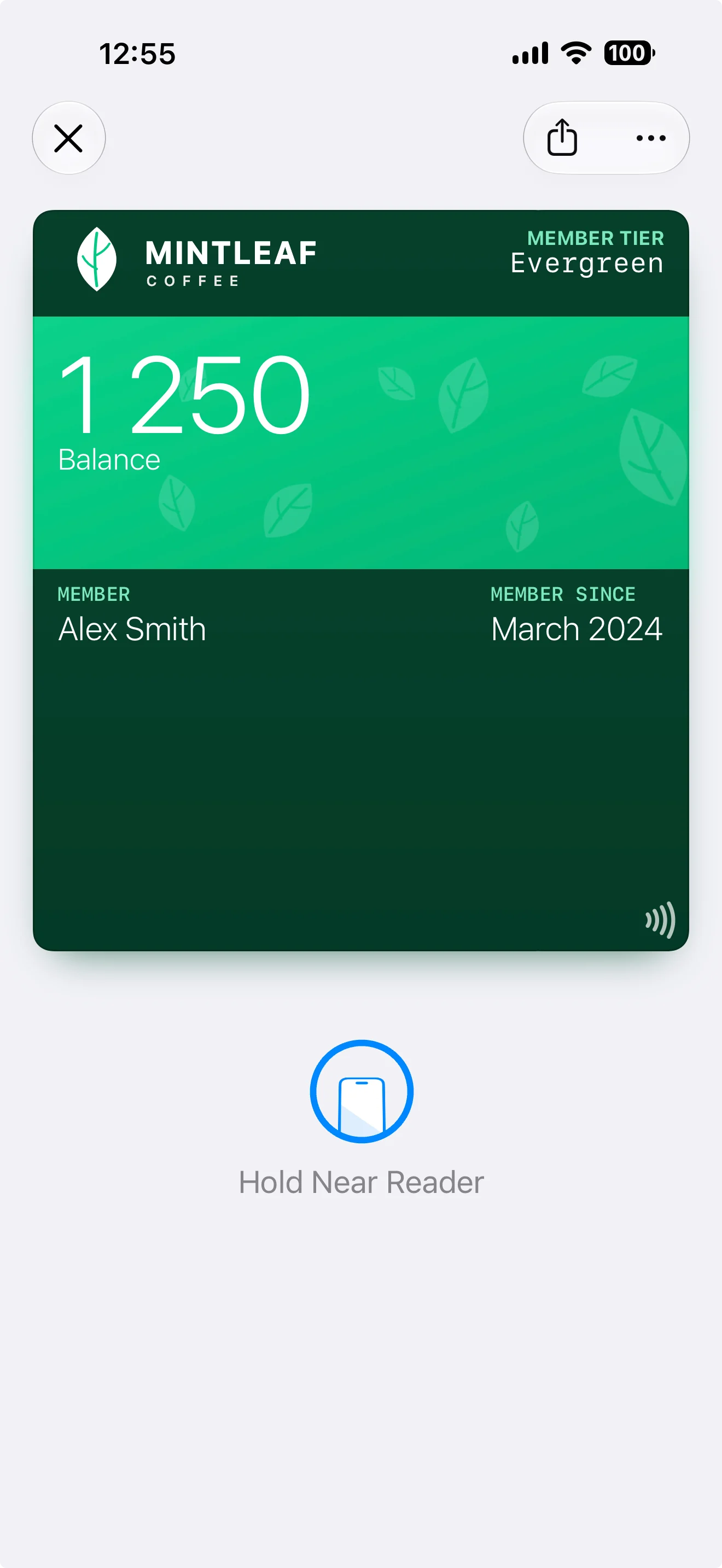
NFC: a small tap icon in the corner, and the wallet asks the customer to hold the phone near the reader.
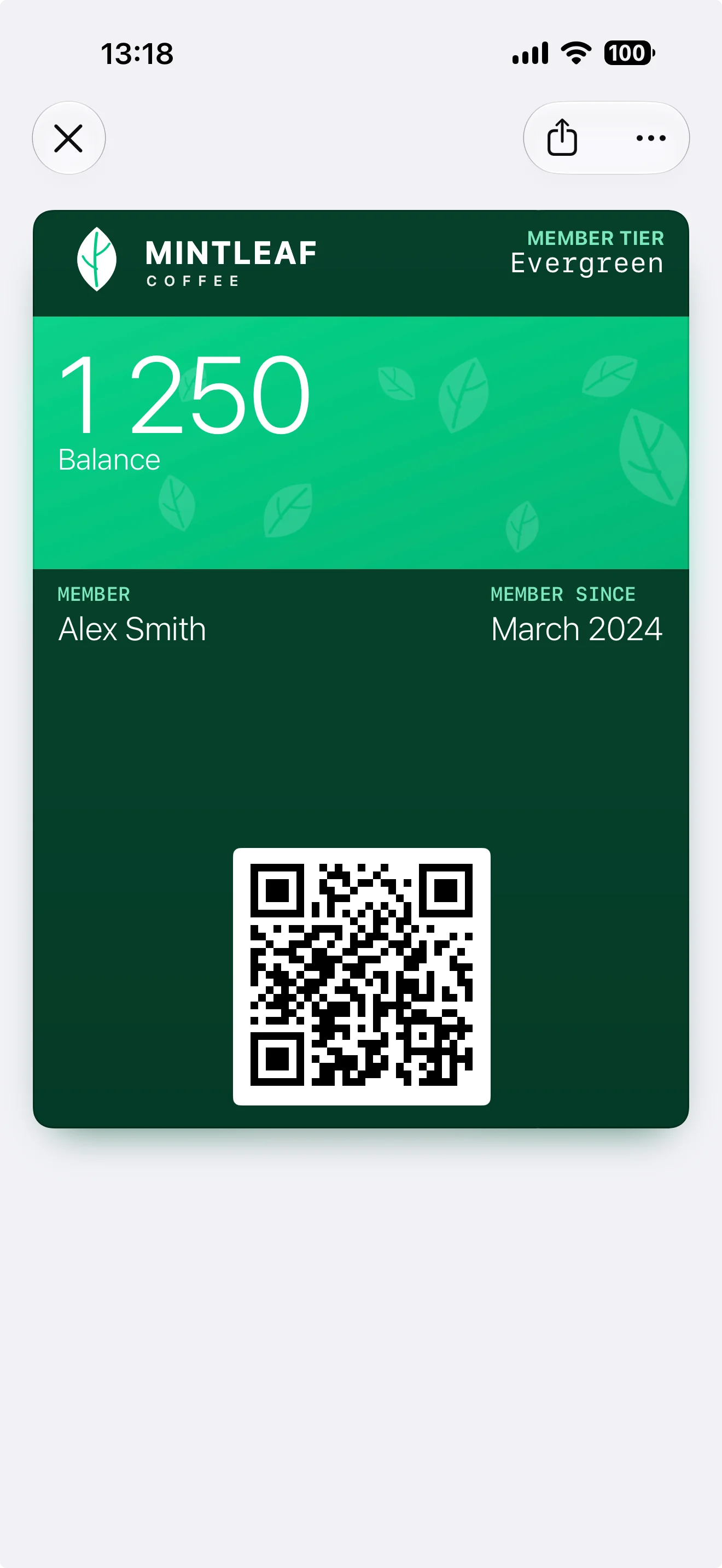
Barcode: a QR code at the bottom of the pass, ready to scan.
Barcode formats
A template can hold up to 3 barcodes. Supported formats: QR, PDF417, Aztec, Code 128, Code 39, Codabar, EAN-13, and Interleaved 2 of 5. Pick the format your POS scanners actually read — when in doubt, QR is the safest modern choice, and your POS supplier can confirm. Each barcode also takes an optional alt text, shown under the barcode so staff can type the code manually if scanning fails.Dynamic barcode content
The barcode message — what the scanner actually reads — supports the same{{…}} placeholders as fields. This is how the barcode identifies the individual customer:
Combinations work too — for example
{{customer.externalId}}-{{passId}}. Whatever your POS looks up members by, that’s what belongs in the barcode message.
Encoding
The default encoding (ISO 8859-1) is right for almost everyone and what scanners expect. Switch to UTF-8 only if your barcode content needs characters outside Western alphabets — and confirm your scanners handle it.Also in the Advanced tab
- Locations — pin your stores’ coordinates and the pass surfaces on the customer’s lock screen when they’re nearby. A relevance radius controls how close is “nearby”.
- Sharing — prohibit sharing of the pass, or set a custom share URL and text.
- Pass actions — buttons on the pass on newer iPhones, for example a link to your site.