

Editing fields
- Label — the small heading (for example “POINTS”). Optional.
- Value — the text shown. Type static text, insert placeholders with the placeholder picker, or mix both:
Points: {{loyaltyState.pointsBalance}}. - Change message — an optional notification text shown when this field’s value changes, like “Points changed to %@”. This is how customers get a lock-screen ping when their balance updates.
Placeholders
Placeholders are{{…}} tokens replaced per customer when the pass is rendered. The most useful ones:
The placeholder picker in the field editor shows the full catalog, organized by category. A placeholder with no value for a given customer simply renders as empty.
Placeholders insert values — they don’t calculate.
{{loyaltyState.pointsBalance}} works; {{loyaltyState.pointsBalance}} + 10 shows literally that text.Dates
Also in the Content tab:- Expiration date — when the pass should stop being valid.
- Relevant dates — moments when the pass should surface on the customer’s lock screen, useful for events.
A sensible field layout
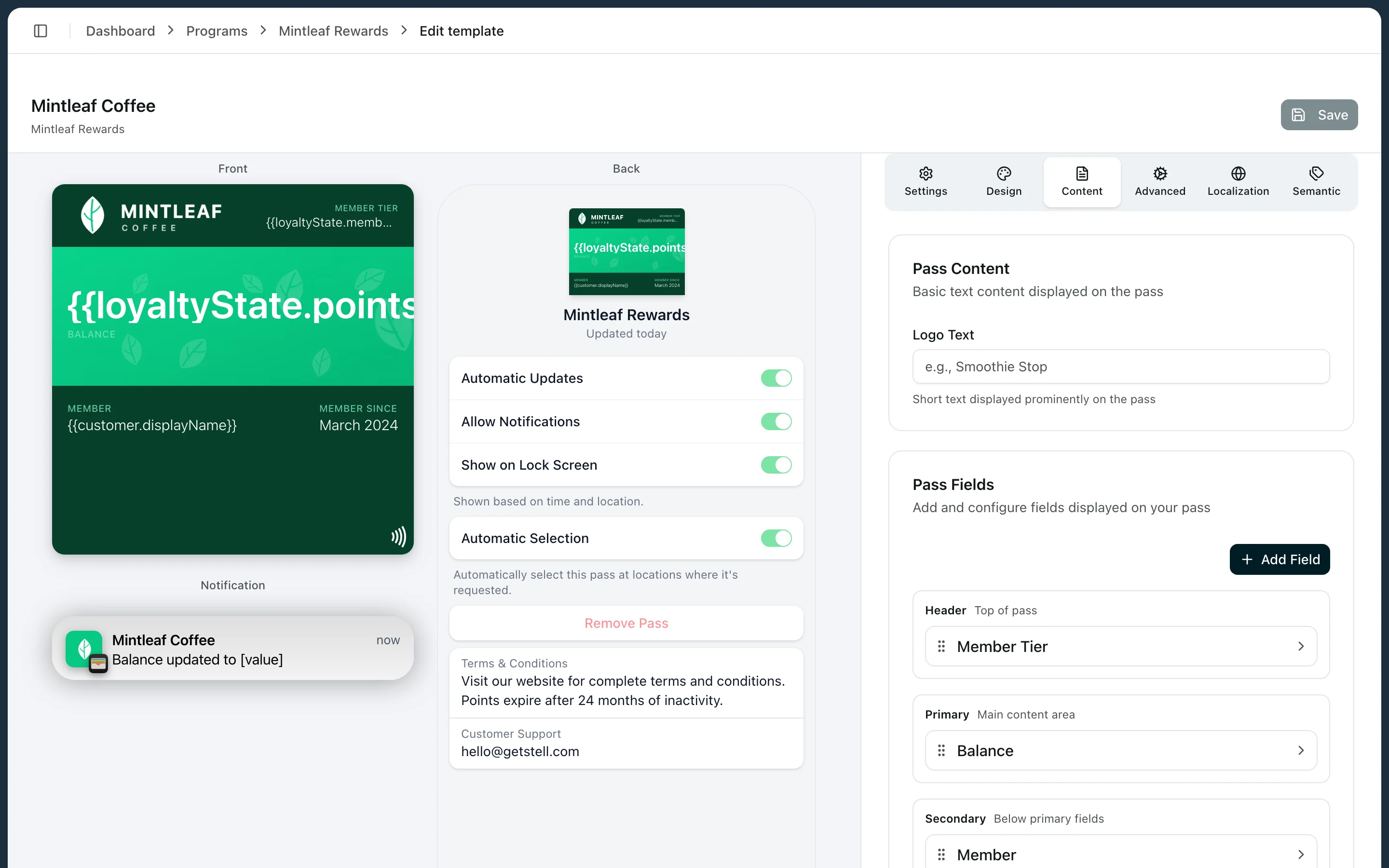
For a typical loyalty card:- Header: points balance — visible even when the pass is stacked in the wallet.
- Primary: the customer’s name, large on the strip.
- Secondary: tier and member-since.
- Back: terms, support contact, and links.