

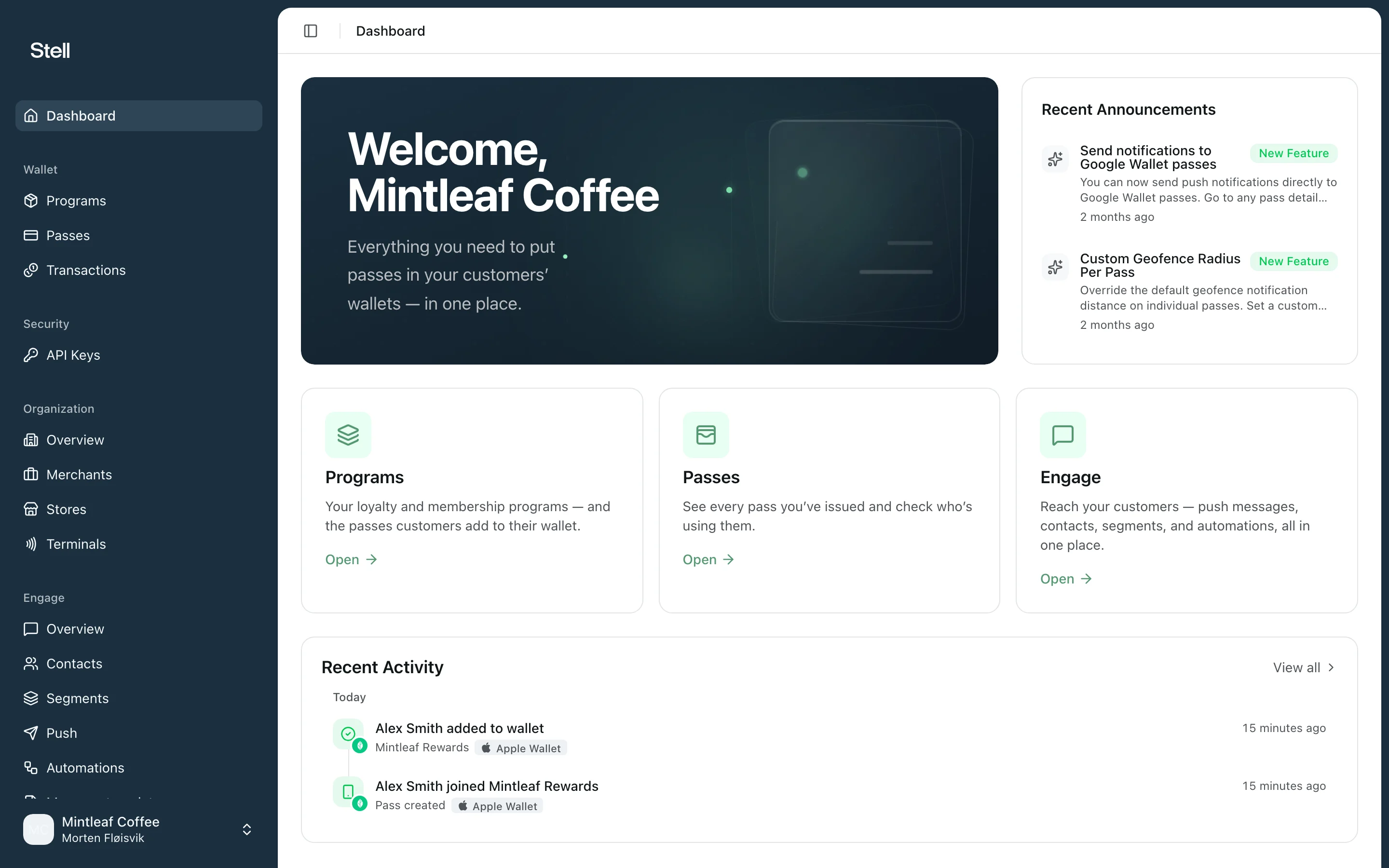
The dashboard
The dashboard greets you with your company name and gives you three things at a glance:- Announcements — recent news from Stell that may affect your programs or passes.
- Feature cards — shortcuts into the main areas of the portal. Click Open on a card to jump in.
- Recent Activity — the latest pass and transaction events across your company. Click View all to open the full transaction log.
Navigation
The sidebar on the left is organized into sections:Engage and Organization are optional modules. If you don’t see them in your sidebar, they aren’t enabled for your company — contact support if you think they should be.
Your account menu
At the bottom of the sidebar, click your name to open the account menu:- Switch company — if you belong to more than one company, pick which one you’re working in. Everything in the portal shows data for the active company only.
- Settings — manage your account security, including two-factor authentication and passkeys.
- Sign Out — end your session.