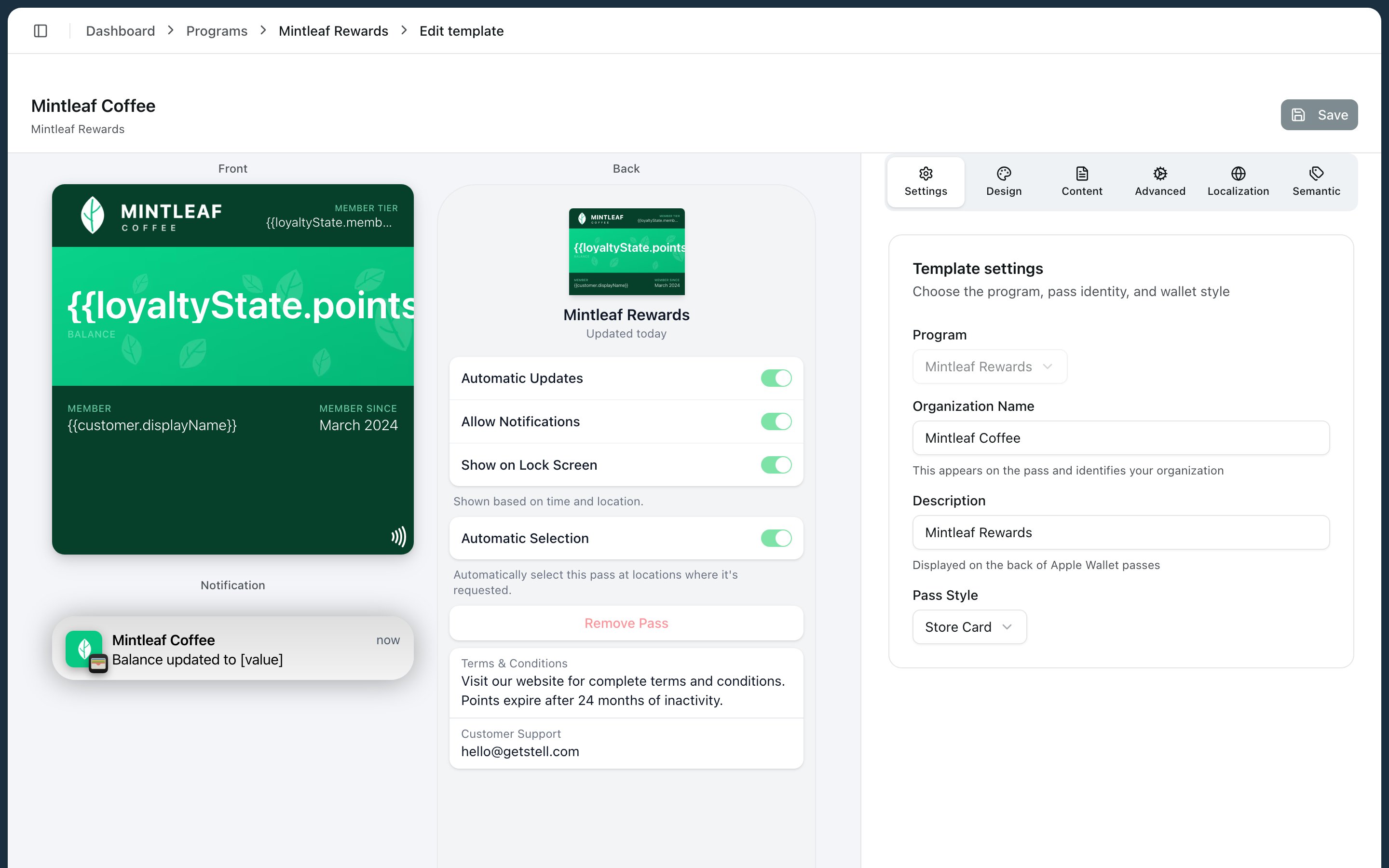
Every program has a pass template — the design and content that all of its passes inherit: colors, logo, images, text fields, and barcodes. The template editor lets you fine-tune it with a live preview. Pass template editor To open the editor, go to your program and click Edit template in the Wallet card template section.
Before diving into the editor, it pays to understand what you’re editing — see the anatomy of a pass for how the areas of a pass fit together.

How the editor works

The left side shows a live preview of your pass — front and back. The right side holds the controls, organized in tabs:
TabWhat you editDetails
SettingsOrganization name, description, and pass styleThe pass style sets the overall layout — see anatomy
DesignColors, visual options, and imagesSee images for every slot and its dimensions
ContentLogo text, the pass fields, and datesSee fields and dynamic content
AdvancedBarcodes, locations, sharing, and pass actionsSee barcodes and NFC
LocalizationTranslations for each language you supportOrganization name, description, logo text, fields, and barcode alt text per language
SemanticStructured data the wallet can useLoyalty, event, or transit details, depending on the pass style
The fastest way to find the right control is to click the pass itself: click the background to open colors, click an image to open that image’s upload, click a field to open its editor.

Saving changes

  1. Make your edits — the preview updates as you go. A colored dot next to the template name warns you about validation issues.
  2. Click Save. The save dialog summarizes your changes and lists any errors (which block saving) or warnings (which don’t).
  3. Click Confirm Save.
Saving applies your changes to all existing passes immediately — every customer’s pass updates to the new design, not just passes issued from now on.
Click Discard to throw away unsaved changes. If you navigate away with unsaved changes, your browser asks you to confirm first.

From preview to wallet

The preview is faithful: what you see in the editor is what customers get on their phone. The same template shown in the editor screenshot above renders like this in Apple Wallet:
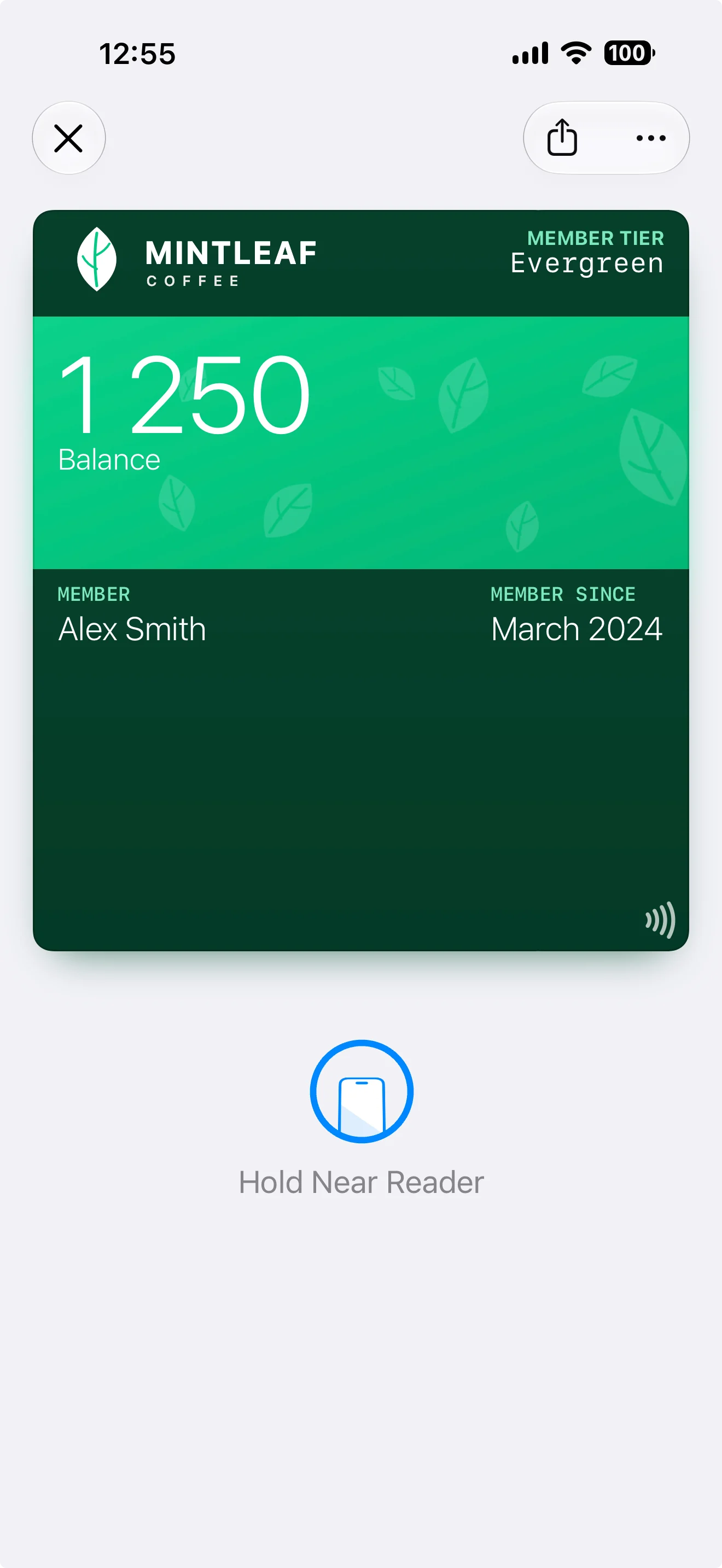
The pass designed in the template editor, open in Apple Wallet on an iPhone

Good to know

  • The template belongs to its program — you can’t move it to another program from the portal.
  • The preview shows the Apple Wallet layout. Google Wallet renders the same template differently — see Apple Wallet vs Google Wallet.
  • Stell creates an initial working template for your program, so you’re always improving a working pass rather than starting from a blank canvas.