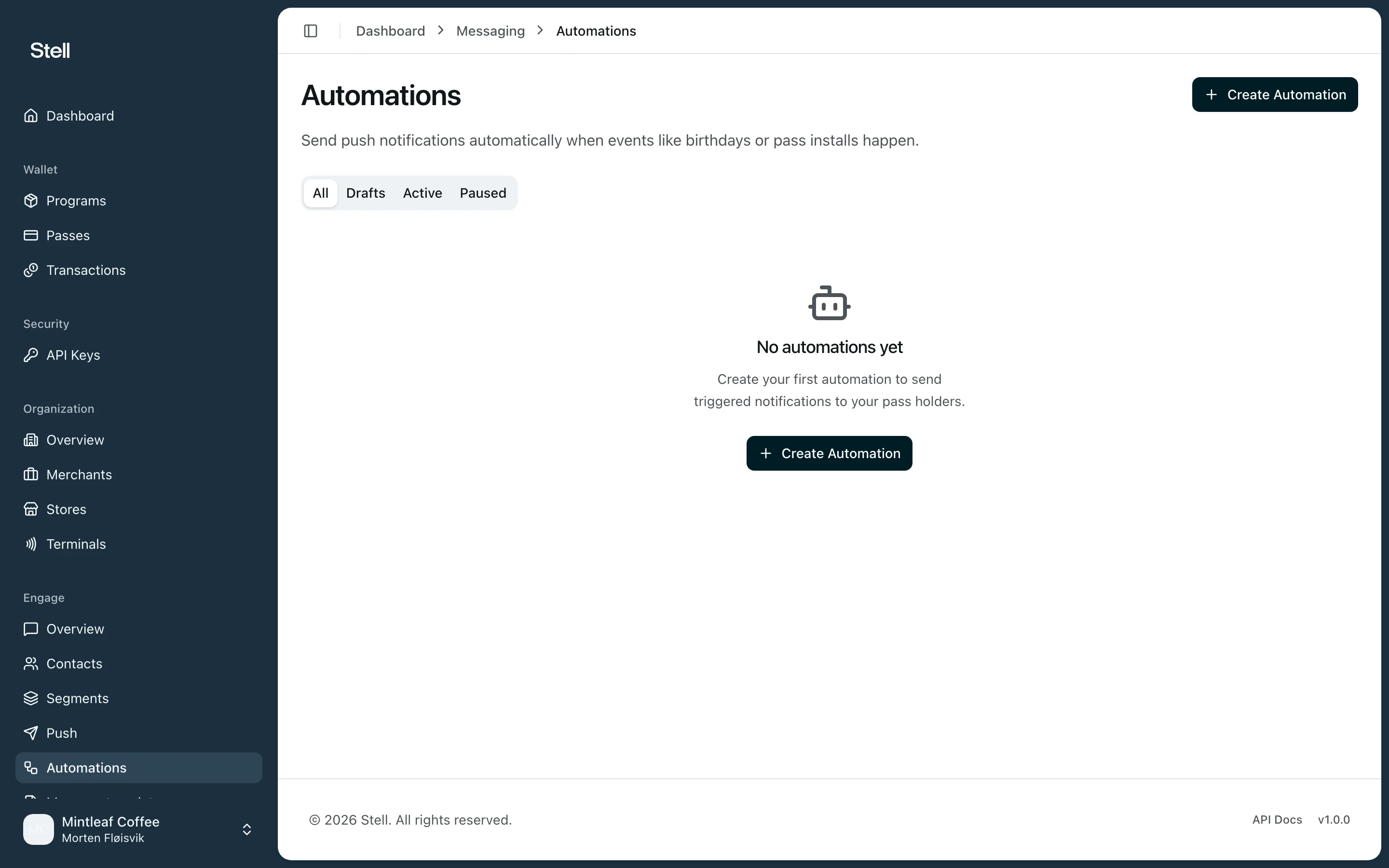
An automation is a push message that sends itself when something happens — a customer adds your pass, has a birthday, or reaches a points threshold. Set it up once, and it keeps running until you pause it. Automations

Triggers

TriggerFires
Pass InstalledWhen a new pass is added to a wallet — optionally delayed by a number of hours
BirthdayOn or around the contact’s birthday — use days before or after (for example, 7 days before)
Pass AnniversaryOn the anniversary of the pass installation
Inactive DaysWhen a contact hasn’t engaged for a number of days
Points EarnedWhen points reach a threshold
Tier ChangedWhen the customer’s loyalty tier changes

Create an automation

  1. Open Automations in the sidebar and click Create Automation.
  2. Name the automation and choose the Trigger Type and its settings.
  3. Optionally add Conditions to narrow who receives it, and a Frequency Cap (at most N times per N days) so nobody gets spammed by a repeating trigger.
  4. Write the message — up to 150 characters, with variables for personalization, and a live lock-screen preview.
  5. Click Save and Activate to start it, or Save as Draft to finish later.
The trigger type is fixed once the automation is created. To switch triggers, create a new automation.

Manage automations

The automations list groups everything under All, Drafts, Active, and Paused. Open an automation to see its stats — total sent, queued, delivery rate, and when it last triggered — and use Pause / Activate to stop and resume it, or Edit to change its settings and message.