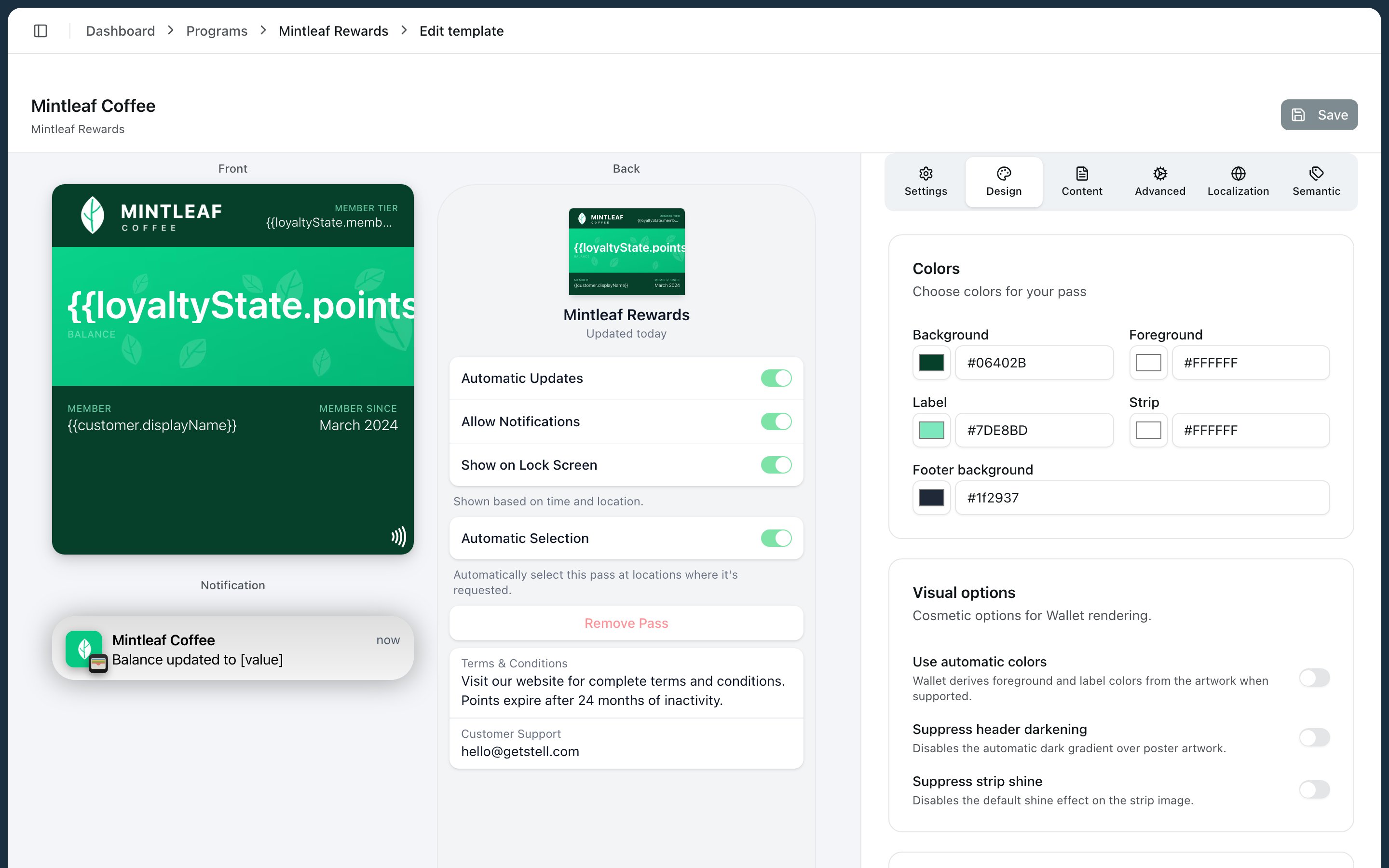
Images do most of the visual work on a pass. Each slot has a fixed place and recommended dimensions — using the right size keeps the pass crisp on every device. Upload and replace images in the Design tab of the template editor, or click the image directly in the preview. The Design tab The Design tab also holds the pass colors — background, foreground (value text), label, strip, and footer background — plus visual options like automatic colors derived from your artwork.

Standard images

ImageDimensionsWhere it appears
Logoup to 160 × 50 pxTop-left corner of the pass front. Aspect ratio is preserved
Strip Image375 × 98 pxThe banner across the upper front — on Store Card, Coupon, and Event Ticket styles. The primary field renders on top of it
Pre-install Strip Image375 × 98 pxReplaces the strip image while the pass isn’t installed on any device yet — useful for an arrow pointing at the Add to Apple Wallet button. Once the customer adds the pass, the regular strip takes over
Background375 × 530 pxFills the entire pass — on Generic, Event Ticket, and Boarding Pass styles
Icon29 × 29 pxNext to push notifications from this pass on the lock screen — not on the pass itself
Thumbnail90 × 90 pxA square image on the front — Event Ticket style only
Footer286 × 15 pxA slim image just above the barcode
The Pre-install Strip Image is an easy win for enrollment conversion: customers who see the pass before adding it get a visual nudge toward the add-to-wallet button.

Poster images

Newer iPhones can show Event Ticket passes (iOS 18 and later) and Generic passes (iOS 27 and later) in a richer poster layout — see the poster tabs under layout by style for how they rearrange the pass. On older iOS versions the same template falls back to the style’s standard layout. These slots appear for those styles:
ImageDimensionsRole
Artwork358 × 448 ptThe poster’s main visual — uploading it is what enables the poster layout
Primary Logo126 × 30 ptBranding on the poster — falls back to your regular Logo if not set
Secondary Logo135 × 12 ptSmaller secondary branding on the poster
Venue Maporiginal sizeA seating or venue map for events
On older devices the pass falls back to the standard layout, so keep the regular images in good shape too.

Practical tips

  • Upload PNG or JPG. For photos use JPG; for logos and graphics with transparency use PNG.
  • Design for the exact pixel sizes above at 2× or 3× resolution if you have it — the wallet scales down better than up.
  • The strip image sits behind the primary field text. Keep the area where the text lands calm and high-contrast, or the value becomes unreadable.
  • Remember that which images show depends on the pass style — see anatomy of a pass. A background image uploaded on a Store Card template won’t appear.
  • Google Wallet doesn’t use the strip image — see Apple Wallet vs Google Wallet.