

Pick the right entry point per channel and the rest is communication.
The channels
The strongest launch channel. Announce the program and give existing
customers a one-tap button.
Social media
Reach people you can’t email, with post ideas for the launch and beyond.
Website and my page
Invite visitors on your public site and put a one-tap button on the
signed-in member page.
In-store material
Posters, counter cards, receipts, and screens, plus what your staff should
say.
A launch plan
A coordinated launch beats trickling the news out. Here’s how a week could look for Mintleaf Coffee:1
Soft launch with your own staff
Before any customer hears about the program, have your staff enroll and use
their own passes for a few days. They’ll find rough edges, and they’ll be
able to answer customer questions from experience. The onboarding
checklist covers the technical side of going live.
2
Put up the in-store material
Posters, counter cards, and receipt QR codes go up first. The counter is
where joining makes the most immediate sense. See in-store
material.
3
Send the announcement email
Tell your existing customers. Members in your CRM can get a one-tap
invitation, and everyone else gets the enrollment link. See
email.
4
Update your website
Add a banner or program page for new visitors, and the wallet button to the
signed-in member page. See website and my page.
5
Announce on social media
Post the announcement once the other channels are ready, so everyone who
clicks can join immediately. See social media.
6
Keep it going
Promotion isn’t a one-week project. Keep the receipt QR printing, rotate
ongoing social posts, and brief new staff. Once customers hold the pass,
Engage push notifications reach them directly on the lock screen.
If you don’t see Engage in your navigation, it isn’t enabled for your company.
Contact support. Engage reaches customers who already hold
your pass. The channels in this section are for reaching everyone who doesn’t,
yet.
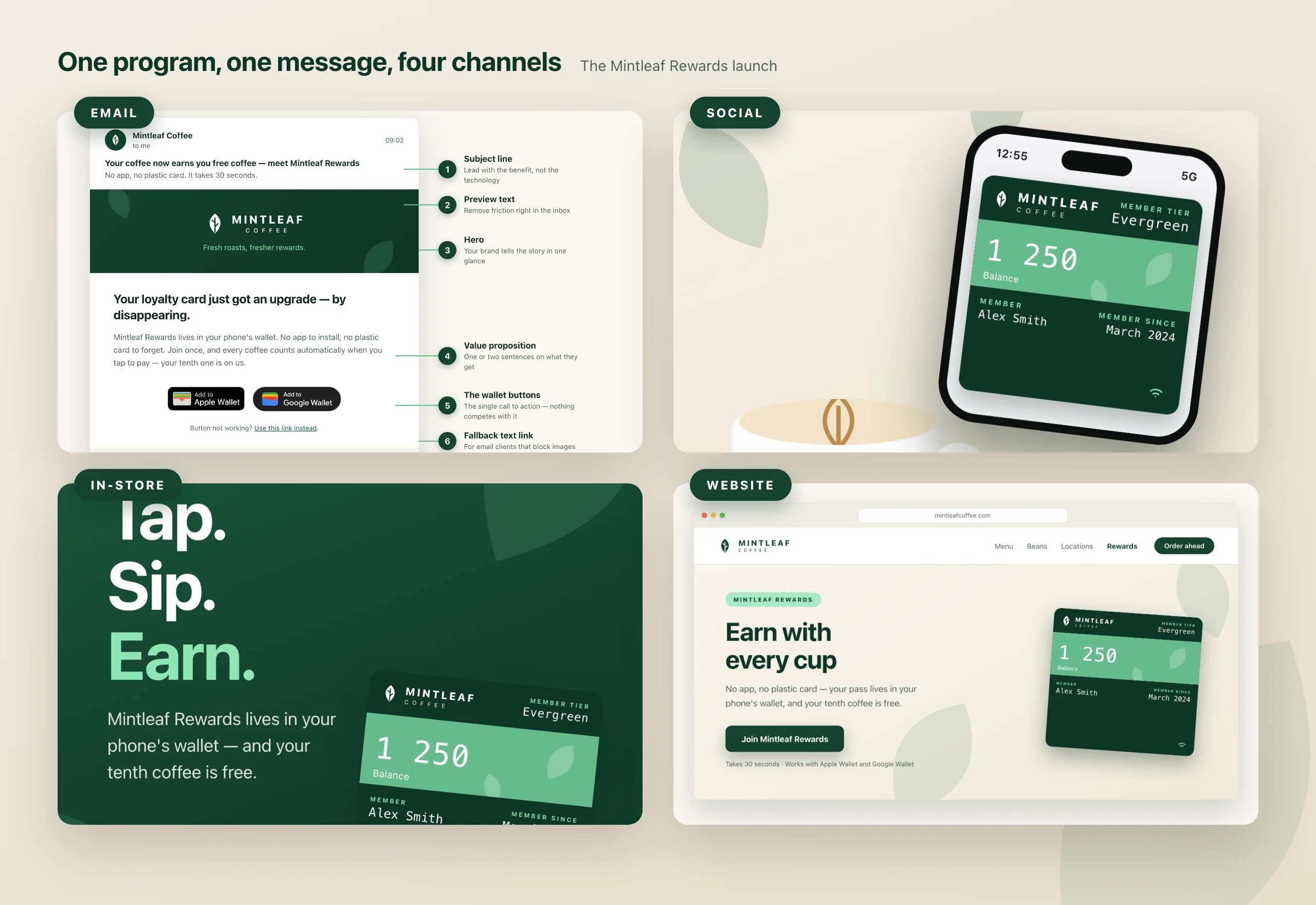
One program, one message, four channels. The Mintleaf Rewards launch.
Using the wallet badges
The Add to Apple Wallet and Add to Google Wallet badges are recognizable. Customers know what tapping them means. That recognition only works if the badges look exactly the way Apple and Google designed them, so both providers set rules for their use. The short version:- Use the official artwork only. Never recreate, recolor, crop, stretch, rotate, or animate a badge, and never add shadows or other effects. The easiest way to stay compliant: the wallet button widget renders correct badges for you on the web, and the configurator’s Download all assets button gives you every official button image as a ZIP for emails. See the wallet button widget.
- Keep the badge secondary. It’s the call to action, not the hero. Your program and brand carry the message, the badge closes it. Don’t let it dominate the layout, and don’t place text or graphics over it.
- Give it room. Leave clear space around the badge. As a rule of thumb, at least a tenth of the badge’s height on every side.
- Match the format to the medium. Vector files (SVG) for web and email, print-quality vector files (EPS) for anything printed. Never print a screenshot of a badge.
- In print, pair the badge with a QR code. Paper can’t be tapped. The badge signals what the customer gets, the QR code is how they get it, and a short scanning instruction bridges the two. See in-store material.