How customers get their pass through the web or App Clip enrollment flow
Enrollment is how your customers get their pass. They open an enrollment link, fill in a short form, accept the consents, and the pass lands in their wallet. This page walks through that journey so you and your support staff know exactly what customers see.
The walkthrough below follows the Mintleaf Rewards demo program on an iPhone. Your program shows your own branding, form fields, and consents. The steps stay the same.
1
Welcome screen
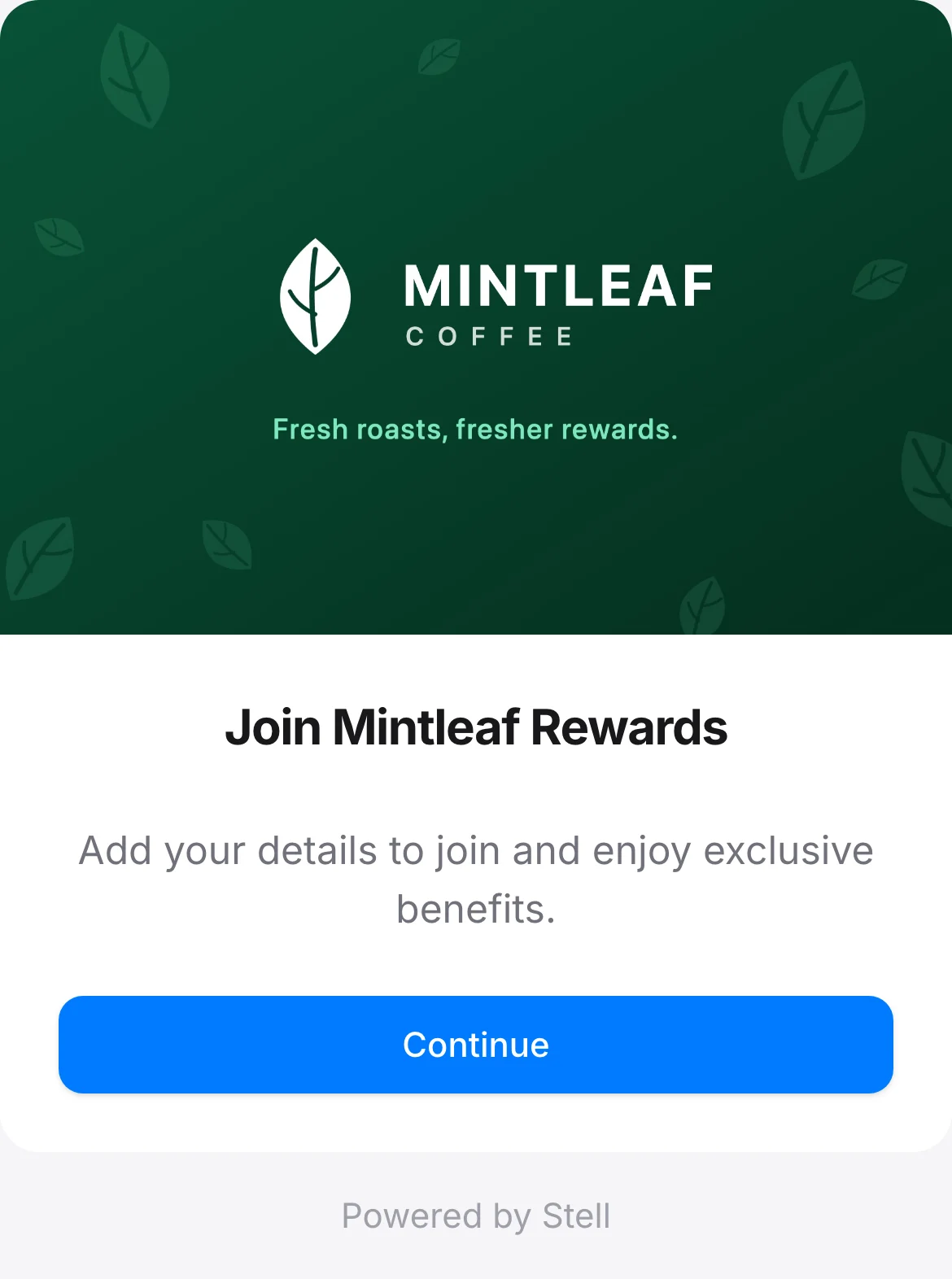
The customer lands on your program’s welcome screen: your header image and branding at the top, a welcome like “Join [program name]”, and a short invitation text. One tap on Continue starts the enrollment.
The welcome screen carries the program's branding, here the Mintleaf demo program.
2
Personal details
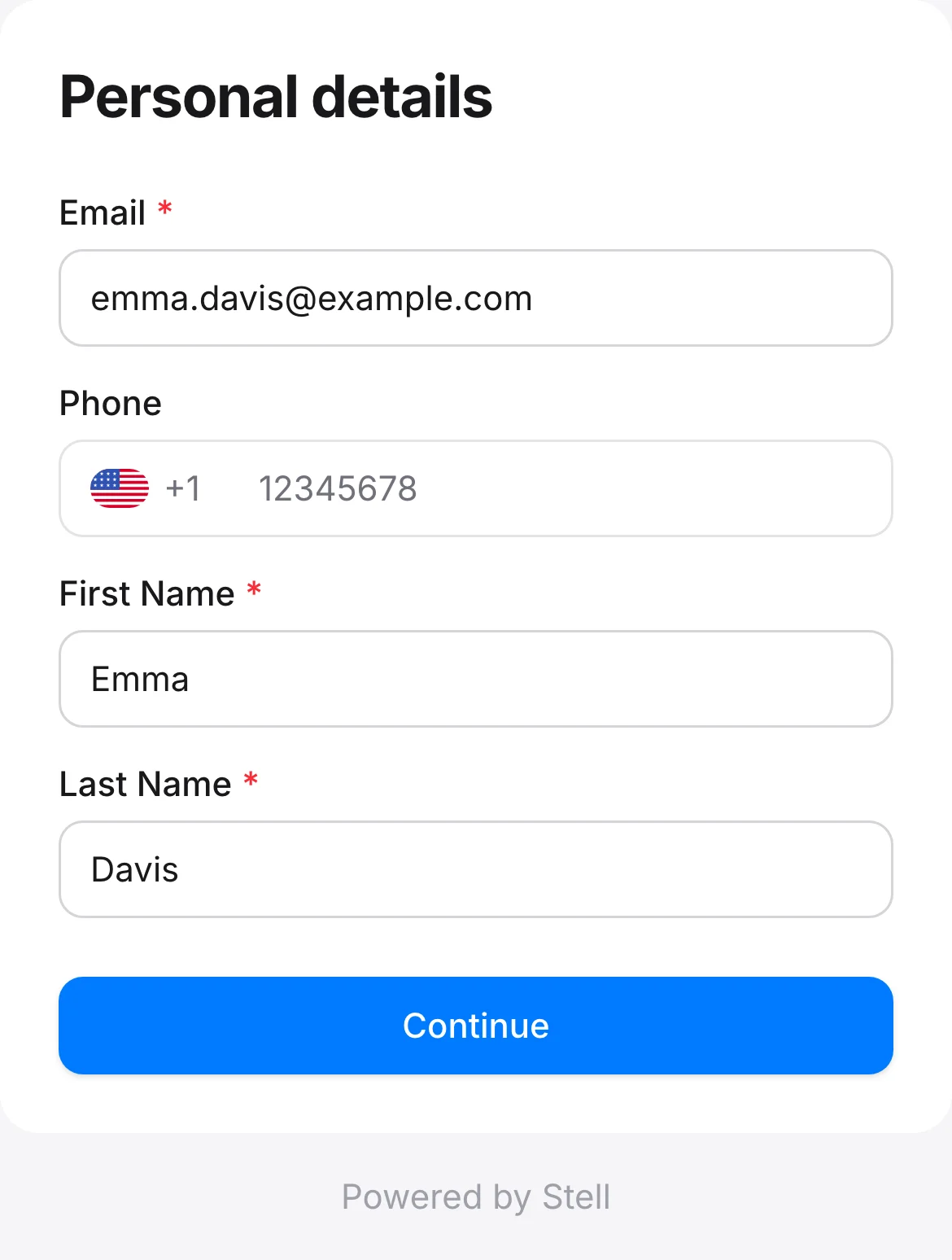
A short form collects the customer’s details. Your program’s configuration decides which fields appear and which are required, marked with an asterisk: name, email, phone, birth date, address, and so on. Validation happens as the customer types, and the phone field has a country-code picker. Customers arriving through a pre-filled link find these fields already completed.
Mintleaf asks for email, phone, and name. Your program defines its own set of fields.
3
Already a member? Verification
When the form is submitted, Stell checks whether the email or phone number matches an existing member. If it does, the customer verifies their identity with a 6-digit code sent by email or SMS, then goes straight to adding their pass. The consents step is skipped, since they accepted when they first enrolled. New customers skip this step, and so do programs using Vipps login, where identity is already verified.
4
Consents
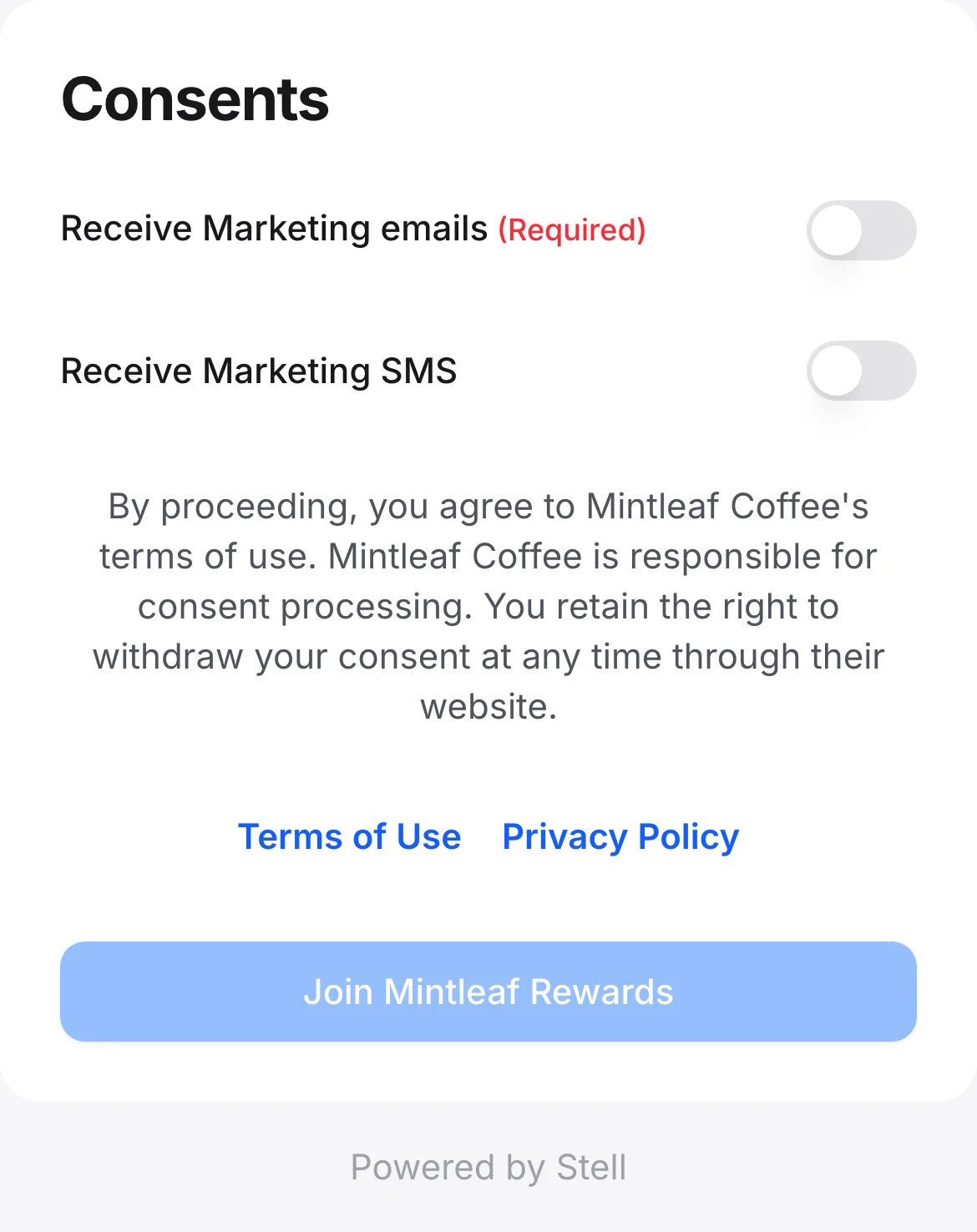
New members see the consents next. Each consent is a toggle, with required ones labeled. The join button stays inactive until every required consent is given. Below the toggles, a legal note names your company as the consent processor, with links to your terms of use and privacy policy.
The required consent must be switched on before the customer can join.
5
Add the pass to the wallet
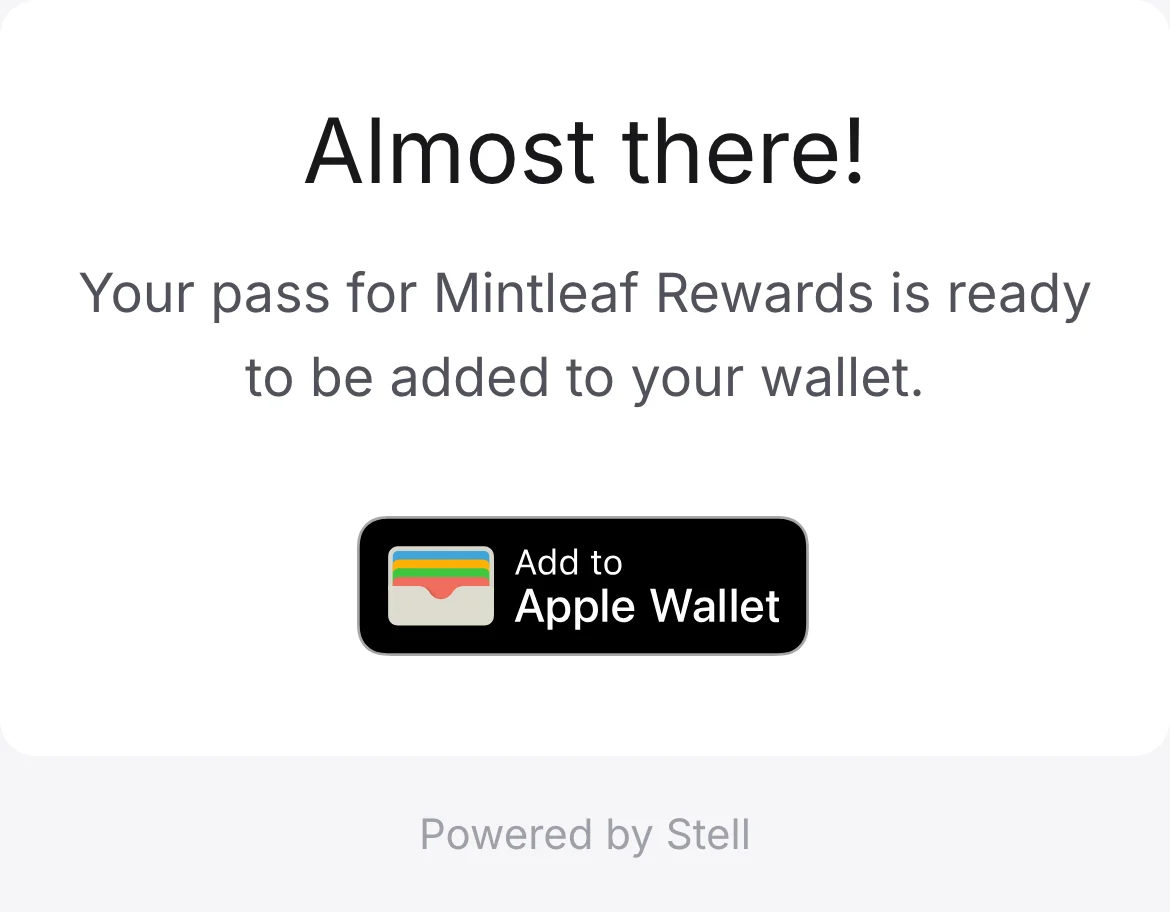
The customer is asked to add their pass: Add to Apple Wallet on iPhone, Add to Google Wallet on Android. On a computer both buttons appear side by side and the customer picks their wallet. The pass is created the moment they tap — the button shows a spinner while it’s prepared — and then handed over in the way the device supports: directly into the wallet on a phone, and in most desktop browsers through a QR code the customer scans with their iPhone. See adding the pass to a wallet for exactly what each device and browser gets.
On an iPhone the customer gets the Apple Wallet badge. Android shows Google Wallet instead.
6
Confirmation
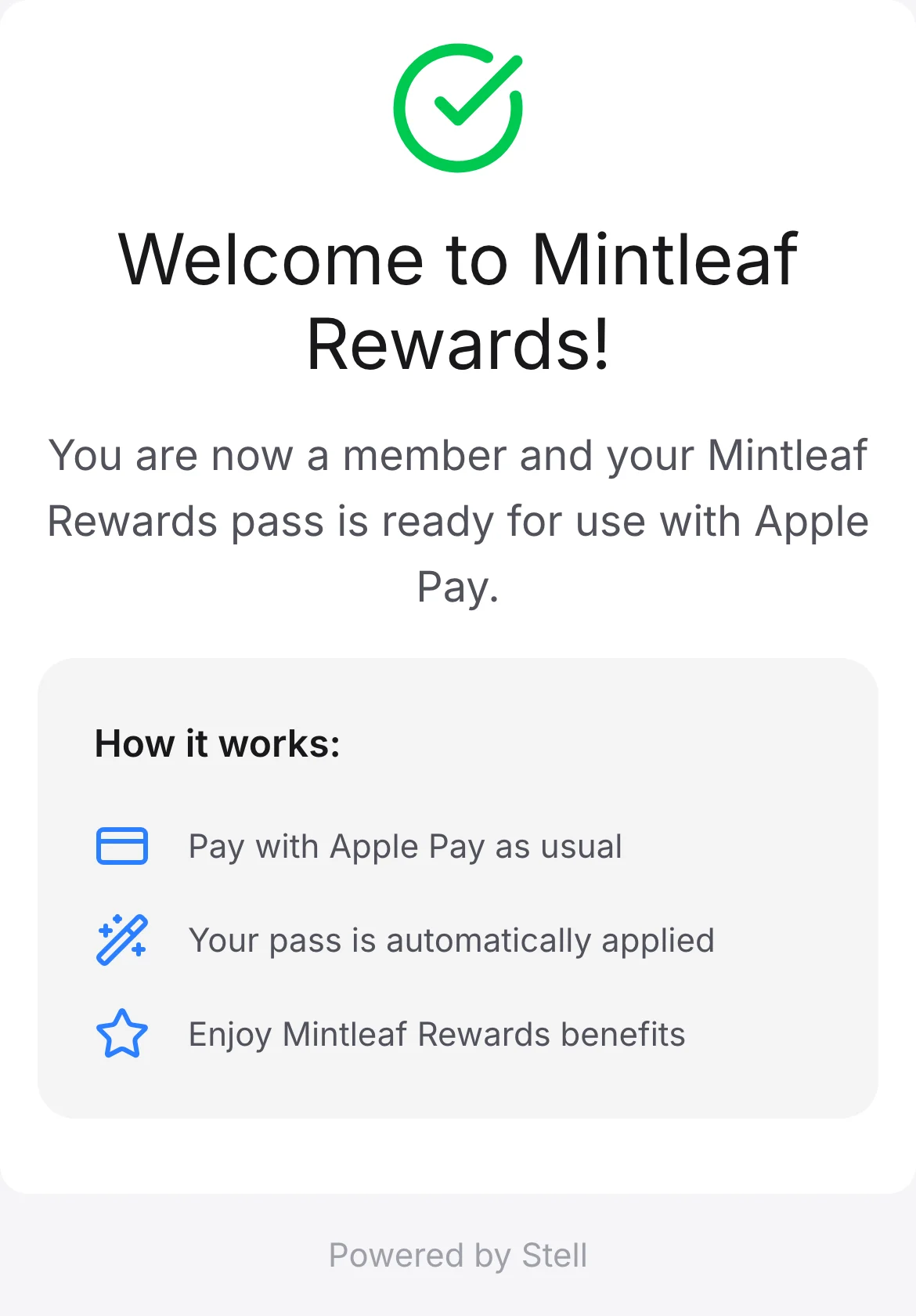
Once the pass is added, the customer sees a confirmation (“Welcome to [program name]!”) with a short how-it-works guide matched to the program’s pass type. If your program has follow-up links configured, like “download our app”, they appear here.
The confirmation explains how to use the pass. Here for an NFC program, where the pass works through Apple Pay.
The flow’s skeleton is the same for everyone. Your program controls the branding and texts, which form fields are asked, which consents appear, a minimum age requirement, which wallets are offered (Apple Wallet, Google Wallet, or both), whether existing members must verify with a code, whether the pass is also sent by email or SMS, and any follow-up links on the confirmation screen. If you want any of these changed, contact support.