

What you need
The configurator
Open the configurator at stell.in/embed/configurator. It has two tabs: On your site for embedding the button in web pages, and In your emails for email templates.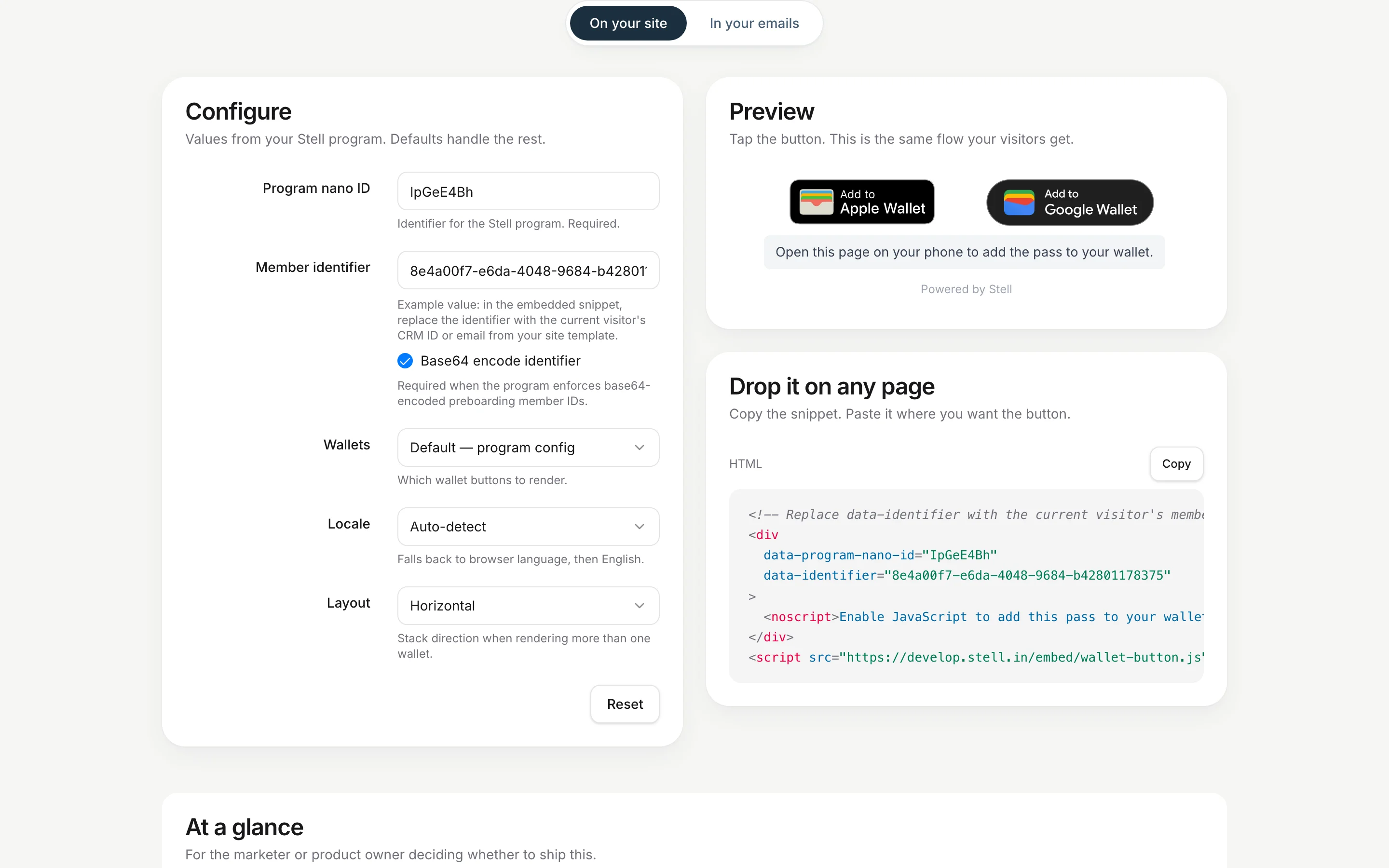
The Preview card renders the real button with your test values. Tapping it runs the same flow your visitors get.
Wallet options
Whatever you pick, the widget never shows a button for a wallet your program doesn’t support. The selection is always filtered against your program’s configuration. Further down the page you’ll find a built-in integration guide with a pre-launch checklist, Content Security Policy notes, a Shopify example, and troubleshooting.
On computers, the widget’s buttons behave the same as in the enrollment
flow: in every desktop browser except Safari on a Mac, Add to Apple
Wallet opens a dialog with a QR code the visitor scans with their iPhone,
and Add to Google Wallet opens Google’s save page in place. See adding
the pass to a wallet.
On your site
1
Configure the button
Open the configurator with your program’s nano ID, enter a test member identifier, and pick wallets, locale, and layout. Check the preview.
2
Copy the snippet
Click Copy on the Drop it on any page card. The snippet looks like this:
3
Paste it into your page template
Place the snippet where the button should appear: a member page, order confirmation, or account area.
4
Make the identifier dynamic
Replace the
data-identifier value with the signed-in visitor’s CRM ID or email from your site template, so every visitor gets their own pass. The button must never render with a hard-coded or shared identifier.In your emails
The In your emails tab generates wallet links for email templates instead of a script. Email clients don’t run JavaScript, so the button is a plain image wrapped in a link.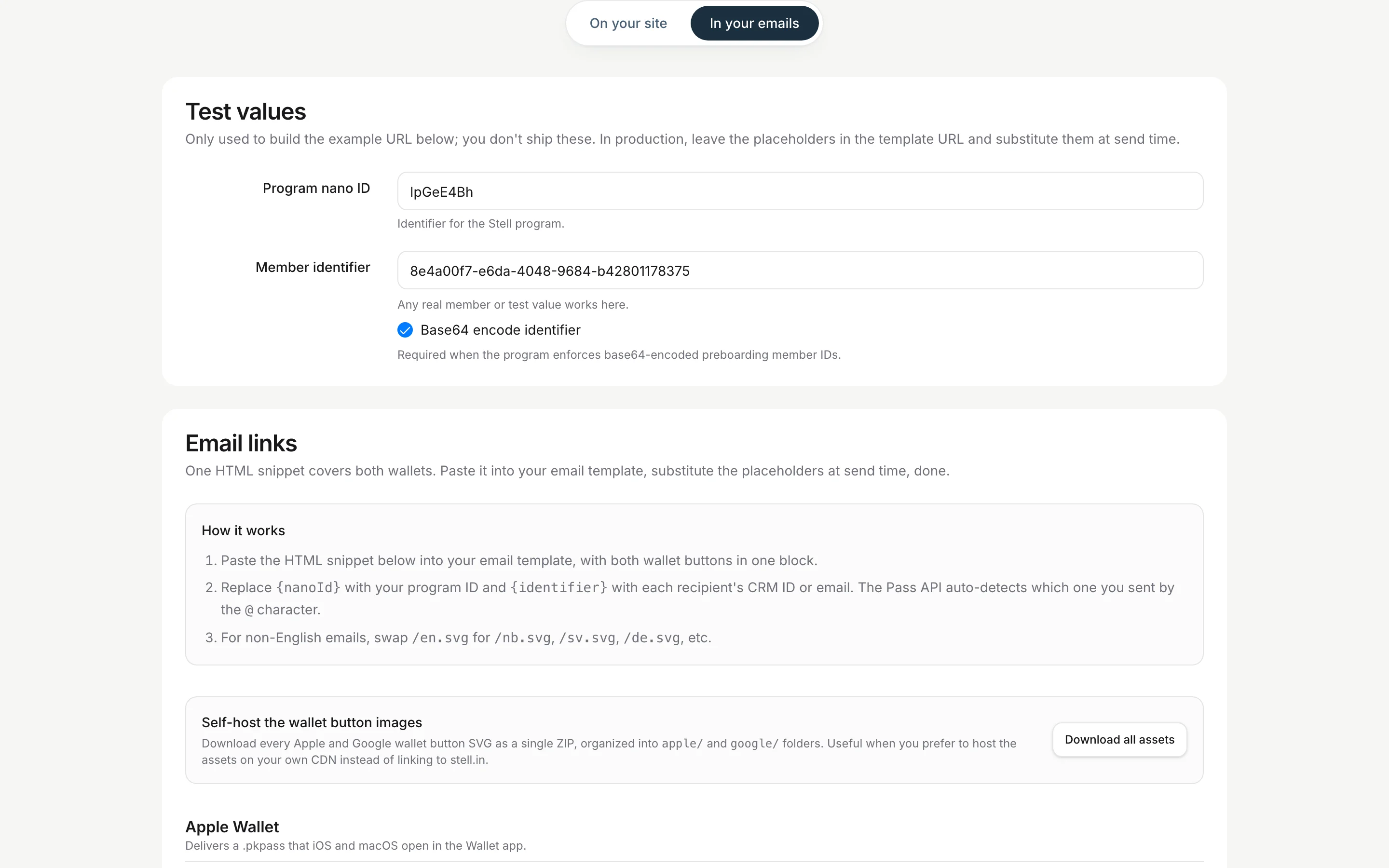
- Paste the HTML snippet from the Email links card into your email template. It contains an Add to Apple Wallet and an Add to Google Wallet button, each linking to a URL template like
https://stell.in/api/pass/{nanoId}/{identifier}?wallet=apple. - At send time, have your email tool replace
{nanoId}with your program’s nano ID and{identifier}with each recipient’s CRM member ID. Their email address works too. - For non-English emails, swap the button image’s
/en.svgfor the matching language (/nb.svg,/sv.svg,/de.svg, and so on).
Before you launch
- Identifier is per-visitor. Each signed-in visitor or email recipient must get their own identifier. Test with at least two different members.
- Test on a real phone. Add a pass to Apple Wallet on an iPhone and Google Wallet on an Android device, not just in a desktop browser.
- Check your Content Security Policy. If your site enforces a strict CSP, allow the Stell origins. The configurator’s guide lists exactly which directives to add.
- Check localization. If your audience isn’t English-speaking, set the locale (or verify auto-detect) and use matching email button images.