> ## Documentation Index
> Fetch the complete documentation index at: https://docs.getstell.com/llms.txt
> Use this file to discover all available pages before exploring further.
# In-store material
> Posters, stands, hanging banners, counter cards, and screens with QR codes — plus what your staff should say
The store is where your program sells itself: the customer is standing at the counter, about to pay, and the benefit is seconds away. In-store material has one job — bridge from the physical space to the customer's phone — and the bridge is almost always a **QR code** pointing at your enrollment link. Scanning it opens the [enrollment flow](/enrollment/how-enrollment-works), and the pass lands in **Apple Wallet** or **Google Wallet** before the coffee is ready.
Use the enrollment QR code you received during onboarding — [contact support](/support/contact) if you don't have it.
The formats below run from a one-line counter card to a ceiling banner visible across the store. Whatever the format, the discipline is the same: one headline, one or two lines of benefit, the QR code, and a scanning instruction. A piece that needs a paragraph isn't working.
## Counter and wall
| Format | The moment | Mintleaf example |
| ---------------------------------- | ------------------------------------------------------------------------------------ | --------------------------------------------------------------------------------------------------------------- |
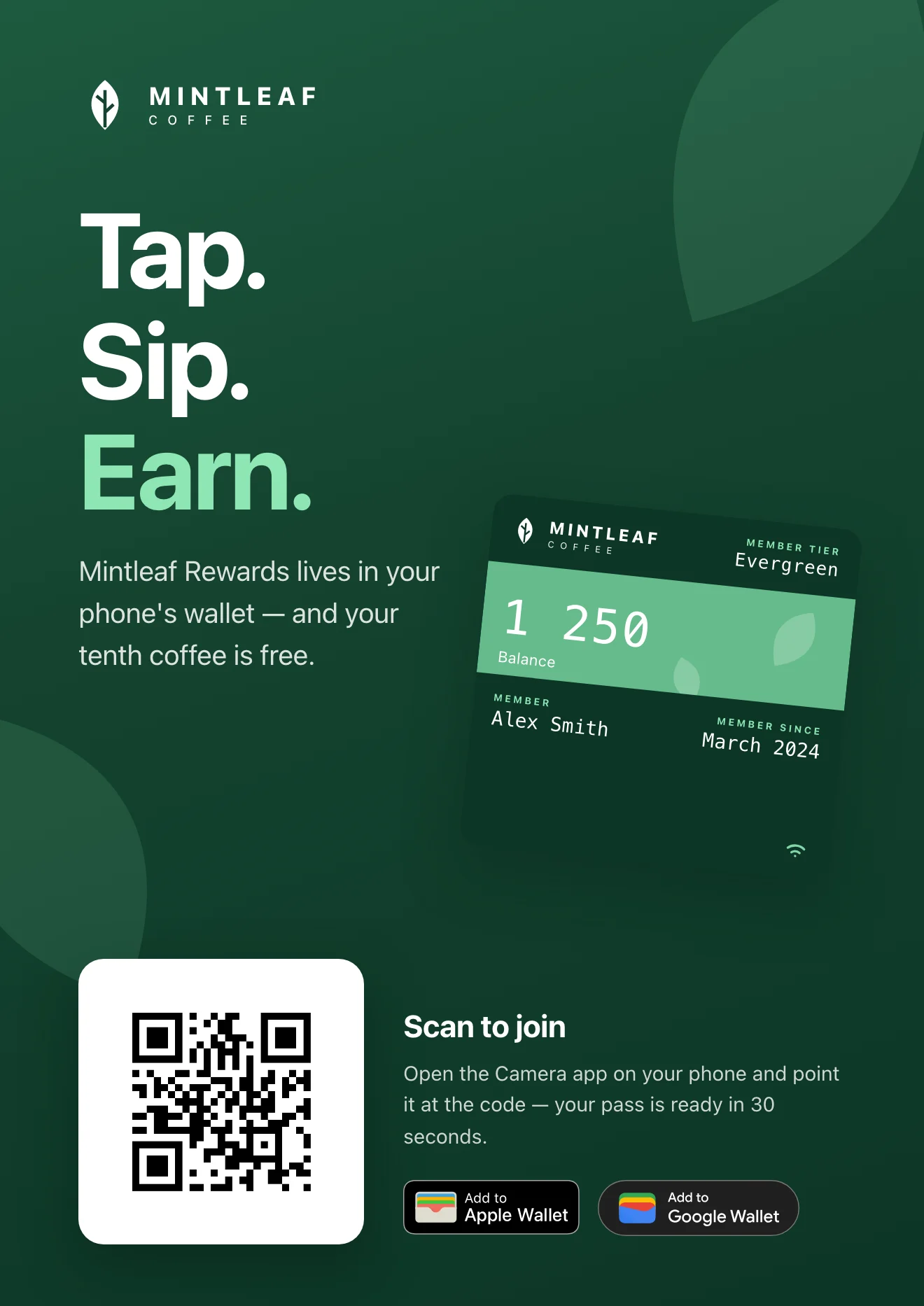
| **Poster** (A3/A2, wall or window) | Seen from across the room — make it a billboard, not a brochure | "Tap. Sip. Earn. — Mintleaf Rewards lives in your phone's wallet. Scan to join." |
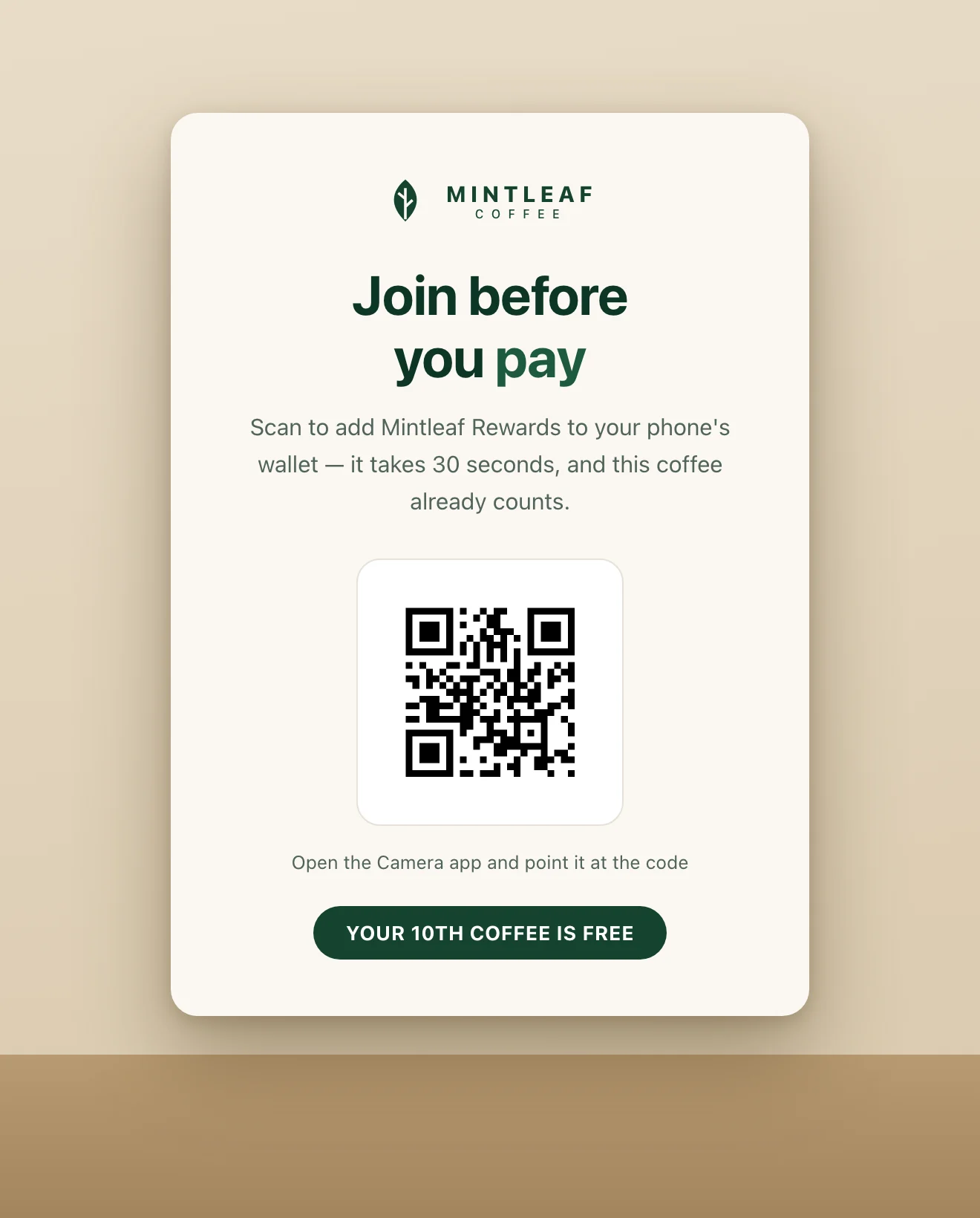
| **Counter card / table tent** | The queue and the table — time to read, phone in hand | "Join before you pay — scan to add Mintleaf Rewards. It takes 30 seconds, and this coffee already counts." |
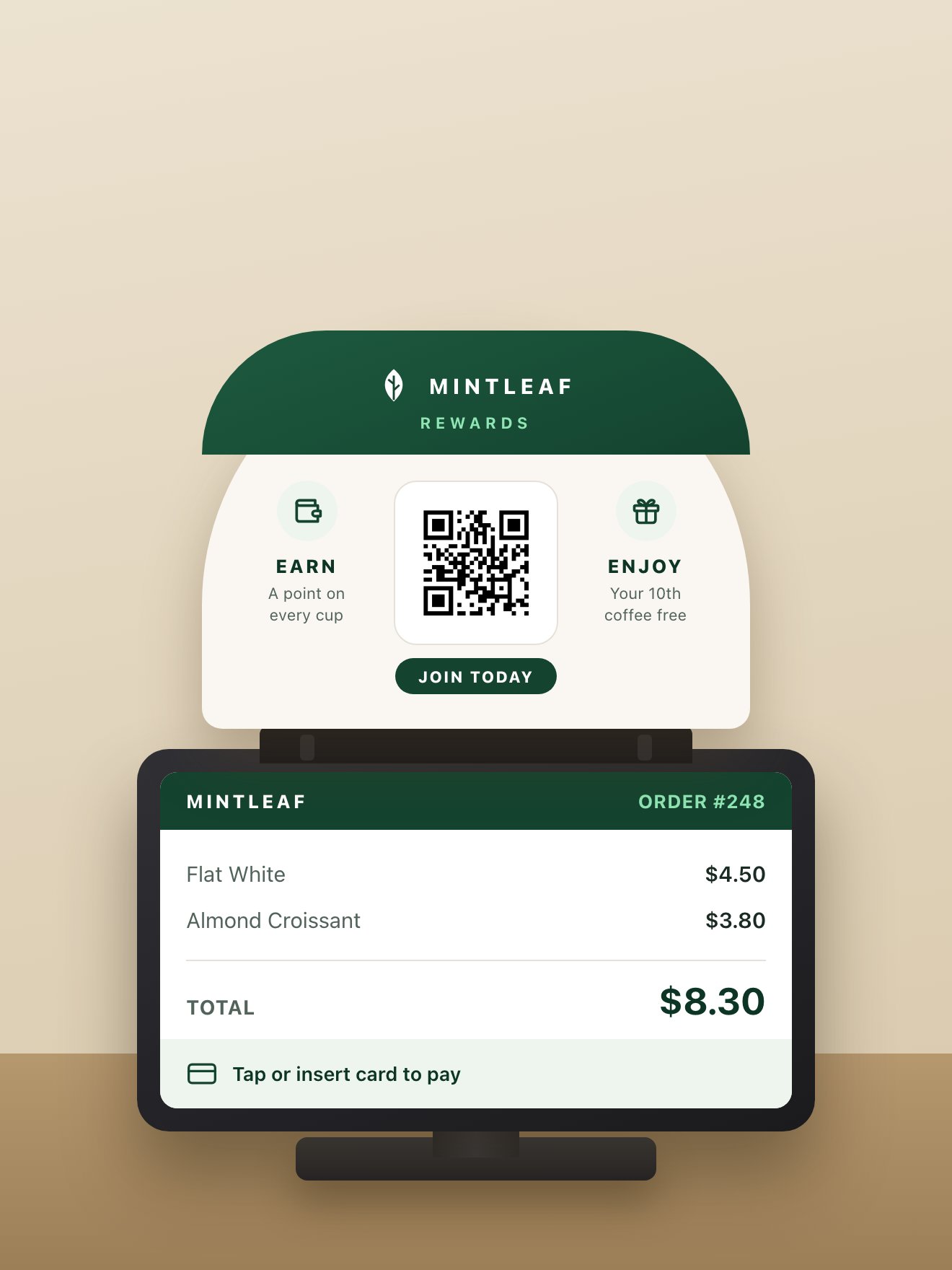
| **Register-topper** | Mounted on the terminal itself, at eye level while the customer pays | "Earn · Enjoy · Join today" with a QR code — small, but it's the one sign the paying customer looks straight at |
| **Receipt footer** | Already in the customer's hand — one line and a QR code, if your printer supports it | "Missing out on free coffee? Scan to join Mintleaf Rewards." |
| **Window sticker** | Signals the program before the customer walks in | The badge plus "Mintleaf Rewards accepted here" |
 ## Stands and banners
Counter material catches customers who are already paying. Stands and banners catch the ones still walking around — in the queue, between the shelves, browsing.
* **Floor stand or easel** — placed in the walkway where customers queue or browse. The strongest version is radically simple: a giant QR code and a single line. No headline contest, no paragraph — the code *is* the message, and it scans from several steps away because of its size. Put your logo in the center of the code if you like, and keep the line direct: "Scan the QR code to join Mintleaf Rewards."
* **Hanging banner** — suspended from the ceiling, visible across the whole store and above the shelf lines. It works at two distances: the headline and brand read from across the room, the QR code takes over once the customer is close. Hang it where people naturally stop — above the queue, the till, or a central aisle — and low enough that the code is scannable without stretching.
* **Illuminated totem (lightbox)** — a slim, backlit floor column. Same single-line-and-QR discipline as the floor stand, but it glows: it holds its own in a dim corner, a shop window, or after dark, and reads as a permanent fixture rather than a poster. Place it where people pause, and keep the QR code large.
* **Outdoor A-frame** — a pavement sign on the sidewalk, catching customers before they're even inside. Keep it to one headline and a QR code big enough to scan from a stride away — and check your local rules on what you're allowed to place on the pavement.
## Stands and banners
Counter material catches customers who are already paying. Stands and banners catch the ones still walking around — in the queue, between the shelves, browsing.
* **Floor stand or easel** — placed in the walkway where customers queue or browse. The strongest version is radically simple: a giant QR code and a single line. No headline contest, no paragraph — the code *is* the message, and it scans from several steps away because of its size. Put your logo in the center of the code if you like, and keep the line direct: "Scan the QR code to join Mintleaf Rewards."
* **Hanging banner** — suspended from the ceiling, visible across the whole store and above the shelf lines. It works at two distances: the headline and brand read from across the room, the QR code takes over once the customer is close. Hang it where people naturally stop — above the queue, the till, or a central aisle — and low enough that the code is scannable without stretching.
* **Illuminated totem (lightbox)** — a slim, backlit floor column. Same single-line-and-QR discipline as the floor stand, but it glows: it holds its own in a dim corner, a shop window, or after dark, and reads as a permanent fixture rather than a poster. Place it where people pause, and keep the QR code large.
* **Outdoor A-frame** — a pavement sign on the sidewalk, catching customers before they're even inside. Keep it to one headline and a QR code big enough to scan from a stride away — and check your local rules on what you're allowed to place on the pavement.
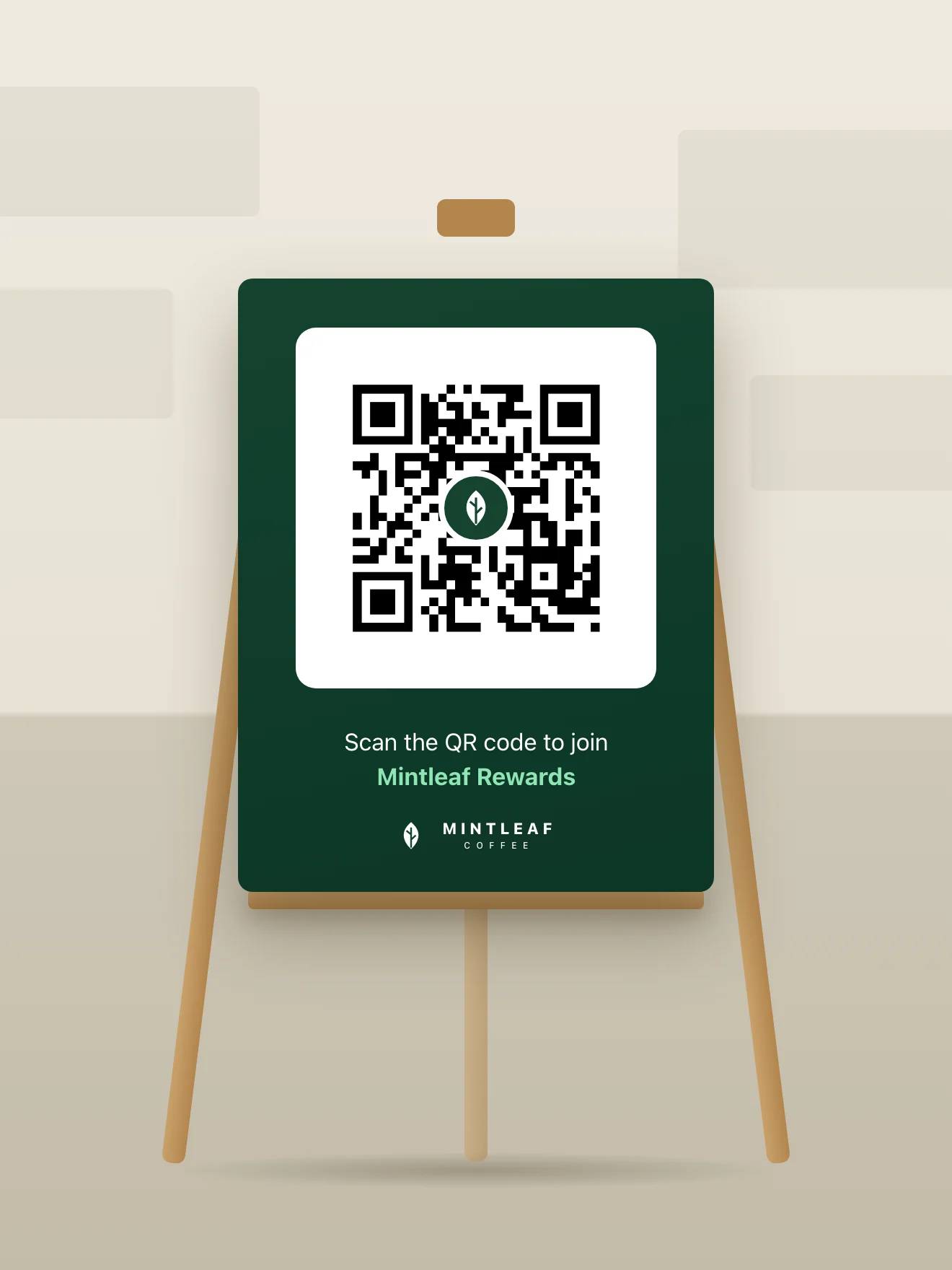
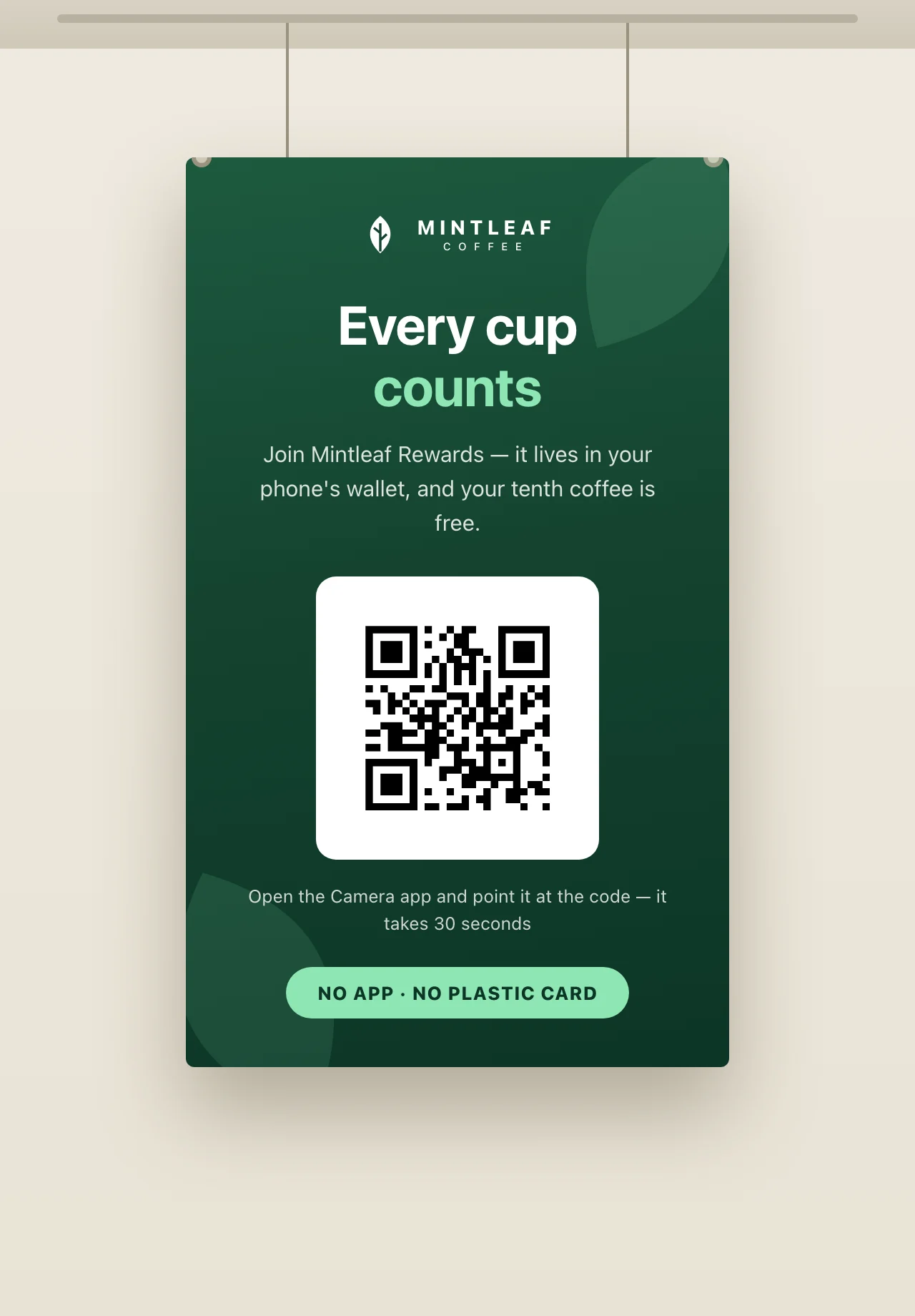
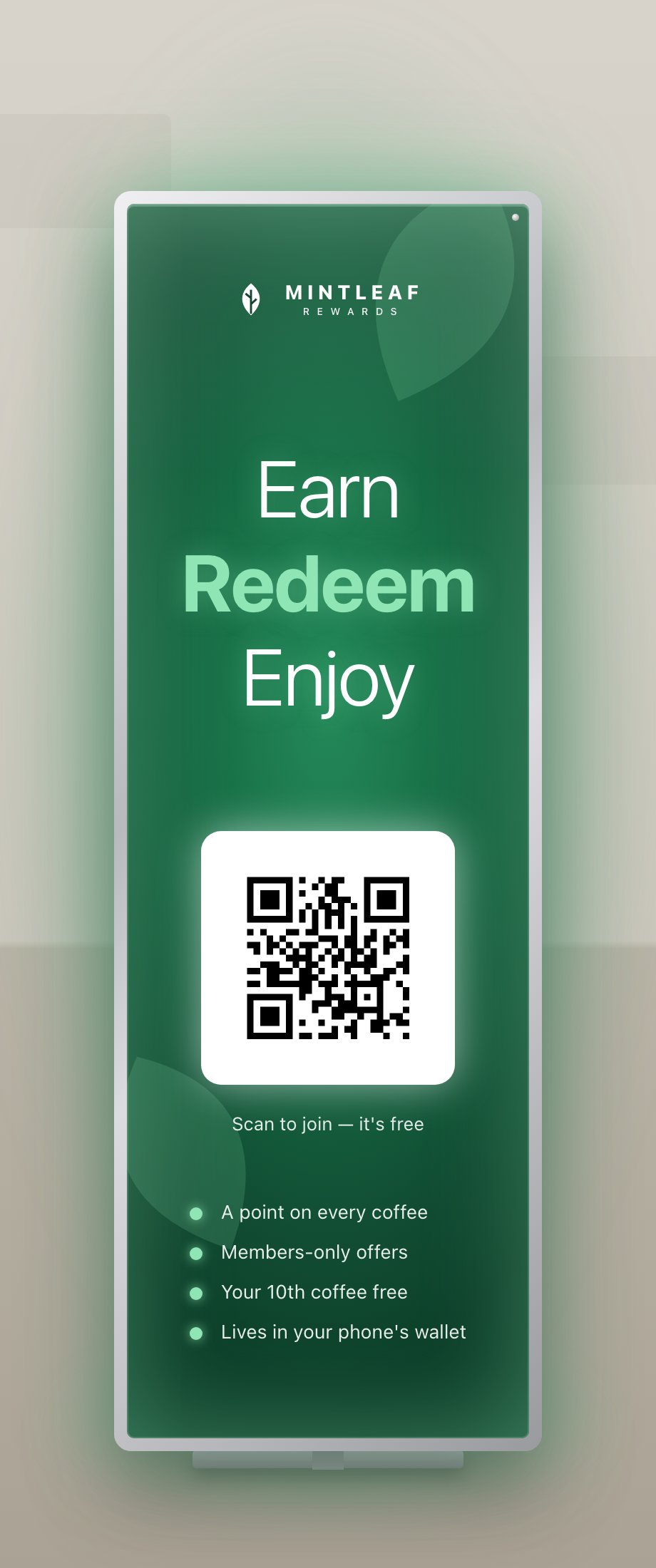
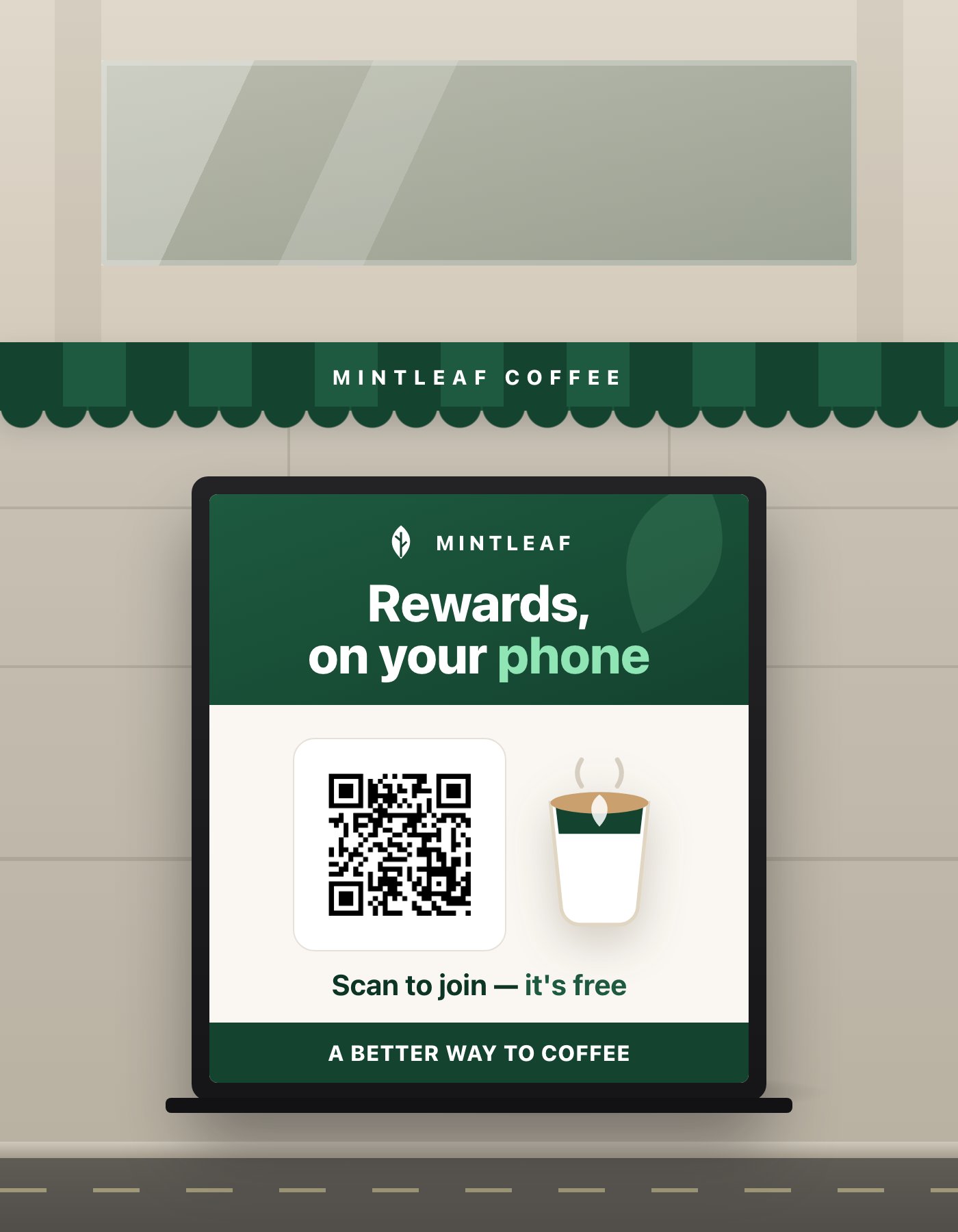 Bigger codes scan from further away. For stands and banners, make the QR code far larger than feels natural on a design canvas — it should scan comfortably from where customers actually stand, not from where the designer sits.
## Print rules for the badge and QR
Print is the one channel with its own badge rules — a printed badge can't be tapped, so it works differently:
* **Use the print-quality artwork.** Badges in print must come from the official EPS (vector) files, never from a screenshot or a web image scaled up.
* **Pair the badge with the QR code.** The badge tells the customer what they'll get; the QR code is how they get it. Apple's print guidance pairs them with a scanning instruction — for example: *"Scan the code to add your pass. Just open the Camera app on your iPhone and point it at the code."* Android phones scan the same code from their camera too.
* **Give the badge room.** Same clear-space rule as everywhere else — see [using the wallet badges](/promote/overview#using-the-wallet-badges).
* **Test-scan the proof.** Before the print run, scan the actual printed proof — not the PDF on your screen — from a realistic distance, with both an iPhone and an Android phone. For stands and banners, test from where customers will actually stand. A QR code that's too small, too low-contrast, or printed on glossy curved material fails quietly.
Never stretch, recolor, or screenshot a wallet badge for print. If the file you have isn't an official vector file, get the right one before going to print — see [using the wallet badges](/promote/overview#using-the-wallet-badges).
## Digital screens
Menu boards and customer-facing displays reach every customer in the store, and they can show more than print: imagery, the pass itself, even motion. Two patterns work:
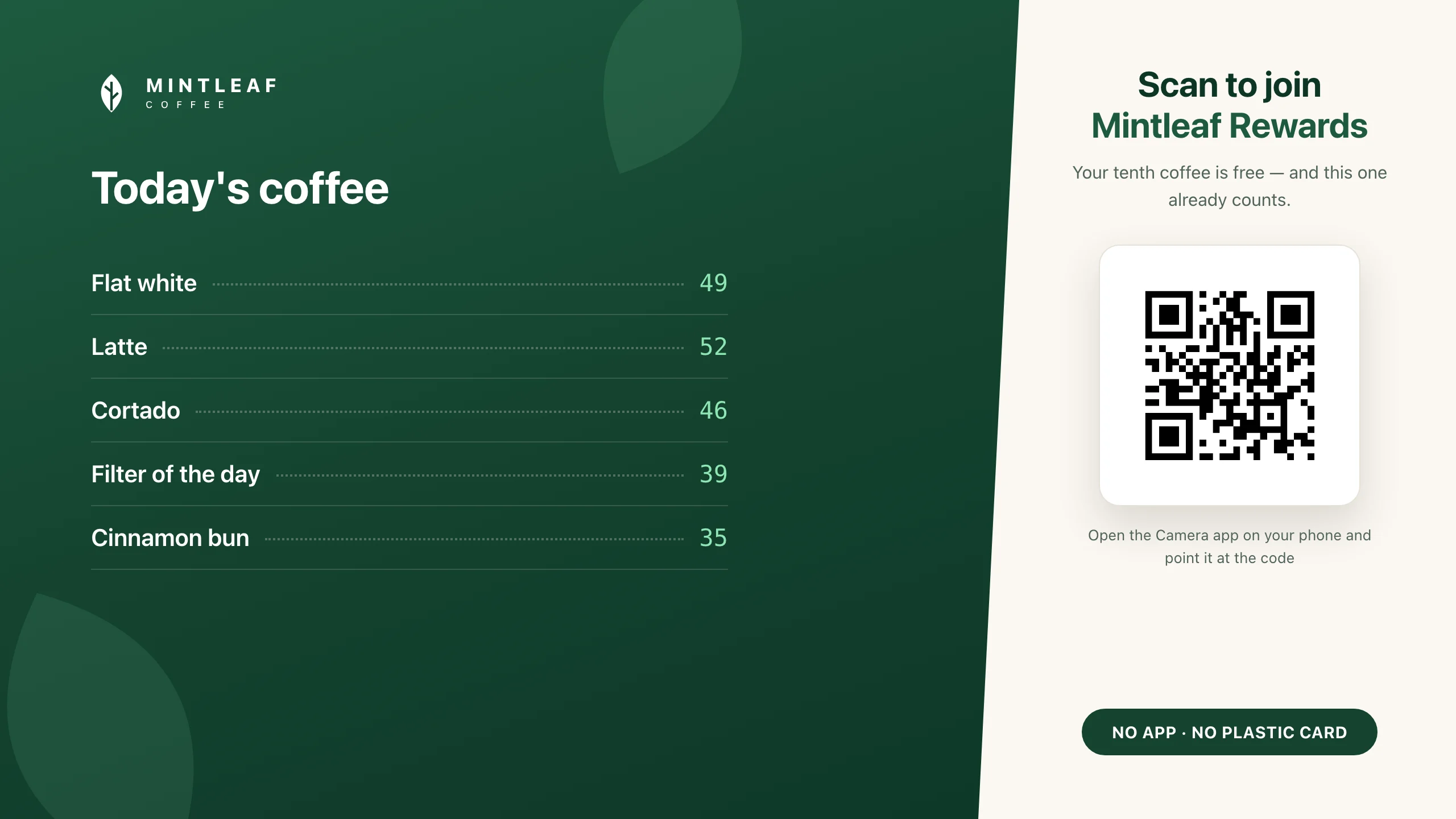
* **A dedicated promo slide** — image-led: the pass on a phone, one headline, the QR code with a scanning instruction. Rotate it into your menu loop, or run it full-time on a second screen near the queue.
* **A permanent corner** — if the screen is primarily a menu, give the program a fixed panel or corner on every slide instead of its own slide, so the QR code never disappears while a customer is reaching for their phone.
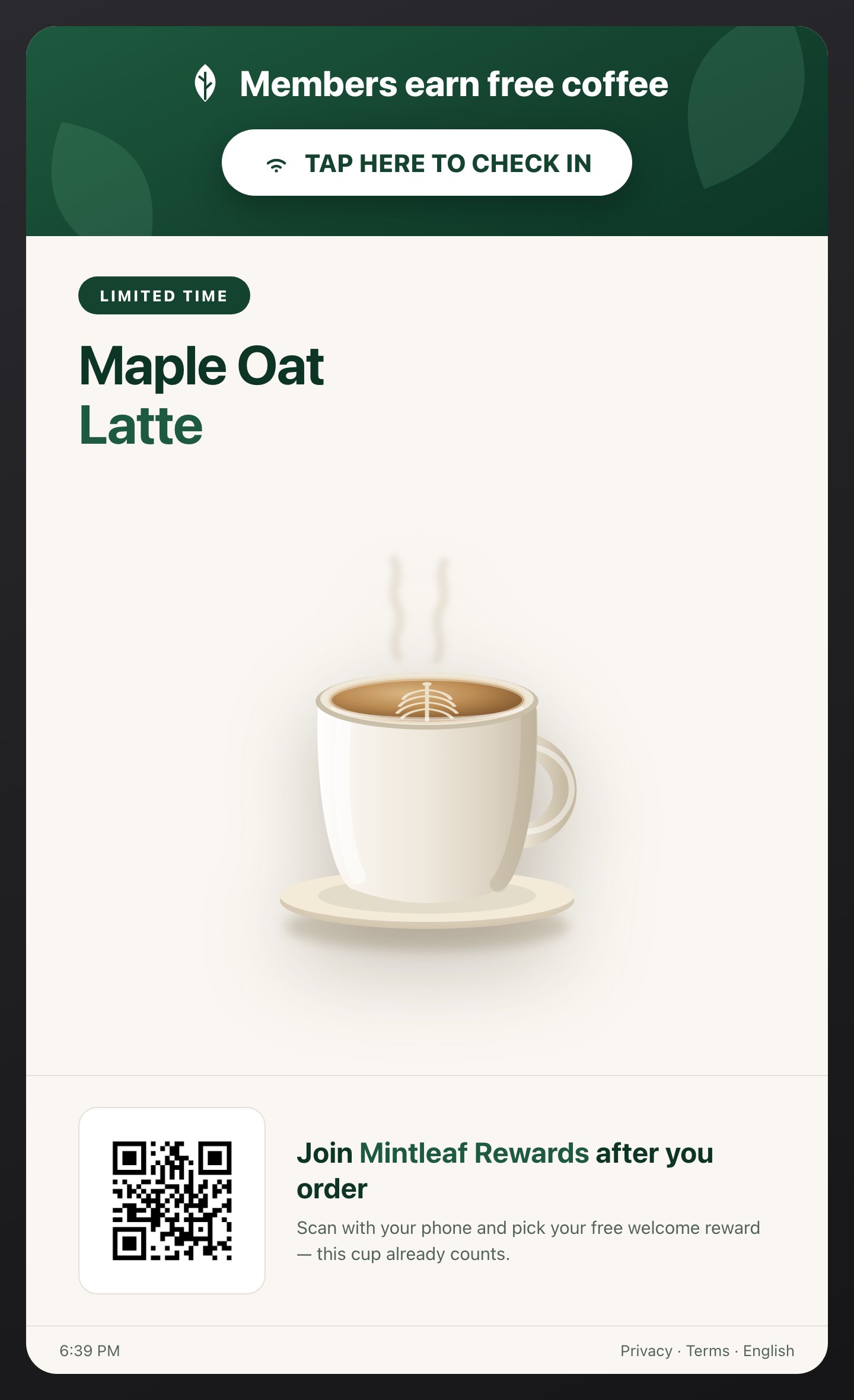
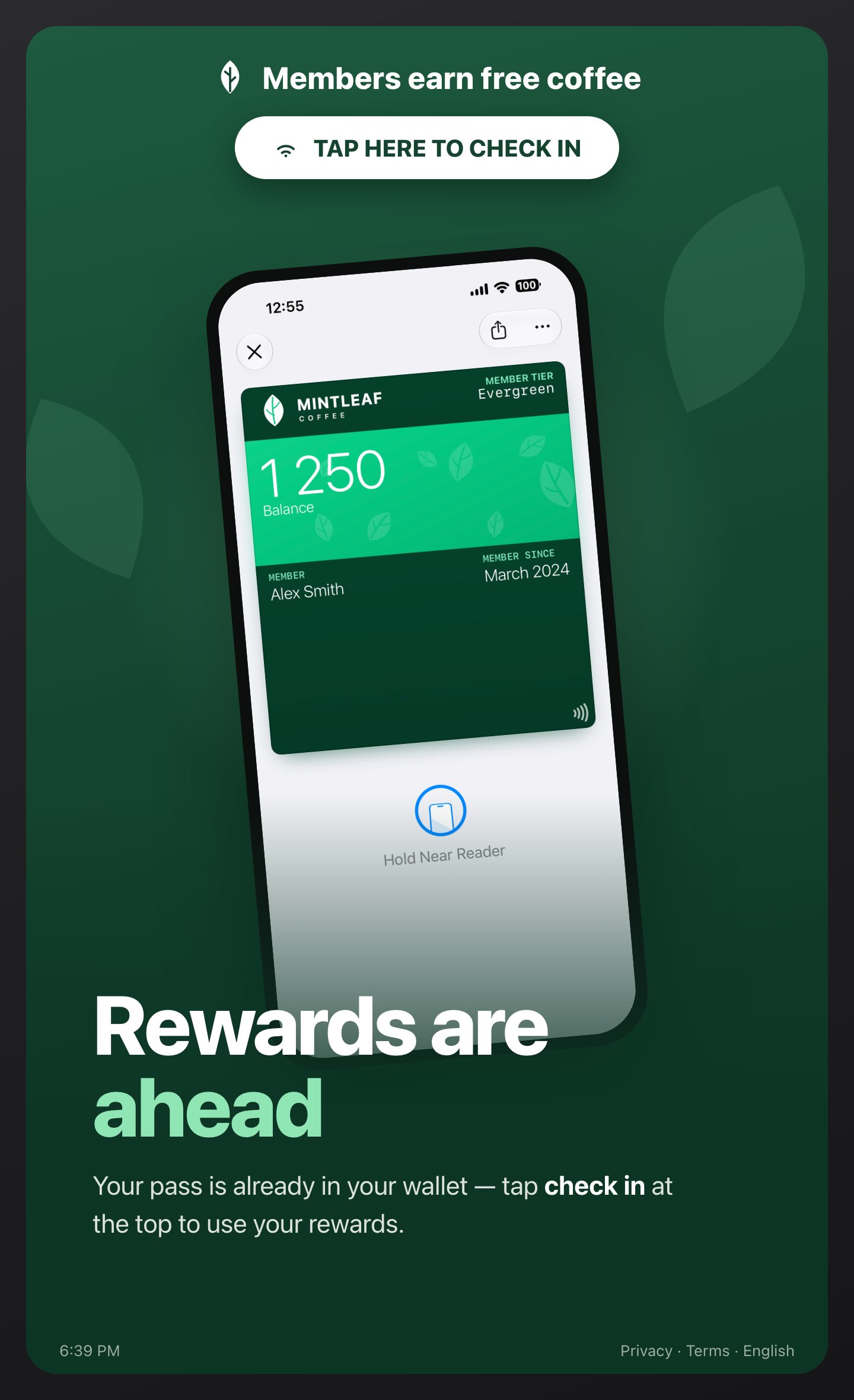
* **A self-order kiosk** — if customers order at a kiosk, the screen is already interactive and right in front of them. Put a **check-in** prompt on the attract loop, and a "join after you order" step with a QR code at the end — the customer is looking straight at it, phone often already in hand.
Bigger codes scan from further away. For stands and banners, make the QR code far larger than feels natural on a design canvas — it should scan comfortably from where customers actually stand, not from where the designer sits.
## Print rules for the badge and QR
Print is the one channel with its own badge rules — a printed badge can't be tapped, so it works differently:
* **Use the print-quality artwork.** Badges in print must come from the official EPS (vector) files, never from a screenshot or a web image scaled up.
* **Pair the badge with the QR code.** The badge tells the customer what they'll get; the QR code is how they get it. Apple's print guidance pairs them with a scanning instruction — for example: *"Scan the code to add your pass. Just open the Camera app on your iPhone and point it at the code."* Android phones scan the same code from their camera too.
* **Give the badge room.** Same clear-space rule as everywhere else — see [using the wallet badges](/promote/overview#using-the-wallet-badges).
* **Test-scan the proof.** Before the print run, scan the actual printed proof — not the PDF on your screen — from a realistic distance, with both an iPhone and an Android phone. For stands and banners, test from where customers will actually stand. A QR code that's too small, too low-contrast, or printed on glossy curved material fails quietly.
Never stretch, recolor, or screenshot a wallet badge for print. If the file you have isn't an official vector file, get the right one before going to print — see [using the wallet badges](/promote/overview#using-the-wallet-badges).
## Digital screens
Menu boards and customer-facing displays reach every customer in the store, and they can show more than print: imagery, the pass itself, even motion. Two patterns work:
* **A dedicated promo slide** — image-led: the pass on a phone, one headline, the QR code with a scanning instruction. Rotate it into your menu loop, or run it full-time on a second screen near the queue.
* **A permanent corner** — if the screen is primarily a menu, give the program a fixed panel or corner on every slide instead of its own slide, so the QR code never disappears while a customer is reaching for their phone.
* **A self-order kiosk** — if customers order at a kiosk, the screen is already interactive and right in front of them. Put a **check-in** prompt on the attract loop, and a "join after you order" step with a QR code at the end — the customer is looking straight at it, phone often already in hand.
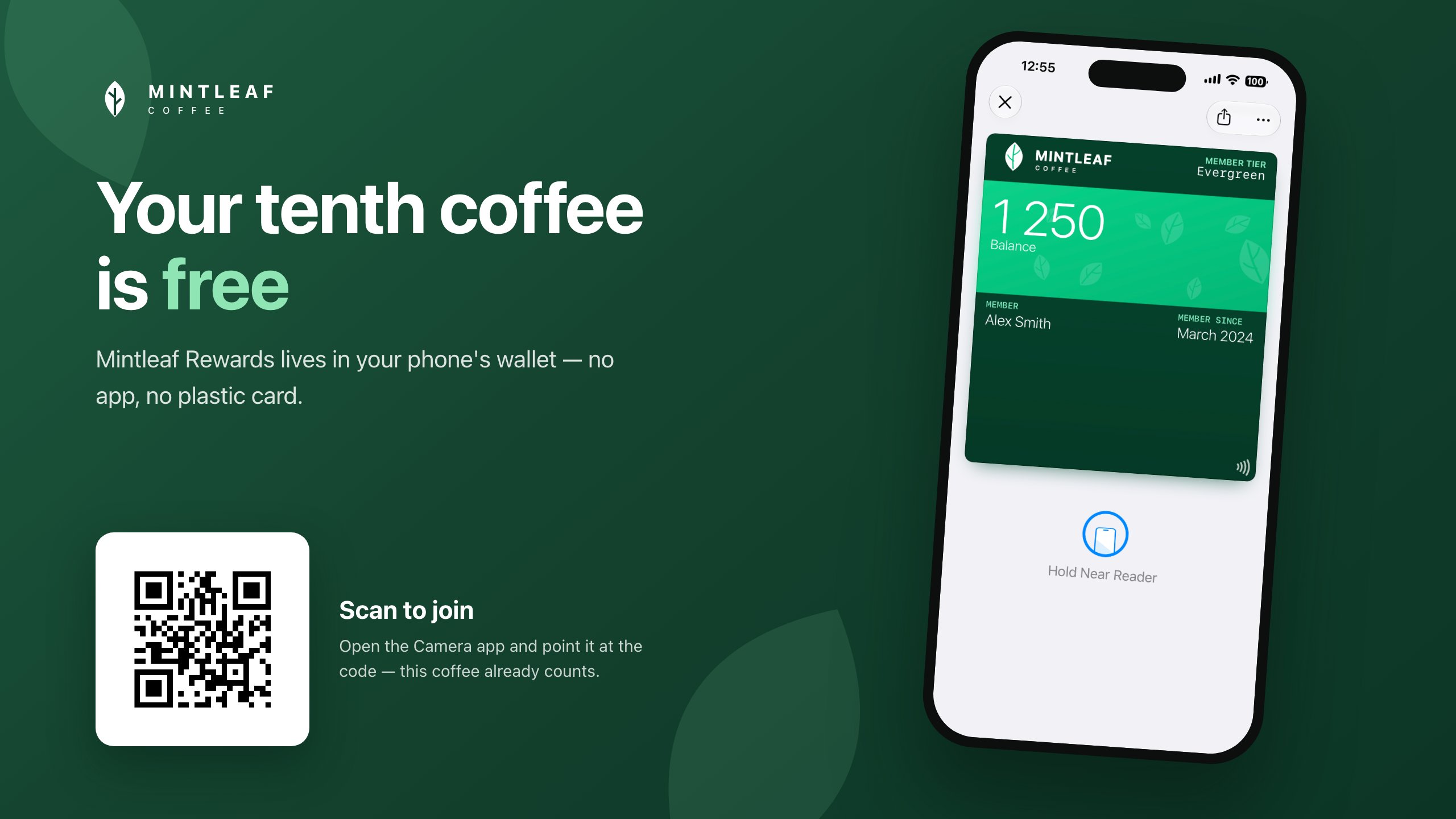
 Two rules carry over from print, sharpened for screens:
* **Timing.** If the promo is a rotating slide, leave it up 10–15 seconds — spotting the code, raising the phone, and scanning takes longer than reading. The permanent-corner pattern avoids the problem entirely.
* **Size and distance.** Customers scan screens from further away than posters — behind a counter, above a till. Make the code generously large and test-scan from the customer's side of the counter.
## A tap-to-check-in point
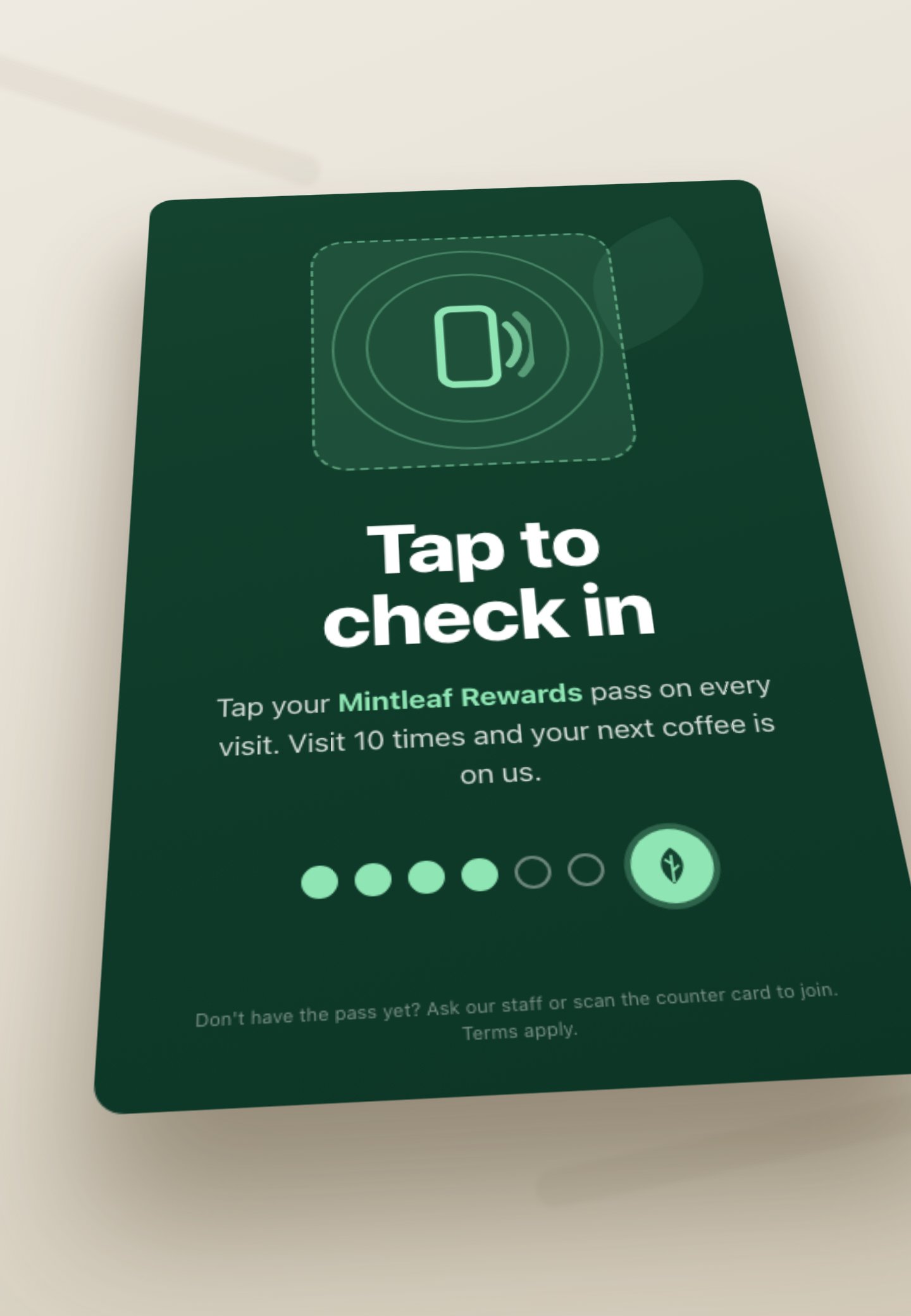
Almost everything above bridges a *new* customer to their phone with a QR code. A tap point is the other end of the journey — for customers who already carry the pass. A mat or decal placed around a Stell **Terminal** turns the tap point into a check-in: the member taps their phone — the same tap they use to pay — and the visit is logged automatically. No scan, no app, nothing to type.
It earns its spot at the counter precisely because it isn't a QR code: returning members get a one-second ritual, and the artwork doubles as a reminder that the program is worth tapping in for.
* Keep the copy to the action and the payoff: "Tap to check in — visit 10 times and your next coffee is on us."
* It only works where your program is **tap-based** and a Terminal is present. If your program uses a barcode instead, this piece doesn't apply — lead with the QR formats above.
* New customers still need the QR code to join first, so pair the tap point with a nearby counter card or register-topper.
Two rules carry over from print, sharpened for screens:
* **Timing.** If the promo is a rotating slide, leave it up 10–15 seconds — spotting the code, raising the phone, and scanning takes longer than reading. The permanent-corner pattern avoids the problem entirely.
* **Size and distance.** Customers scan screens from further away than posters — behind a counter, above a till. Make the code generously large and test-scan from the customer's side of the counter.
## A tap-to-check-in point
Almost everything above bridges a *new* customer to their phone with a QR code. A tap point is the other end of the journey — for customers who already carry the pass. A mat or decal placed around a Stell **Terminal** turns the tap point into a check-in: the member taps their phone — the same tap they use to pay — and the visit is logged automatically. No scan, no app, nothing to type.
It earns its spot at the counter precisely because it isn't a QR code: returning members get a one-second ritual, and the artwork doubles as a reminder that the program is worth tapping in for.
* Keep the copy to the action and the payoff: "Tap to check in — visit 10 times and your next coffee is on us."
* It only works where your program is **tap-based** and a Terminal is present. If your program uses a barcode instead, this piece doesn't apply — lead with the QR formats above.
* New customers still need the QR code to join first, so pair the tap point with a nearby counter card or register-topper.
 ## What your staff should say
Material gets attention; staff close the deal. One practiced line at the till is worth a wall of posters:
> "Do you have our rewards pass? It's free, it lives in your phone's wallet, and you're in before your coffee's ready — want me to show you?"
Then point at the counter card. The customer scans, and the staff member watches one enrollment happen — after that they can answer anything. The questions that come up, and the answers:
No. The pass lives in the wallet your phone already has — Apple Wallet on iPhone, Google Wallet on Android. Scan the code, fill in a few details, tap **Add**, done.
Yes — the same QR code works for everyone. iPhones get the pass in Apple Wallet, Android phones in Google Wallet.
For a tap-to-use program like Mintleaf Rewards: nothing changes — the customer pays by tapping their phone like they always do, and the pass is applied automatically (on iPhone it works through Apple Pay). For barcode programs, the customer opens the pass in their wallet and shows the code at the till.
The enrollment flow shows exactly what's collected and asks for consent before anything is stored, with a link to your privacy policy. Staff shouldn't improvise privacy answers — point at the consent screen, it says it best.
When something goes wrong at the counter — a scan that won't open, a pass that won't add — [enrollment troubleshooting](/enrollment/troubleshooting) is the staff reference for the common cases.
## What your staff should say
Material gets attention; staff close the deal. One practiced line at the till is worth a wall of posters:
> "Do you have our rewards pass? It's free, it lives in your phone's wallet, and you're in before your coffee's ready — want me to show you?"
Then point at the counter card. The customer scans, and the staff member watches one enrollment happen — after that they can answer anything. The questions that come up, and the answers:
No. The pass lives in the wallet your phone already has — Apple Wallet on iPhone, Google Wallet on Android. Scan the code, fill in a few details, tap **Add**, done.
Yes — the same QR code works for everyone. iPhones get the pass in Apple Wallet, Android phones in Google Wallet.
For a tap-to-use program like Mintleaf Rewards: nothing changes — the customer pays by tapping their phone like they always do, and the pass is applied automatically (on iPhone it works through Apple Pay). For barcode programs, the customer opens the pass in their wallet and shows the code at the till.
The enrollment flow shows exactly what's collected and asks for consent before anything is stored, with a link to your privacy policy. Staff shouldn't improvise privacy answers — point at the consent screen, it says it best.
When something goes wrong at the counter — a scan that won't open, a pass that won't add — [enrollment troubleshooting](/enrollment/troubleshooting) is the staff reference for the common cases.