> ## Documentation Index
> Fetch the complete documentation index at: https://docs.getstell.com/llms.txt
> Use this file to discover all available pages before exploring further.
# Email
> Announce your program and invite existing customers to add their pass — with rendered example emails to model yours on
Email is the strongest launch channel: you already know who to send to, and recipients who exist in your CRM can get their pass with **one tap** — the email wallet links issue the pass directly, no enrollment form. Everyone else clicks through to the enrollment flow instead. Either way, the email's only job is to make adding the pass feel as easy as it is.
## Anatomy of a program email
A good program email is short and has exactly one call to action. The Mintleaf Rewards announcement below is annotated top to bottom:
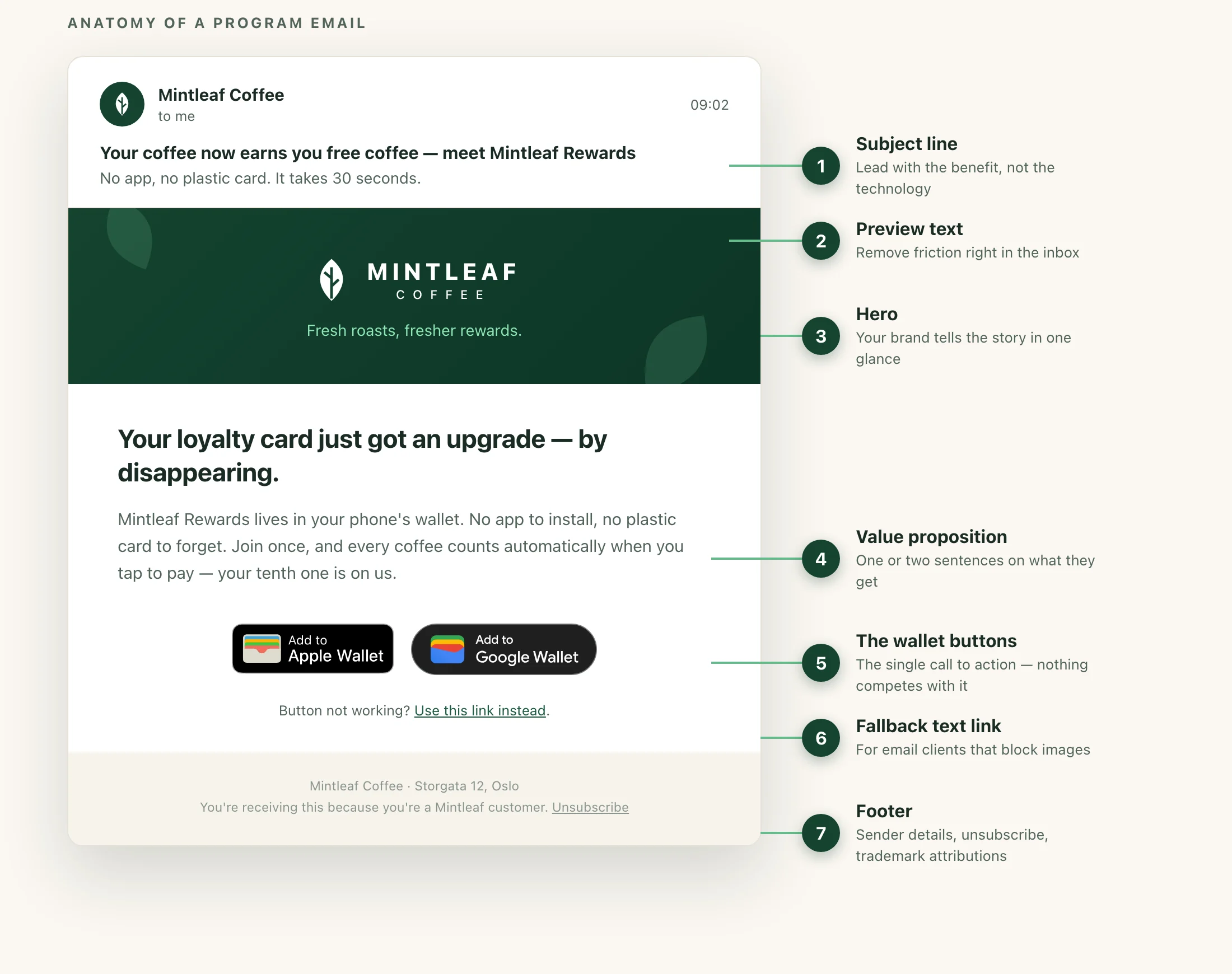 1. **Subject line** — lead with the benefit, not the technology. "Your coffee now earns you free coffee" beats "Introducing our new digital wallet pass solution".
2. **Preview text** — the line shown next to the subject in the inbox. Use it to remove friction: "No app to install — it takes one tap."
3. **Hero** — your brand and the pass itself. Showing the pass on a phone tells the whole story in one image.
4. **Value proposition** — one or two sentences on what the customer gets and why it's effortless.
5. **The wallet buttons** — the single call to action: **Add to Apple Wallet** and **Add to Google Wallet** buttons, side by side. Nothing else in the email should compete with them.
6. **Fallback text link** — a plain link under the buttons ("Button not working? Use this link") for email clients that block images.
7. **Footer** — your usual sender details and unsubscribe link. If you market in the United States, the wallet providers expect their trademark attributions here — see [using the wallet badges](/promote/overview#using-the-wallet-badges).
## Example emails
Brands lead differently — some with a full campaign production, some with a personal note, some with the product itself. The three Mintleaf examples below show the range; pick the style closest to your brand and model your email on it. The structure never changes: one message, one call to action.
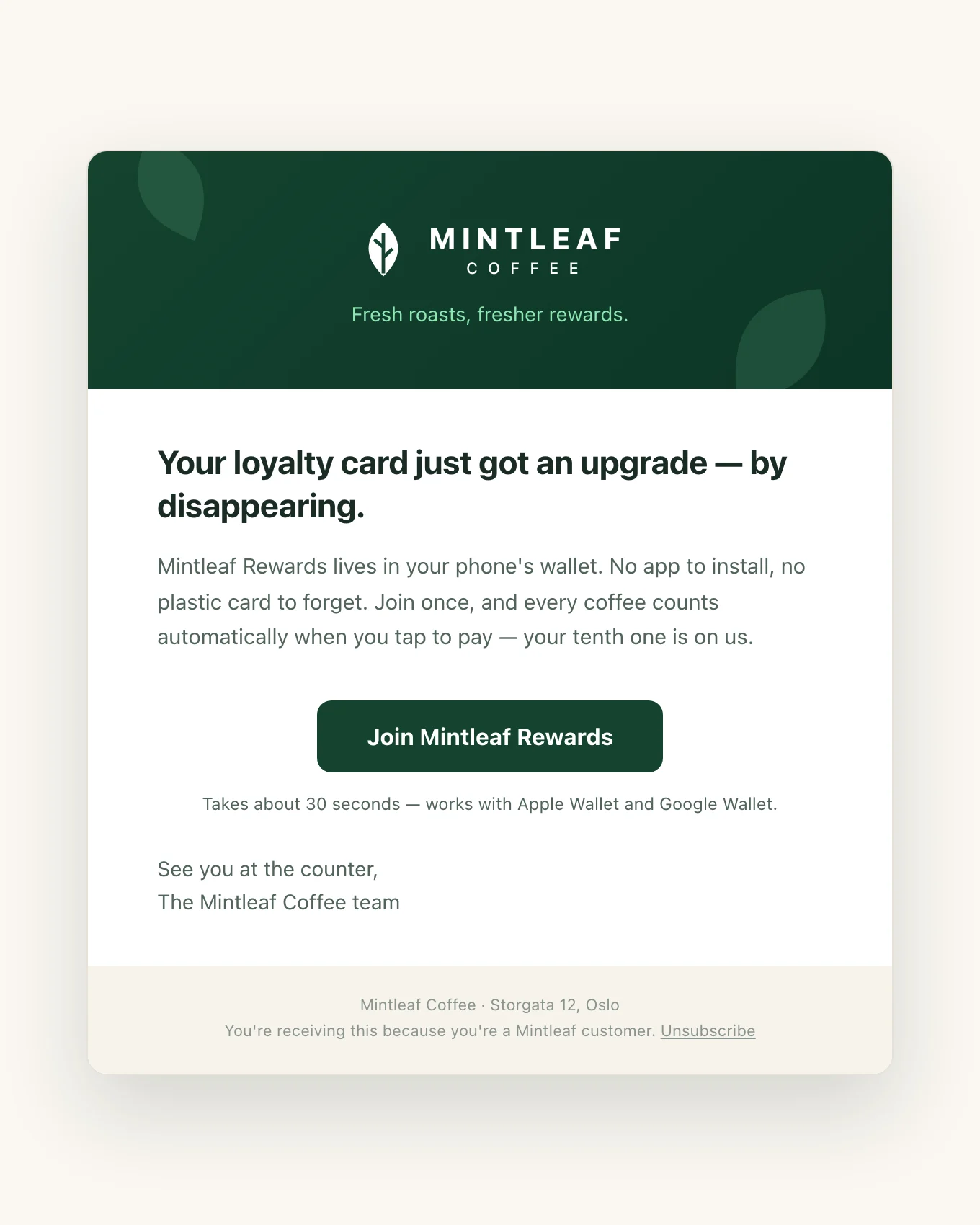
**Campaign style** — for your full mailing list at launch. A branded hero, the value proposition, and one button. Recipients may or may not be in your CRM, so the call to action links to the enrollment flow.
**Subject:** Your coffee now earns you free coffee — meet Mintleaf Rewards
1. **Subject line** — lead with the benefit, not the technology. "Your coffee now earns you free coffee" beats "Introducing our new digital wallet pass solution".
2. **Preview text** — the line shown next to the subject in the inbox. Use it to remove friction: "No app to install — it takes one tap."
3. **Hero** — your brand and the pass itself. Showing the pass on a phone tells the whole story in one image.
4. **Value proposition** — one or two sentences on what the customer gets and why it's effortless.
5. **The wallet buttons** — the single call to action: **Add to Apple Wallet** and **Add to Google Wallet** buttons, side by side. Nothing else in the email should compete with them.
6. **Fallback text link** — a plain link under the buttons ("Button not working? Use this link") for email clients that block images.
7. **Footer** — your usual sender details and unsubscribe link. If you market in the United States, the wallet providers expect their trademark attributions here — see [using the wallet badges](/promote/overview#using-the-wallet-badges).
## Example emails
Brands lead differently — some with a full campaign production, some with a personal note, some with the product itself. The three Mintleaf examples below show the range; pick the style closest to your brand and model your email on it. The structure never changes: one message, one call to action.
**Campaign style** — for your full mailing list at launch. A branded hero, the value proposition, and one button. Recipients may or may not be in your CRM, so the call to action links to the enrollment flow.
**Subject:** Your coffee now earns you free coffee — meet Mintleaf Rewards
**Preview text:** No app, no plastic card. It takes 30 seconds.
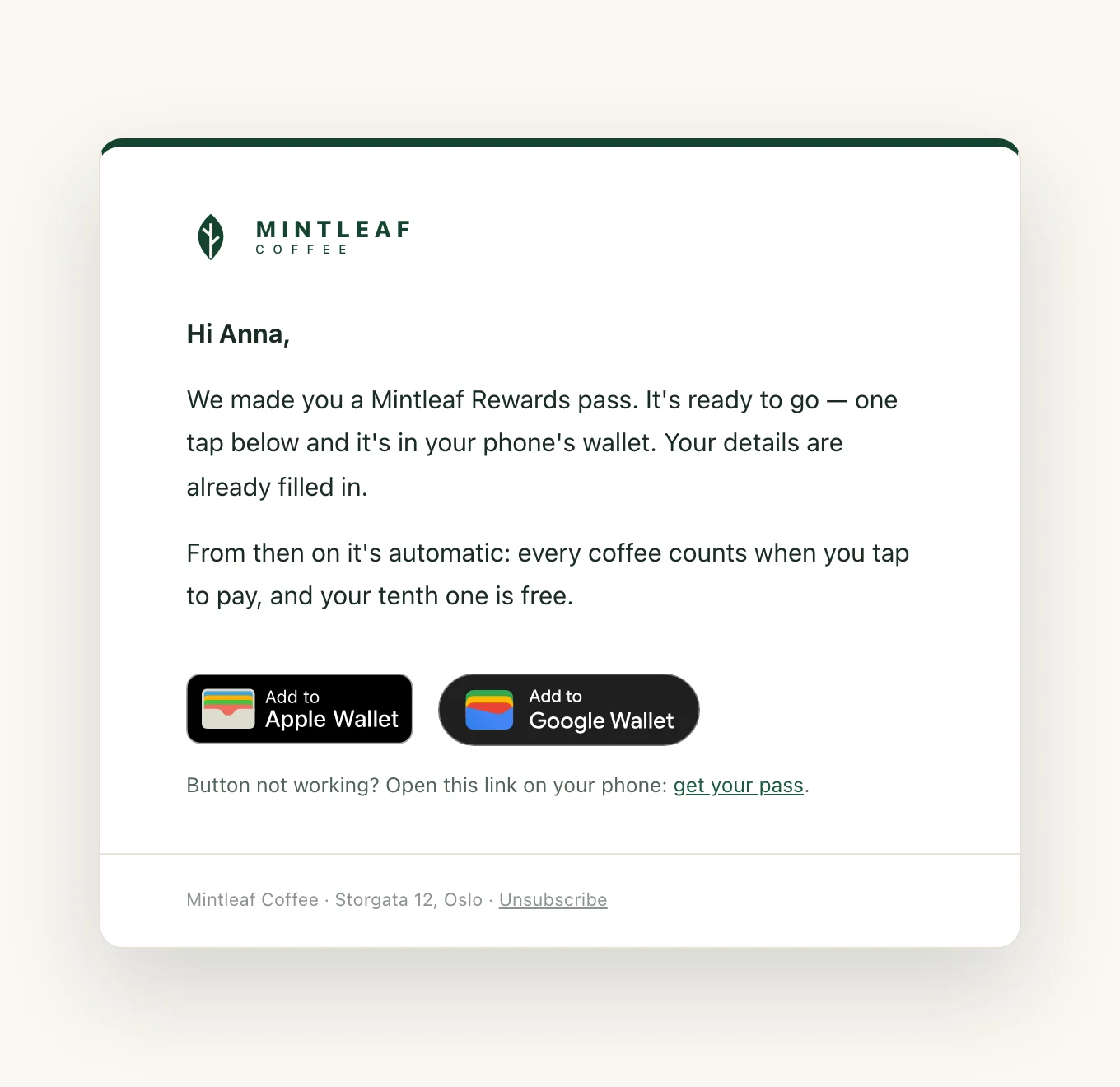
 **Minimal style** — for customers already in your CRM. No hero, no production: a short personal note and the wallet buttons. Reads like a message, not a campaign — and the buttons issue the pass directly, no form, because the recipient is already known.
**Subject:** Your Mintleaf Rewards pass is ready, Anna
**Minimal style** — for customers already in your CRM. No hero, no production: a short personal note and the wallet buttons. Reads like a message, not a campaign — and the buttons issue the pass directly, no form, because the recipient is already known.
**Subject:** Your Mintleaf Rewards pass is ready, Anna
**Preview text:** One tap and it's in your wallet — we've already filled everything in.
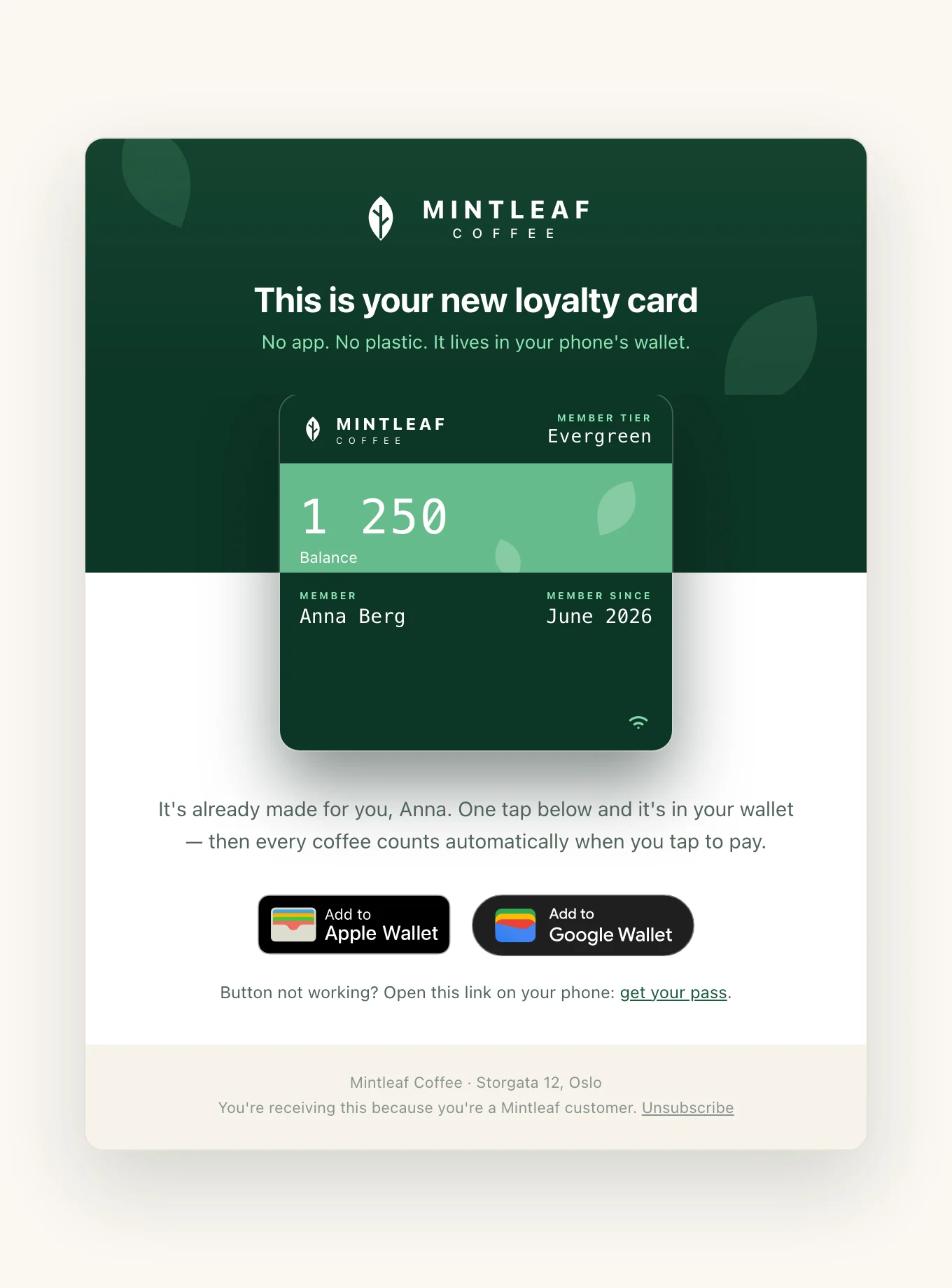
 **Visual style** — the pass itself is the hero, so the customer sees exactly what lands in their wallet before they tap. The strongest version of the one-tap invitation when your pass design is worth showing off.
**Subject:** This is your new loyalty card, Anna
**Visual style** — the pass itself is the hero, so the customer sees exactly what lands in their wallet before they tap. The strongest version of the one-tap invitation when your pass design is worth showing off.
**Subject:** This is your new loyalty card, Anna
**Preview text:** It's already made — one tap and it's in your wallet.
 ## Making the buttons work
The wallet buttons in these emails come from Stell's configurator: it generates an email-safe HTML snippet with both buttons, official badge images in your language, and per-recipient links your email tool fills in at send time. The setup — snippet, identifiers, localized images — is covered on the [wallet button widget page](/enrollment/wallet-button-widget#in-your-emails); don't hand-build the links.
If a recipient isn't in your CRM — a newsletter subscriber who never bought anything, say — the one-tap links can't identify them. Send those recipients to your enrollment link instead, where the [enrollment flow](/enrollment/how-enrollment-works) collects their details.
## Before you send
* **One call to action.** If the email also promotes this month's blend, the pass loses. Give the program its own send.
* **Design for the phone.** The wallet add happens on a phone, so most recipients will read the email there. One column, big buttons.
* **Segment members from non-members.** Members get the one-tap invitation; everyone else gets the announcement with the enrollment link. A "fill in this form" email to someone you already know feels careless.
* **Test on real devices.** Send the email to yourself and a colleague, and add the pass on a real iPhone and a real Android phone — not just a desktop preview.
Test with two different member identifiers, not one. The most common launch bug is every recipient getting a link to the *same* pass — two test recipients catch it immediately.
Email reaches customers who *don't* have the pass yet. Once they've added it, [Engage](/engage/overview) push notifications reach them directly on the lock screen — no inbox to fight through. If you don't see Engage in your navigation, it isn't enabled for your company — [contact support](/support/contact).
## Making the buttons work
The wallet buttons in these emails come from Stell's configurator: it generates an email-safe HTML snippet with both buttons, official badge images in your language, and per-recipient links your email tool fills in at send time. The setup — snippet, identifiers, localized images — is covered on the [wallet button widget page](/enrollment/wallet-button-widget#in-your-emails); don't hand-build the links.
If a recipient isn't in your CRM — a newsletter subscriber who never bought anything, say — the one-tap links can't identify them. Send those recipients to your enrollment link instead, where the [enrollment flow](/enrollment/how-enrollment-works) collects their details.
## Before you send
* **One call to action.** If the email also promotes this month's blend, the pass loses. Give the program its own send.
* **Design for the phone.** The wallet add happens on a phone, so most recipients will read the email there. One column, big buttons.
* **Segment members from non-members.** Members get the one-tap invitation; everyone else gets the announcement with the enrollment link. A "fill in this form" email to someone you already know feels careless.
* **Test on real devices.** Send the email to yourself and a colleague, and add the pass on a real iPhone and a real Android phone — not just a desktop preview.
Test with two different member identifiers, not one. The most common launch bug is every recipient getting a link to the *same* pass — two test recipients catch it immediately.
Email reaches customers who *don't* have the pass yet. Once they've added it, [Engage](/engage/overview) push notifications reach them directly on the lock screen — no inbox to fight through. If you don't see Engage in your navigation, it isn't enabled for your company — [contact support](/support/contact).