> ## Documentation Index
> Fetch the complete documentation index at: https://docs.getstell.com/llms.txt
> Use this file to discover all available pages before exploring further.
# Event webhooks
> Send a program's pass events to your own systems
**Event webhooks** notify your own systems the moment something happens to a pass — for example when a customer adds their pass to a wallet, or taps it at a terminal. You subscribe an endpoint once, and Stell sends it a small JSON message for each event; delivery, retries, and signing are handled for you.
 Two event types are available:
* **Pass status changed** — fires each time a pass moves between [lifecycle states](/passes/lifecycle). The most common use is detecting enrollment: when a customer adds their pass to Apple Wallet or Google Wallet, the pass goes from `PREACTIVE` to `ACTIVE`, and that change fires the webhook.
* **Transaction created** — fires when a transaction is recorded against a pass, for example an NFC tap at a terminal.
Subscriptions belong to a program. If you run several programs and want the same events from each, create a subscription on each program — the same endpoint URL works fine, and every delivery says which program it came from.
## Before you start
* **An HTTPS endpoint** that can receive POST requests. The URL must be public — plain HTTP, localhost, and private network addresses are rejected.
* **Which events you need.** For enrollment notifications, **Pass status changed** is enough.
* **Your endpoint's credentials**, if it requires them — for example a bearer token to send in an `Authorization` header.
This page covers setting up the subscription in the portal. Give whoever builds the receiving endpoint the [webhook deliveries](/programs/webhook-deliveries) reference — it documents the exact requests Stell sends.
## Create a subscription
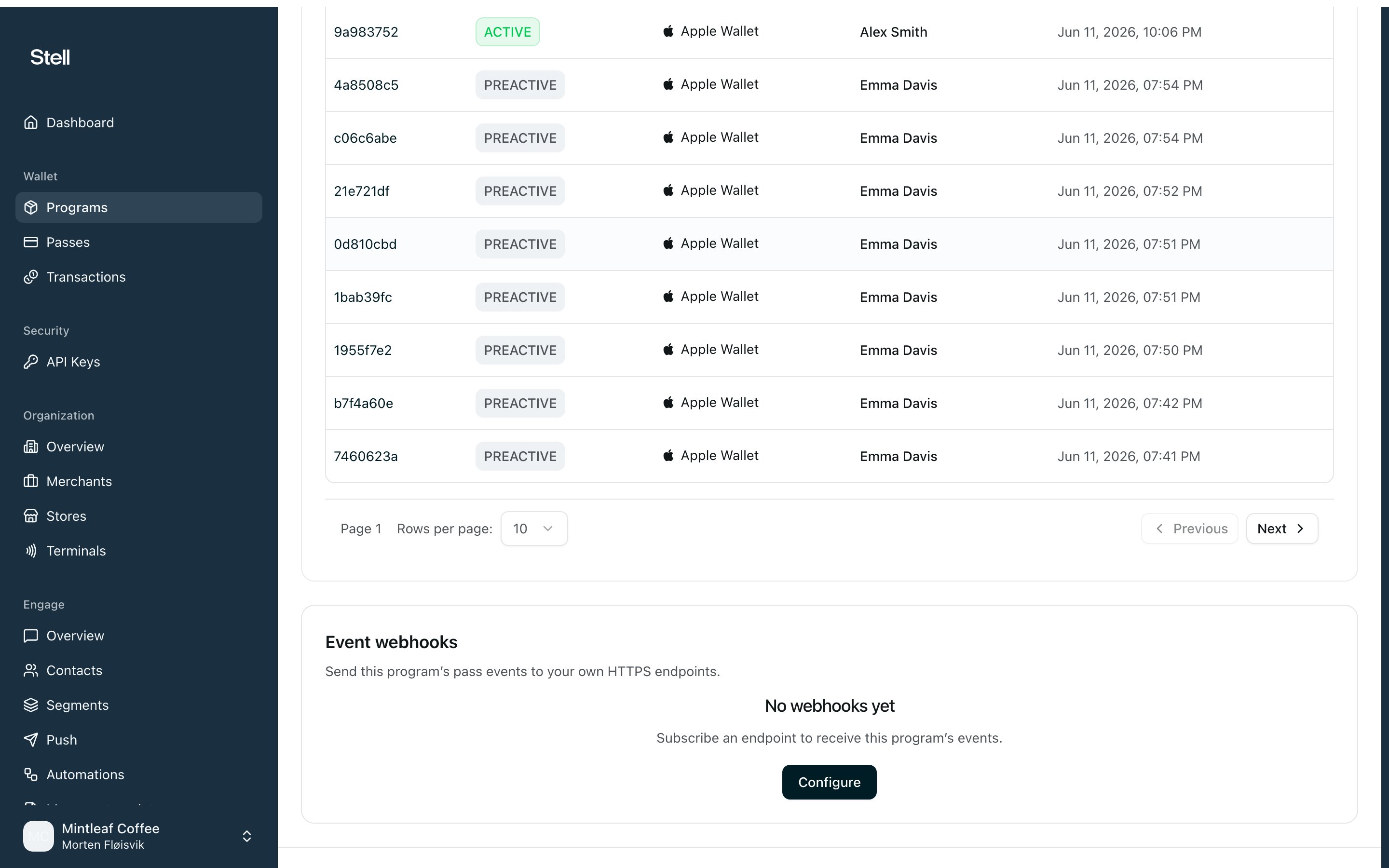
1. Open [your program](/programs/the-program-page) and find the **Event webhooks** card.
2. Click **Configure** — or **Manage**, if the program already has subscriptions — then **Add subscription**.
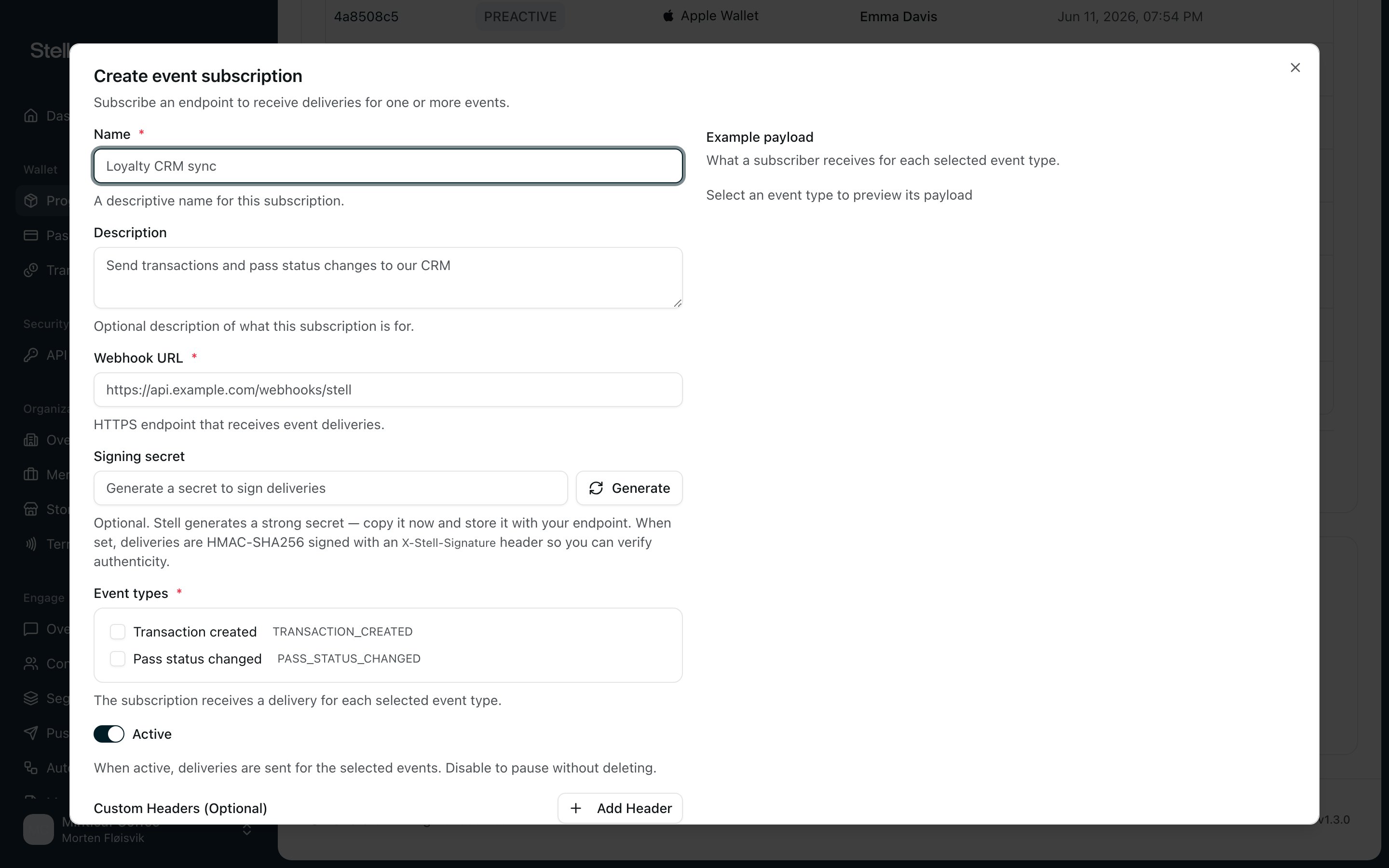
3. Give it a **Name** that says where the events go, for example "Loyalty CRM sync", and optionally a **Description**.
4. Enter the **Webhook URL** — the HTTPS endpoint that receives the deliveries.
5. Under **Signing secret**, click **Generate**, then **Copy**. Sharing this secret with your endpoint lets it verify that deliveries really come from Stell — optional, but recommended.
6. Tick the **Event types** the endpoint should receive. The **Example payload** panel next to the form shows exactly what your endpoint gets for each selected type.
7. Leave **Active** on.
8. If your endpoint requires authentication, add it under **Custom Headers** — see below.
9. Click **Create subscription**.
Two event types are available:
* **Pass status changed** — fires each time a pass moves between [lifecycle states](/passes/lifecycle). The most common use is detecting enrollment: when a customer adds their pass to Apple Wallet or Google Wallet, the pass goes from `PREACTIVE` to `ACTIVE`, and that change fires the webhook.
* **Transaction created** — fires when a transaction is recorded against a pass, for example an NFC tap at a terminal.
Subscriptions belong to a program. If you run several programs and want the same events from each, create a subscription on each program — the same endpoint URL works fine, and every delivery says which program it came from.
## Before you start
* **An HTTPS endpoint** that can receive POST requests. The URL must be public — plain HTTP, localhost, and private network addresses are rejected.
* **Which events you need.** For enrollment notifications, **Pass status changed** is enough.
* **Your endpoint's credentials**, if it requires them — for example a bearer token to send in an `Authorization` header.
This page covers setting up the subscription in the portal. Give whoever builds the receiving endpoint the [webhook deliveries](/programs/webhook-deliveries) reference — it documents the exact requests Stell sends.
## Create a subscription
1. Open [your program](/programs/the-program-page) and find the **Event webhooks** card.
2. Click **Configure** — or **Manage**, if the program already has subscriptions — then **Add subscription**.
3. Give it a **Name** that says where the events go, for example "Loyalty CRM sync", and optionally a **Description**.
4. Enter the **Webhook URL** — the HTTPS endpoint that receives the deliveries.
5. Under **Signing secret**, click **Generate**, then **Copy**. Sharing this secret with your endpoint lets it verify that deliveries really come from Stell — optional, but recommended.
6. Tick the **Event types** the endpoint should receive. The **Example payload** panel next to the form shows exactly what your endpoint gets for each selected type.
7. Leave **Active** on.
8. If your endpoint requires authentication, add it under **Custom Headers** — see below.
9. Click **Create subscription**.
 Treat the signing secret like a password: store it with your endpoint's configuration and share it only through a secure channel — never email or chat. You can copy it again later from the edit dialog, and **Regenerate** replaces it — after regenerating, update your endpoint or its signature checks will start failing.
### Custom headers
Custom headers are sent with every delivery — typically your endpoint's authentication. Click **Add Header** and pick a preset:
* **Authorization** — for token auth; enter the value your endpoint expects, for example `Bearer your-token-here`.
* **X-API-Key** — for endpoints keyed by API key.
* **Custom** — any header of your own, as long as its name starts with `X-`.
Only `Authorization` and `X-*` headers are allowed. Headers without a value aren't saved, and if two headers share a name, only the last value is kept.
## Manage subscriptions
Open **Manage** on the **Event webhooks** card to see the program's subscriptions — each shows its name, event types, and an **Active** or **Inactive** badge.
* **Edit** — change anything about the subscription: name, URL, events, secret, headers. The program it belongs to can't be changed; create a subscription on the other program instead.
* **Pause** — turn off the **Active** switch in the edit dialog. Deliveries stop, but the configuration is kept for when you switch it back on.
* **Delete** — stops all event deliveries to the endpoint permanently. This can't be undone.
## Test your webhook
There's no test button — verify with a real pass instead, which also proves the whole chain:
1. [Issue a pass](/passes/issuing) in the subscribed program, with your own details.
2. Add it to your wallet.
3. Adding the pass activates it — that status change fires the webhook within moments. Check that your endpoint received the delivery.
Nothing fires when a pass is merely issued — the first **Pass status changed** delivery comes when the customer adds it to a wallet. A pass that's never added sends nothing.
## If deliveries don't arrive
* **Right program?** The most common miss: the pass belongs to a different program than the one with the subscription.
* **Subscription Active**, with the right event type ticked?
* **Did a subscribed event actually happen?** A status change or a transaction — issuing a pass alone doesn't fire anything.
* **Does your endpoint answer with a 2xx status?** Failed deliveries are retried twice within seconds, then dropped — see [retries](/programs/webhook-deliveries#retries-and-idempotency).
* **Expecting a header that isn't arriving?** Only `Authorization` and `X-*` custom headers are sent; anything else was dropped when the subscription was saved.
Still stuck? [Contact support](/support/contact) — they can check the delivery attempts for your subscription.
Treat the signing secret like a password: store it with your endpoint's configuration and share it only through a secure channel — never email or chat. You can copy it again later from the edit dialog, and **Regenerate** replaces it — after regenerating, update your endpoint or its signature checks will start failing.
### Custom headers
Custom headers are sent with every delivery — typically your endpoint's authentication. Click **Add Header** and pick a preset:
* **Authorization** — for token auth; enter the value your endpoint expects, for example `Bearer your-token-here`.
* **X-API-Key** — for endpoints keyed by API key.
* **Custom** — any header of your own, as long as its name starts with `X-`.
Only `Authorization` and `X-*` headers are allowed. Headers without a value aren't saved, and if two headers share a name, only the last value is kept.
## Manage subscriptions
Open **Manage** on the **Event webhooks** card to see the program's subscriptions — each shows its name, event types, and an **Active** or **Inactive** badge.
* **Edit** — change anything about the subscription: name, URL, events, secret, headers. The program it belongs to can't be changed; create a subscription on the other program instead.
* **Pause** — turn off the **Active** switch in the edit dialog. Deliveries stop, but the configuration is kept for when you switch it back on.
* **Delete** — stops all event deliveries to the endpoint permanently. This can't be undone.
## Test your webhook
There's no test button — verify with a real pass instead, which also proves the whole chain:
1. [Issue a pass](/passes/issuing) in the subscribed program, with your own details.
2. Add it to your wallet.
3. Adding the pass activates it — that status change fires the webhook within moments. Check that your endpoint received the delivery.
Nothing fires when a pass is merely issued — the first **Pass status changed** delivery comes when the customer adds it to a wallet. A pass that's never added sends nothing.
## If deliveries don't arrive
* **Right program?** The most common miss: the pass belongs to a different program than the one with the subscription.
* **Subscription Active**, with the right event type ticked?
* **Did a subscribed event actually happen?** A status change or a transaction — issuing a pass alone doesn't fire anything.
* **Does your endpoint answer with a 2xx status?** Failed deliveries are retried twice within seconds, then dropped — see [retries](/programs/webhook-deliveries#retries-and-idempotency).
* **Expecting a header that isn't arriving?** Only `Authorization` and `X-*` custom headers are sent; anything else was dropped when the subscription was saved.
Still stuck? [Contact support](/support/contact) — they can check the delivery attempts for your subscription.