> ## Documentation Index
> Fetch the complete documentation index at: https://docs.getstell.com/llms.txt
> Use this file to discover all available pages before exploring further.
# The program page
> What you see and what you can do when you open a program
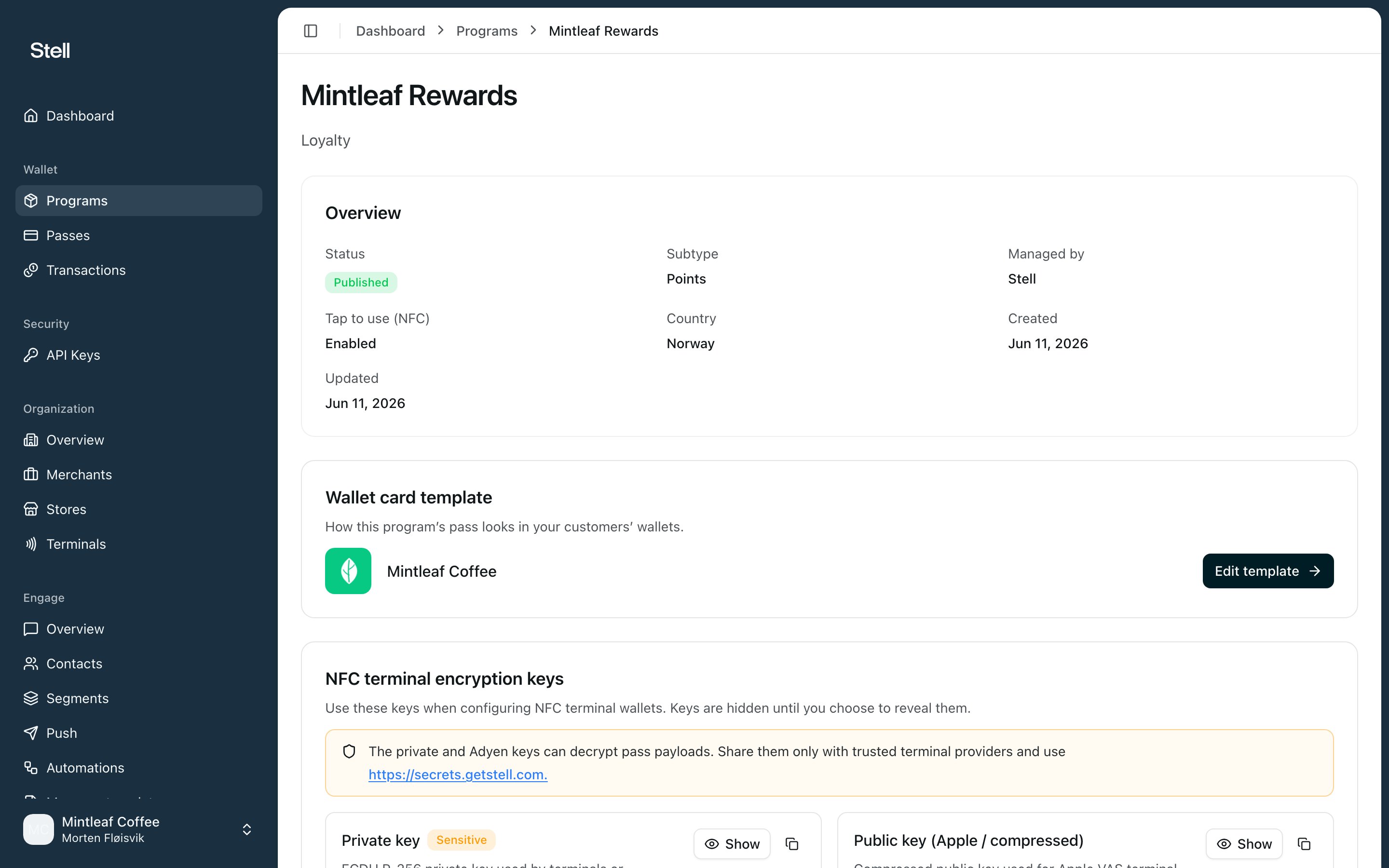
Click a program card on the [Programs list](/programs/overview) to open it. The header shows the program's name and its type — **Loyalty** or **Entry** — and below it, a card for each part of the program's setup.
 ## Overview
The first card sums up the program:
| Field | Meaning |
| --------------------- | ------------------------------------------------------------------------------------------------------------------------------------------------------ |
| **Status** | **Published**, **Draft**, or **Archived** |
| **Subtype** | How the program works — for loyalty: **Points**, **Stamps**, **Tiers**, or **Membership**; for entry: **Visit-based**, **Time-based**, or **One-time** |
| **Managed by** | Who set up and maintains the program — usually **Stell** |
| **Tap to use (NFC)** | Whether passes can be used by tapping a terminal |
| **Country** | The market the program operates in |
| **Created / Updated** | When the program was set up and last changed |
A description is shown below the fields when one is set.
## Wallet card template
How this program's pass looks in your customers' wallets, shown with the pass logo and your organization name. Click **Edit template** to open the [pass template editor](/pass-templates/overview), where you can adjust colours, the logo, and the details your customers see.
If the template hasn't been set up yet, the card says so — once it's in place, this is where you fine-tune the look.
## Wallet certificate
The Apple certificate that signs this program's passes. You'll see the Pass Type Identifier, Team Identifier, who manages the certificate (**Stell** or **Your account**), its expiry date with a **Valid**, **Expiring soon**, or **Expired** badge, and whether it's NFC capable.
* **Stell-managed** — renewal is handled for you; there's nothing to do here.
* **Managed by your account** — click **Replace certificate** to upload a new `.p12` file and passphrase before the current one expires.
If the card says **No signing certificate**, passes for this program can't be issued until one is added. Click **Upload certificate** to add your own, or [contact support](/support/contact) to have Stell provision one.
## Program passes
Every pass issued under this program, newest first, with the same details as the main [passes list](/passes/overview). Click a row to open the [pass detail page](/passes/lifecycle).
## Event webhooks
Send this program's pass events — passes being added, used, or changed — to your own HTTPS endpoints. Useful when your systems should react to pass activity.
Click **Configure** to subscribe your first endpoint, or **Manage** to edit existing subscriptions; the card shows how many are active. See [event webhooks](/programs/webhooks) for the full setup guide.
## Sections you may also see
Depending on how the program is set up, extra cards can appear:
* **NFC terminal encryption keys** — shown when tap to use (NFC) is enabled. Holds the keys you need when configuring NFC terminal providers: a **Private key**, an Apple (compressed) and a Google (uncompressed) **public key**, and an **Adyen key**. Each is hidden until you click reveal, and can be copied from there.
* **iCloud Account Binding** — when enabled, passes lock to the customer's iCloud account as they're added to Apple Wallet, so a pass can't be shared between accounts. Requires NFC to be enabled.
The private and Adyen NFC keys can decrypt pass payloads. Reveal them only when you need them, and share them only with trusted terminal providers.
## Overview
The first card sums up the program:
| Field | Meaning |
| --------------------- | ------------------------------------------------------------------------------------------------------------------------------------------------------ |
| **Status** | **Published**, **Draft**, or **Archived** |
| **Subtype** | How the program works — for loyalty: **Points**, **Stamps**, **Tiers**, or **Membership**; for entry: **Visit-based**, **Time-based**, or **One-time** |
| **Managed by** | Who set up and maintains the program — usually **Stell** |
| **Tap to use (NFC)** | Whether passes can be used by tapping a terminal |
| **Country** | The market the program operates in |
| **Created / Updated** | When the program was set up and last changed |
A description is shown below the fields when one is set.
## Wallet card template
How this program's pass looks in your customers' wallets, shown with the pass logo and your organization name. Click **Edit template** to open the [pass template editor](/pass-templates/overview), where you can adjust colours, the logo, and the details your customers see.
If the template hasn't been set up yet, the card says so — once it's in place, this is where you fine-tune the look.
## Wallet certificate
The Apple certificate that signs this program's passes. You'll see the Pass Type Identifier, Team Identifier, who manages the certificate (**Stell** or **Your account**), its expiry date with a **Valid**, **Expiring soon**, or **Expired** badge, and whether it's NFC capable.
* **Stell-managed** — renewal is handled for you; there's nothing to do here.
* **Managed by your account** — click **Replace certificate** to upload a new `.p12` file and passphrase before the current one expires.
If the card says **No signing certificate**, passes for this program can't be issued until one is added. Click **Upload certificate** to add your own, or [contact support](/support/contact) to have Stell provision one.
## Program passes
Every pass issued under this program, newest first, with the same details as the main [passes list](/passes/overview). Click a row to open the [pass detail page](/passes/lifecycle).
## Event webhooks
Send this program's pass events — passes being added, used, or changed — to your own HTTPS endpoints. Useful when your systems should react to pass activity.
Click **Configure** to subscribe your first endpoint, or **Manage** to edit existing subscriptions; the card shows how many are active. See [event webhooks](/programs/webhooks) for the full setup guide.
## Sections you may also see
Depending on how the program is set up, extra cards can appear:
* **NFC terminal encryption keys** — shown when tap to use (NFC) is enabled. Holds the keys you need when configuring NFC terminal providers: a **Private key**, an Apple (compressed) and a Google (uncompressed) **public key**, and an **Adyen key**. Each is hidden until you click reveal, and can be copied from there.
* **iCloud Account Binding** — when enabled, passes lock to the customer's iCloud account as they're added to Apple Wallet, so a pass can't be shared between accounts. Requires NFC to be enabled.
The private and Adyen NFC keys can decrypt pass payloads. Reveal them only when you need them, and share them only with trusted terminal providers.