> ## Documentation Index
> Fetch the complete documentation index at: https://docs.getstell.com/llms.txt
> Use this file to discover all available pages before exploring further.
# Pass lifecycle
> Pass statuses, voiding a pass, and wallet installation history
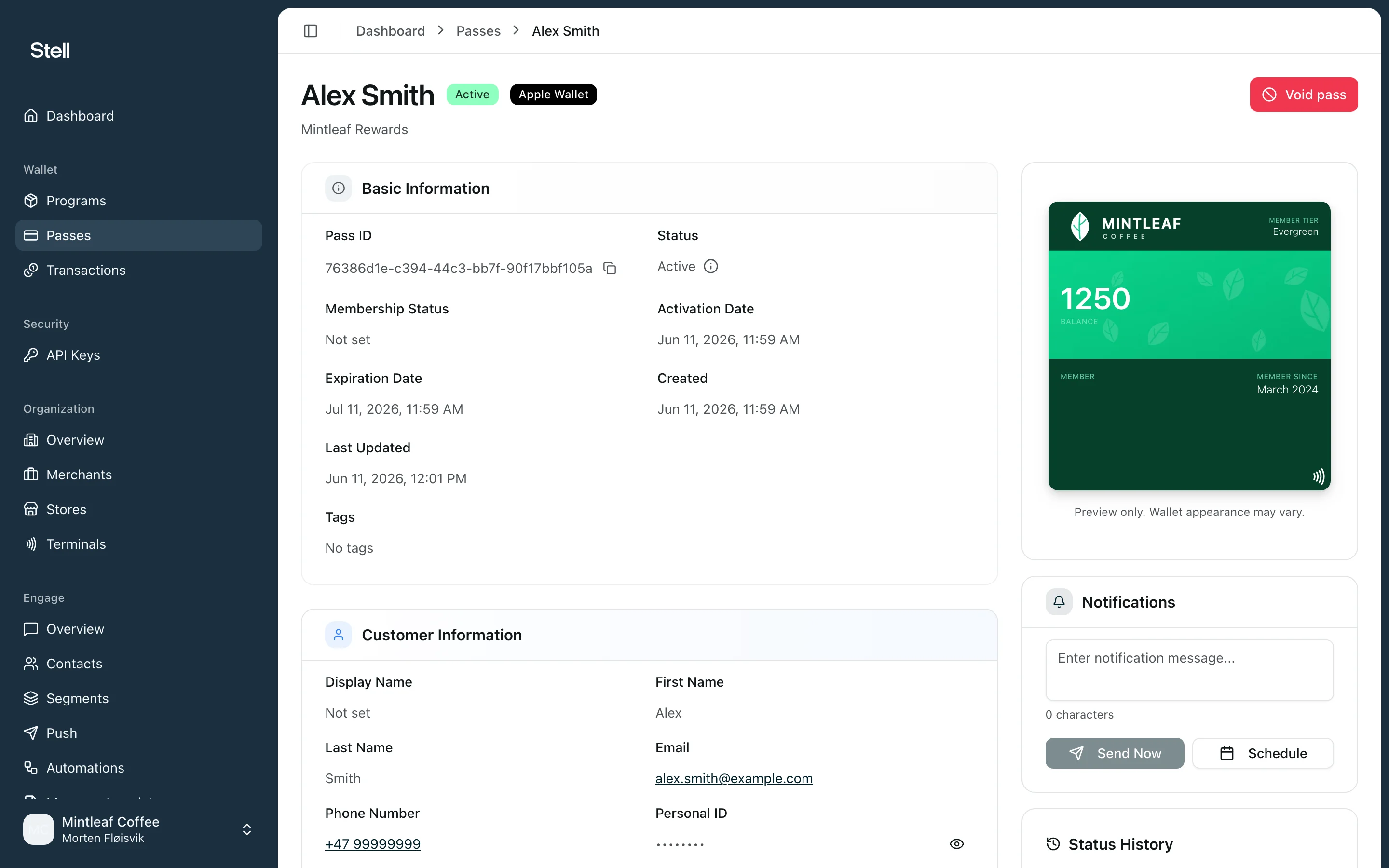
Every pass moves through a lifecycle from the moment you issue it. The pass detail page shows where a pass is in that lifecycle and everything that has happened to it.
 ## Pass statuses
The status badge next to the cardholder's name shows the pass's current state:
| Status | Meaning |
| -------------- | ------------------------------------------------------------------------------------- |
| **Pre-Active** | Issued, but the customer hasn't added it to a wallet yet |
| **Active** | Added to a wallet and working at your stores |
| **Inactive** | The customer removed it from their wallet — it becomes active again if they re-add it |
| **Voided** | You cancelled the pass — it no longer works, but you can still view its history |
| **Revoked** | The pass was withdrawn by the issuer and no longer works |
| **Expired** | The pass reached the end of its validity |
Pre-Active, Active, and Inactive shift automatically as the customer adds or removes the pass from their wallet. Voided, revoked, and expired are final — a pass in one of these statuses can't return to active.
## The pass detail page
Open any pass from the [passes list](/passes/overview) to see:
* **Pass and customer info** — the pass ID, wallet, dates, and the customer details provided at issue time.
* **Live preview** — how the pass currently looks in the customer's wallet, based on your [pass template](/pass-templates/overview).
* **Status timeline** — every status change the pass has been through, in order.
* **Wallet installations** — the devices where the pass has been added to a wallet. This tells you whether the customer actually has the pass on their phone.
* **Transactions** — every time this pass was used at one of your stores, linking to the full [transaction detail](/transactions/overview).
* **Send a notification** — push a message to the wallets where this pass is installed.
## Void a pass
Void a pass when it should stop working — for example if it was issued by mistake or the customer's membership ended.
Voiding is permanent. A voided pass stops working and can't be reactivated — to give the customer a working pass again, issue a new one.
1. Open the pass from the **Passes** list.
2. Click **Void pass**.
3. In the confirmation dialog, click **Void pass** to confirm.
The pass status changes to voided. You can still open the pass to view its history, transactions, and wallet installations.
The **Void pass** button is only shown for passes that can still be voided — it's hidden once a pass is already voided, revoked, or expired.
## Pass statuses
The status badge next to the cardholder's name shows the pass's current state:
| Status | Meaning |
| -------------- | ------------------------------------------------------------------------------------- |
| **Pre-Active** | Issued, but the customer hasn't added it to a wallet yet |
| **Active** | Added to a wallet and working at your stores |
| **Inactive** | The customer removed it from their wallet — it becomes active again if they re-add it |
| **Voided** | You cancelled the pass — it no longer works, but you can still view its history |
| **Revoked** | The pass was withdrawn by the issuer and no longer works |
| **Expired** | The pass reached the end of its validity |
Pre-Active, Active, and Inactive shift automatically as the customer adds or removes the pass from their wallet. Voided, revoked, and expired are final — a pass in one of these statuses can't return to active.
## The pass detail page
Open any pass from the [passes list](/passes/overview) to see:
* **Pass and customer info** — the pass ID, wallet, dates, and the customer details provided at issue time.
* **Live preview** — how the pass currently looks in the customer's wallet, based on your [pass template](/pass-templates/overview).
* **Status timeline** — every status change the pass has been through, in order.
* **Wallet installations** — the devices where the pass has been added to a wallet. This tells you whether the customer actually has the pass on their phone.
* **Transactions** — every time this pass was used at one of your stores, linking to the full [transaction detail](/transactions/overview).
* **Send a notification** — push a message to the wallets where this pass is installed.
## Void a pass
Void a pass when it should stop working — for example if it was issued by mistake or the customer's membership ended.
Voiding is permanent. A voided pass stops working and can't be reactivated — to give the customer a working pass again, issue a new one.
1. Open the pass from the **Passes** list.
2. Click **Void pass**.
3. In the confirmation dialog, click **Void pass** to confirm.
The pass status changes to voided. You can still open the pass to view its history, transactions, and wallet installations.
The **Void pass** button is only shown for passes that can still be voided — it's hidden once a pass is already voided, revoked, or expired.