> ## Documentation Index
> Fetch the complete documentation index at: https://docs.getstell.com/llms.txt
> Use this file to discover all available pages before exploring further.
# Fields and dynamic content
> Pass fields, placeholders, and per-customer values
**Fields** are the text on your pass: labels and values placed in the areas described in [anatomy of a pass](/pass-templates/anatomy). Their real power is **placeholders** — values that resolve per customer, so every pass shows its holder's own name, balance, or tier.
## Editing fields
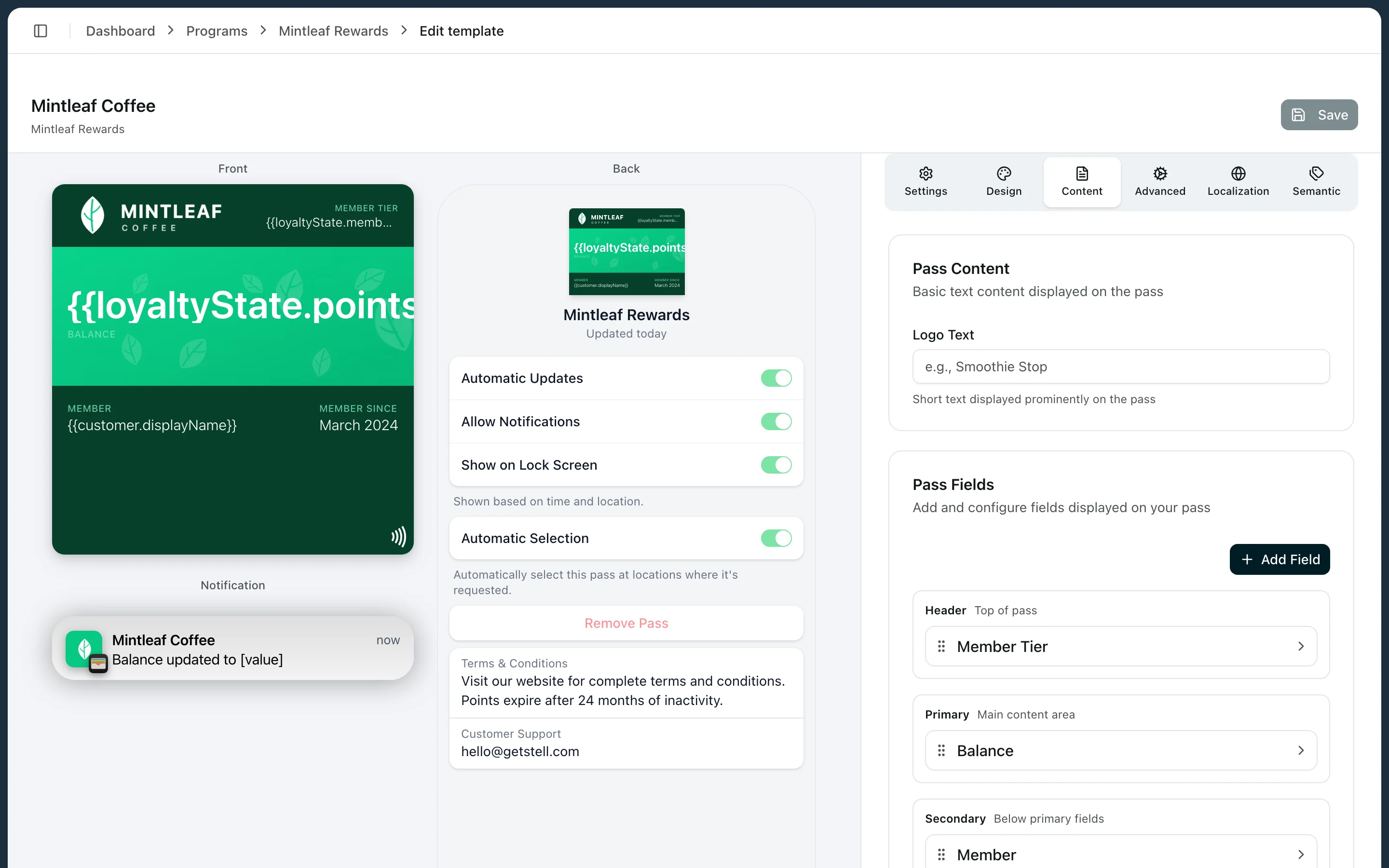 In the **Content** tab, fields are grouped by area: **Header**, **Primary**, **Secondary**, **Auxiliary**, and **Back** fields. For each field you set:
* **Label** — the small heading (for example "POINTS"). Optional.
* **Value** — the text shown. Type static text, insert placeholders with the placeholder picker, or mix both: `Points: {{loyaltyState.pointsBalance}}`.
* **Change message** — an optional notification text shown when this field's value changes, like "Points changed to %@". This is how customers get a lock-screen ping when their balance updates.
You can drag fields to reorder them, move a field to a different area, and add or remove fields. Secondary and auxiliary areas hold up to 4 fields each (5 on the Boarding Pass style); keep the front sparse and put the rest on the back.
## Placeholders
Placeholders are `{{…}}` tokens replaced per customer when the pass is rendered. The most useful ones:
| Show | Placeholder |
| -------------------------- | ---------------------------------------------------------------------------------- |
| Customer's name | `{{customer.displayName}}` — or `{{customer.firstName}}` / `{{customer.lastName}}` |
| Points balance | `{{loyaltyState.pointsBalance}}` |
| Stamps collected | `{{loyaltyState.stampsCollected}}` |
| Membership tier | `{{loyaltyState.memberTier}}` |
| Your customer ID | `{{customer.externalId}}` |
| Program name | `{{programName}}` |
| Pass expiry date | `{{expirationDate}}` |
| Visits used (entry passes) | `{{entryState.visitsUsed}}` |
The placeholder picker in the field editor shows the full catalog, organized by category. A placeholder with no value for a given customer simply renders as empty.
Placeholders insert values — they don't calculate. `{{loyaltyState.pointsBalance}}` works; `{{loyaltyState.pointsBalance}} + 10` shows literally that text.
## Dates
Also in the **Content** tab:
* **Expiration date** — when the pass should stop being valid.
* **Relevant dates** — moments when the pass should surface on the customer's lock screen, useful for events.
## A sensible field layout
For a typical loyalty card:
* **Header**: points balance — visible even when the pass is stacked in the wallet.
* **Primary**: the customer's name, large on the strip.
* **Secondary**: tier and member-since.
* **Back**: terms, support contact, and links.
Check the live preview as you go — it renders placeholders so you can judge real proportions.
In the **Content** tab, fields are grouped by area: **Header**, **Primary**, **Secondary**, **Auxiliary**, and **Back** fields. For each field you set:
* **Label** — the small heading (for example "POINTS"). Optional.
* **Value** — the text shown. Type static text, insert placeholders with the placeholder picker, or mix both: `Points: {{loyaltyState.pointsBalance}}`.
* **Change message** — an optional notification text shown when this field's value changes, like "Points changed to %@". This is how customers get a lock-screen ping when their balance updates.
You can drag fields to reorder them, move a field to a different area, and add or remove fields. Secondary and auxiliary areas hold up to 4 fields each (5 on the Boarding Pass style); keep the front sparse and put the rest on the back.
## Placeholders
Placeholders are `{{…}}` tokens replaced per customer when the pass is rendered. The most useful ones:
| Show | Placeholder |
| -------------------------- | ---------------------------------------------------------------------------------- |
| Customer's name | `{{customer.displayName}}` — or `{{customer.firstName}}` / `{{customer.lastName}}` |
| Points balance | `{{loyaltyState.pointsBalance}}` |
| Stamps collected | `{{loyaltyState.stampsCollected}}` |
| Membership tier | `{{loyaltyState.memberTier}}` |
| Your customer ID | `{{customer.externalId}}` |
| Program name | `{{programName}}` |
| Pass expiry date | `{{expirationDate}}` |
| Visits used (entry passes) | `{{entryState.visitsUsed}}` |
The placeholder picker in the field editor shows the full catalog, organized by category. A placeholder with no value for a given customer simply renders as empty.
Placeholders insert values — they don't calculate. `{{loyaltyState.pointsBalance}}` works; `{{loyaltyState.pointsBalance}} + 10` shows literally that text.
## Dates
Also in the **Content** tab:
* **Expiration date** — when the pass should stop being valid.
* **Relevant dates** — moments when the pass should surface on the customer's lock screen, useful for events.
## A sensible field layout
For a typical loyalty card:
* **Header**: points balance — visible even when the pass is stacked in the wallet.
* **Primary**: the customer's name, large on the strip.
* **Secondary**: tier and member-since.
* **Back**: terms, support contact, and links.
Check the live preview as you go — it renders placeholders so you can judge real proportions.