> ## Documentation Index
> Fetch the complete documentation index at: https://docs.getstell.com/llms.txt
> Use this file to discover all available pages before exploring further.
# Portal overview
> A tour of the merchant portal dashboard and navigation
After signing in, you land on the dashboard — your starting point for everything in the portal.
 ## The dashboard
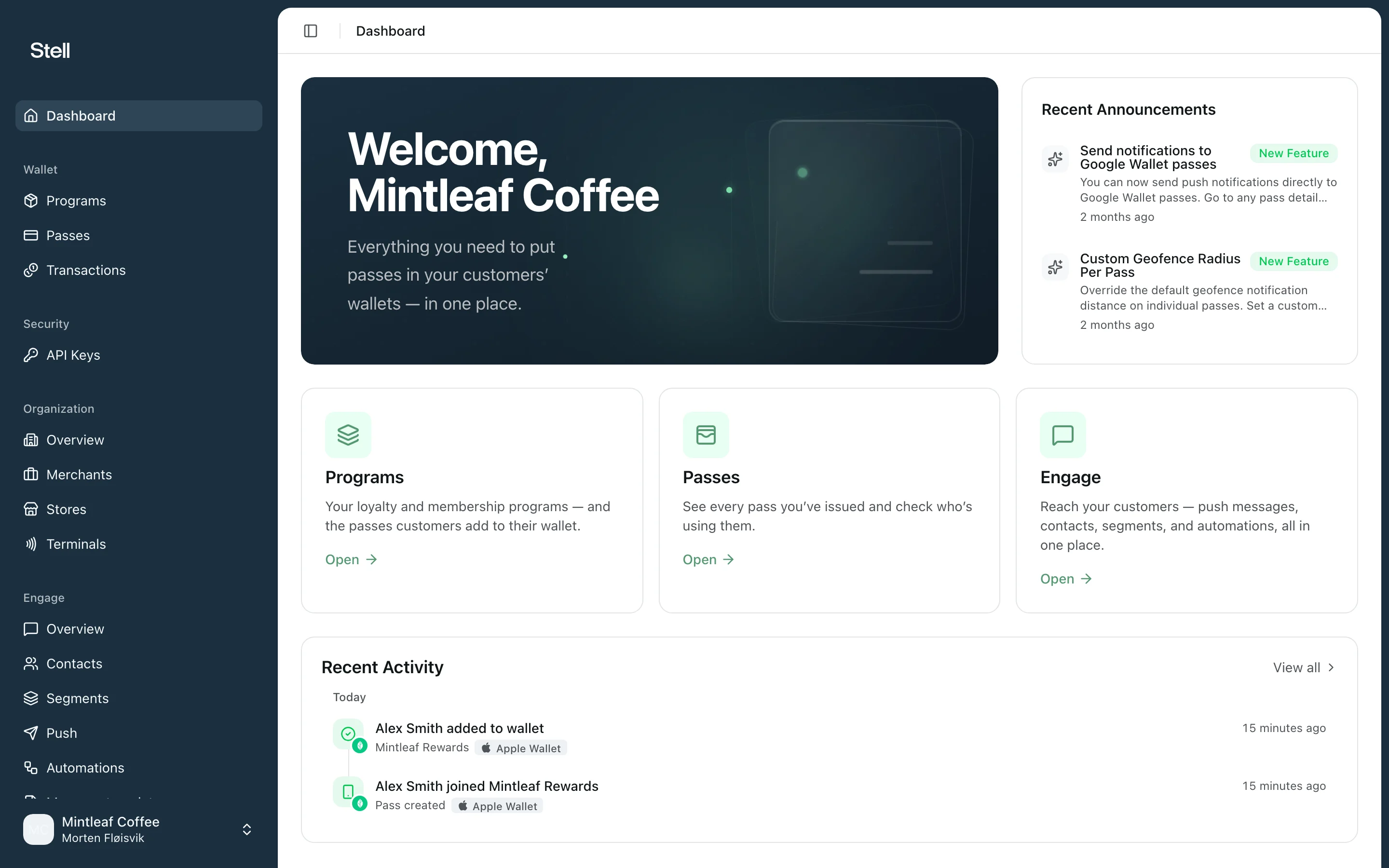
The dashboard greets you with your company name and gives you three things at a glance:
* **Announcements** — recent news from Stell that may affect your programs or passes.
* **Feature cards** — shortcuts into the main areas of the portal. Click **Open** on a card to jump in.
* **Recent Activity** — the latest pass and transaction events across your company. Click **View all** to open the full [transaction log](/transactions/overview).
## Navigation
The sidebar on the left is organized into sections:
| Section | What you find there |
| ---------------- | --------------------------------------------------------------------------------------------------------- |
| **Dashboard** | The overview page you land on after signing in |
| **Wallet** | [Programs](/programs/overview), [Passes](/passes/overview), and [Transactions](/transactions/overview) |
| **Security** | [API Keys](/account/api-keys) for integrations |
| **Organization** | Your company's [merchants, stores, and terminals](/organization/overview) |
| **Engage** | Customer messaging: Overview, Contacts, Segments, Push, Automations, Message templates, and Notifications |
| **Help** | The Support page, with contact details for Stell support |
**Engage** and **Organization** are optional modules. If you don't see them in your sidebar, they aren't enabled for your company — [contact support](/support/contact) if you think they should be.
## Your account menu
At the bottom of the sidebar, click your name to open the account menu:
* **Switch company** — if you belong to more than one company, pick which one you're working in. Everything in the portal shows data for the active company only.
* **Settings** — manage your [account security](/account/security), including two-factor authentication and passkeys.
* **Sign Out** — end your session.
## Where to go next
If your programs are already set up, head to [issuing your first pass](/passes/issuing). To understand how your pass designs work, start with [programs](/programs/overview).
## The dashboard
The dashboard greets you with your company name and gives you three things at a glance:
* **Announcements** — recent news from Stell that may affect your programs or passes.
* **Feature cards** — shortcuts into the main areas of the portal. Click **Open** on a card to jump in.
* **Recent Activity** — the latest pass and transaction events across your company. Click **View all** to open the full [transaction log](/transactions/overview).
## Navigation
The sidebar on the left is organized into sections:
| Section | What you find there |
| ---------------- | --------------------------------------------------------------------------------------------------------- |
| **Dashboard** | The overview page you land on after signing in |
| **Wallet** | [Programs](/programs/overview), [Passes](/passes/overview), and [Transactions](/transactions/overview) |
| **Security** | [API Keys](/account/api-keys) for integrations |
| **Organization** | Your company's [merchants, stores, and terminals](/organization/overview) |
| **Engage** | Customer messaging: Overview, Contacts, Segments, Push, Automations, Message templates, and Notifications |
| **Help** | The Support page, with contact details for Stell support |
**Engage** and **Organization** are optional modules. If you don't see them in your sidebar, they aren't enabled for your company — [contact support](/support/contact) if you think they should be.
## Your account menu
At the bottom of the sidebar, click your name to open the account menu:
* **Switch company** — if you belong to more than one company, pick which one you're working in. Everything in the portal shows data for the active company only.
* **Settings** — manage your [account security](/account/security), including two-factor authentication and passkeys.
* **Sign Out** — end your session.
## Where to go next
If your programs are already set up, head to [issuing your first pass](/passes/issuing). To understand how your pass designs work, start with [programs](/programs/overview).