> ## Documentation Index
> Fetch the complete documentation index at: https://docs.getstell.com/llms.txt
> Use this file to discover all available pages before exploring further.
# Adding the pass to a wallet
> Which wallet buttons customers see on each device, and what happens when they tap them
The last step of [enrollment](/enrollment/how-enrollment-works) is adding the pass to the customer's wallet. Which buttons appear — **Add to Apple Wallet**, **Add to Google Wallet**, or both — and what happens on tap depends on your program's setup and on the customer's device and browser. This page is the reference for both, and the same rules apply to the [wallet button widget](/enrollment/wallet-button-widget) on your own site.
This behavior comes with the experiences Stell hosts: the enrollment flow
and the [wallet button widget](/enrollment/wallet-button-widget). Passes
delivered another way — wallet links in
[emails](/enrollment/wallet-button-widget#in-your-emails), or an
integration your developers build on the [Stell
API](/api-reference/integration/add-to-wallet) — don't include device
detection or the QR code hand-off.
Pick the customer's device:
**What the customer sees:** the **Add to Apple Wallet** button — in Safari, Chrome, or any other browser. Google Wallet is never offered on iPhone (there is no Google Wallet app on iOS).
**What tapping does:** the pass opens straight in Apple Wallet. One tap on **Add** and it's done.
If your program offers only Google Wallet, an iPhone visitor instead sees "No compatible wallet is available for your device" with a suggestion to try an Android device.
**What the customer sees:** the **Add to Google Wallet** button — Apple Wallet passes can't open on Android, so that button is never offered here.
**What tapping does:** Google's save page opens and the pass lands in Google Wallet.
If your program offers only Apple Wallet, an Android visitor instead sees "No compatible wallet is available for your device" with a suggestion to try an iPhone or Mac.
**What the customer sees:** every wallet your program offers. A program with both shows **Add to Apple Wallet** and **Add to Google Wallet** side by side, and the customer chooses.
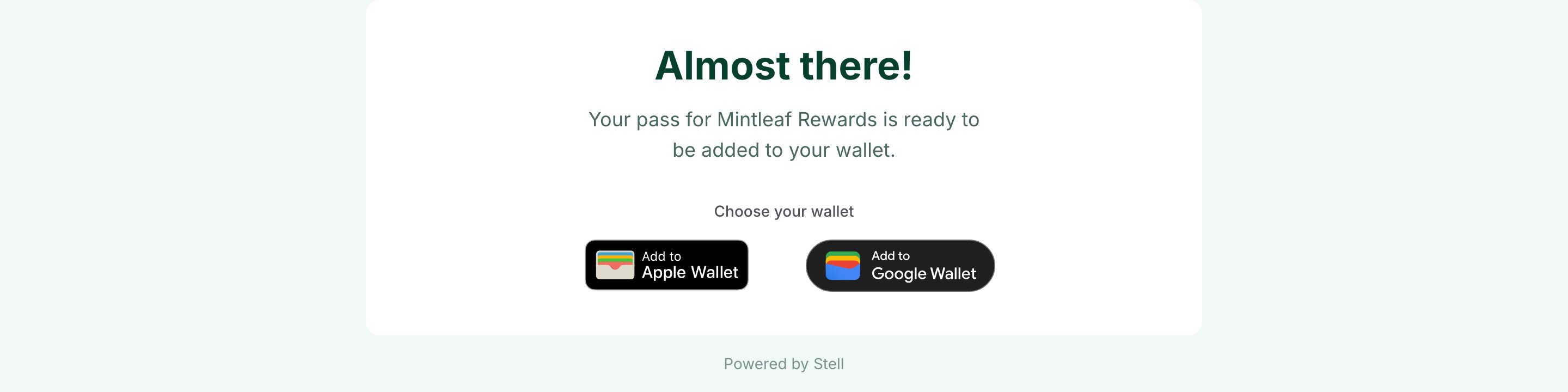 **What tapping Add to Apple Wallet does** depends on the browser:
* **Safari on a Mac** — the Wallet app on the Mac opens with the pass.
* **Any other browser** (Chrome, Edge, or Firefox on a Mac; any browser on Windows) — a **Scan to add your pass** dialog shows a QR code. The customer points their iPhone camera at it and the pass opens in Apple Wallet on the phone. The pass is never downloaded as a file.
**What tapping Add to Apple Wallet does** depends on the browser:
* **Safari on a Mac** — the Wallet app on the Mac opens with the pass.
* **Any other browser** (Chrome, Edge, or Firefox on a Mac; any browser on Windows) — a **Scan to add your pass** dialog shows a QR code. The customer points their iPhone camera at it and the pass opens in Apple Wallet on the phone. The pass is never downloaded as a file.
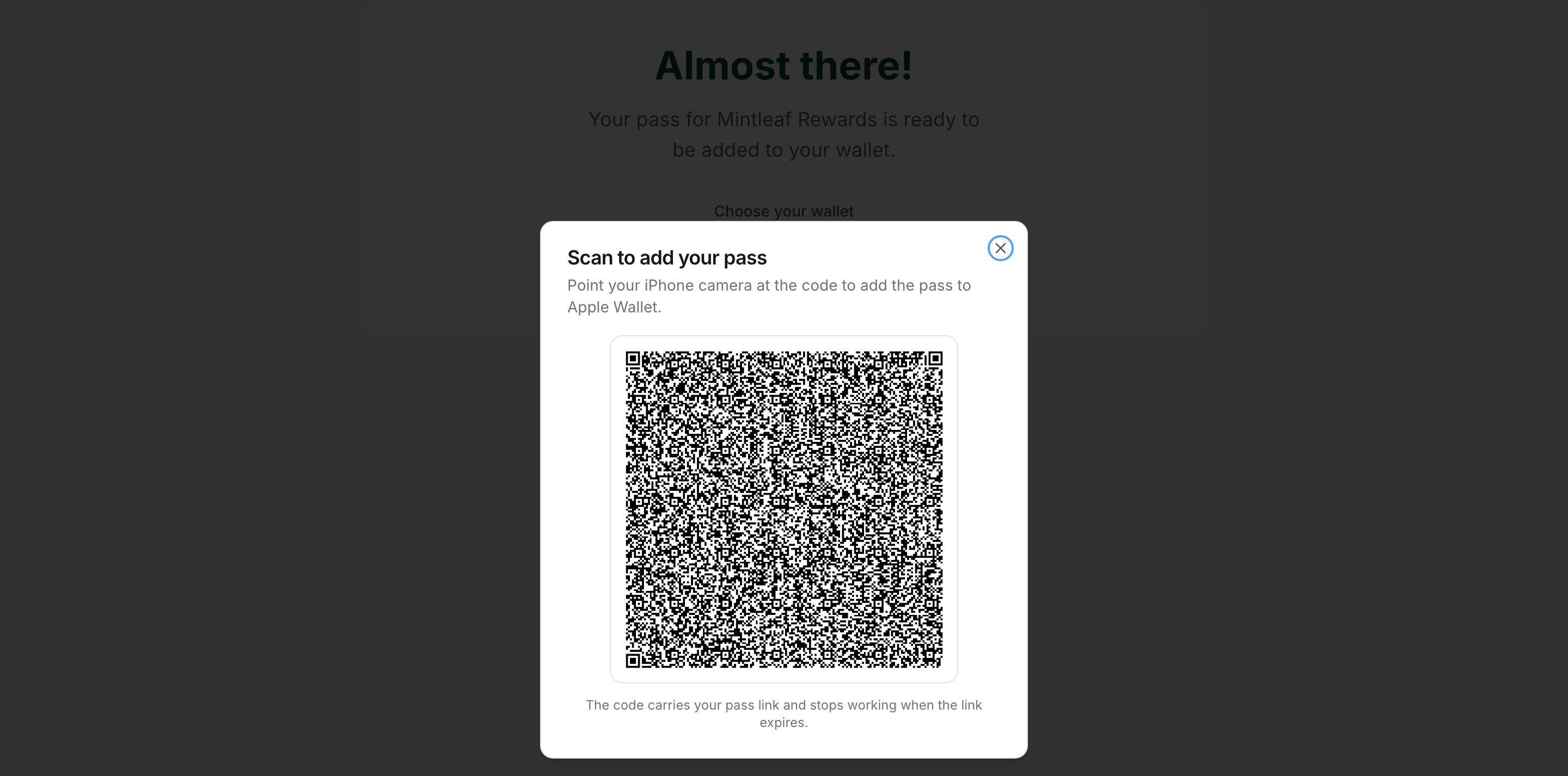 The pass link behind the QR code is time-limited. If the customer waits too long, the code stops working — closing the dialog and tapping **Add to Apple Wallet** again produces a fresh one.
**What tapping Add to Google Wallet does** is the same in every browser: Google's save page opens, the customer signs in to their Google account, and the pass appears in Google Wallet on their Android phone.
Two things hold on every device:
* The pass is created the moment the customer taps a wallet button. The button shows a spinner while the pass is prepared.
* Each pass belongs to exactly one wallet. A customer who picks Apple Wallet gets an Apple Wallet pass, not a copy in both.
Wallet-specific enrollment links (for example from your emails) can preselect one wallet, but the device and program checks still apply — a link asking for a wallet the device can't hold falls back to whatever is available.
A customer stuck on this step? See [enrollment
troubleshooting](/enrollment/troubleshooting) for the situations support
staff hear about and how to resolve them.
The pass link behind the QR code is time-limited. If the customer waits too long, the code stops working — closing the dialog and tapping **Add to Apple Wallet** again produces a fresh one.
**What tapping Add to Google Wallet does** is the same in every browser: Google's save page opens, the customer signs in to their Google account, and the pass appears in Google Wallet on their Android phone.
Two things hold on every device:
* The pass is created the moment the customer taps a wallet button. The button shows a spinner while the pass is prepared.
* Each pass belongs to exactly one wallet. A customer who picks Apple Wallet gets an Apple Wallet pass, not a copy in both.
Wallet-specific enrollment links (for example from your emails) can preselect one wallet, but the device and program checks still apply — a link asking for a wallet the device can't hold falls back to whatever is available.
A customer stuck on this step? See [enrollment
troubleshooting](/enrollment/troubleshooting) for the situations support
staff hear about and how to resolve them.