> ## Documentation Index
> Fetch the complete documentation index at: https://docs.getstell.com/llms.txt
> Use this file to discover all available pages before exploring further.
# Campaigns
> Send one-off push messages to your customers' wallet passes
A **campaign** is a one-off push message — an offer, an announcement, a reminder — sent to an audience you choose. In the sidebar, campaigns live under **Push**.
 ## Send a message
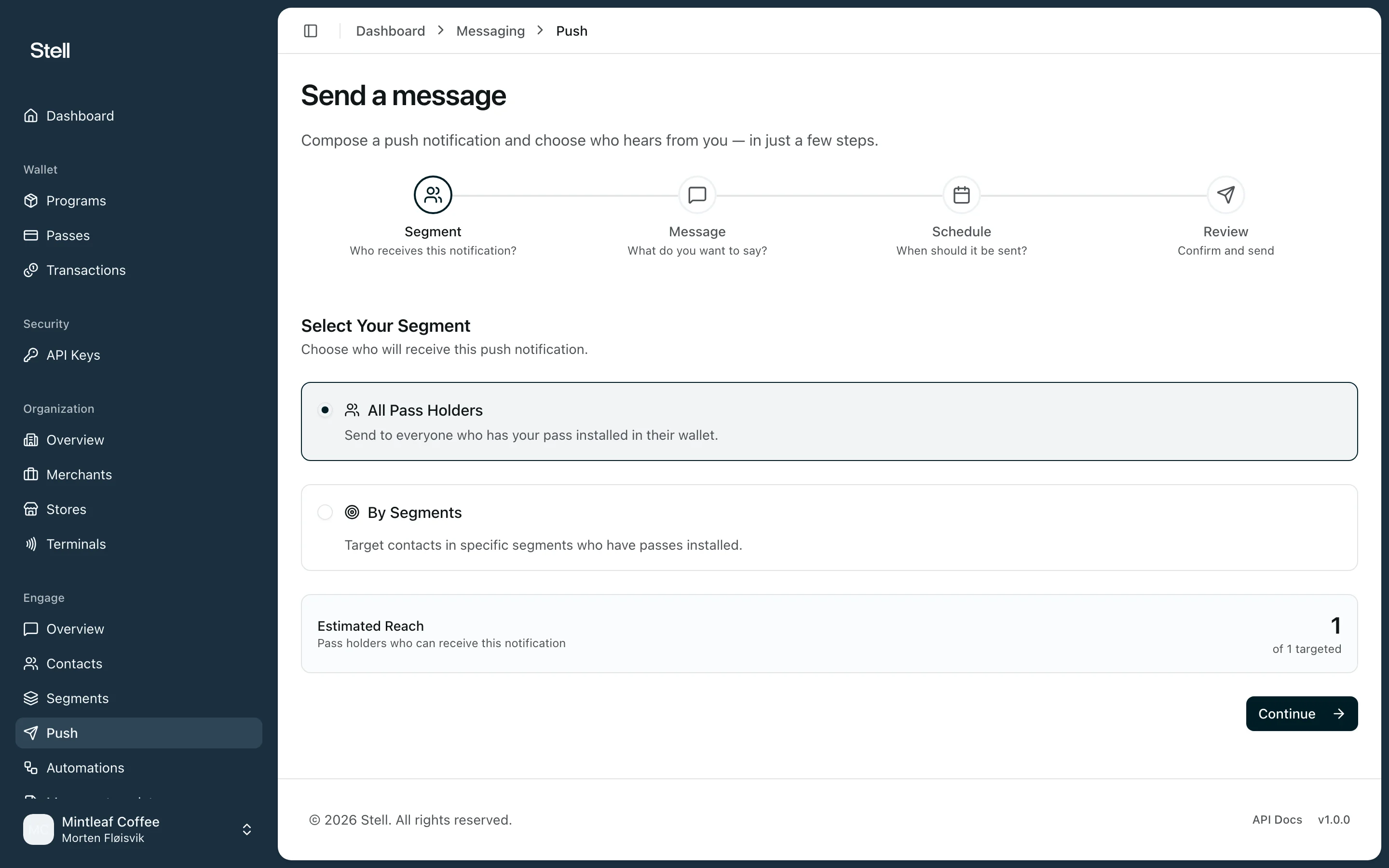
Creating a campaign is a four-step flow: **Segment → Message → Schedule → Review**.
Pick **All Pass Holders** to reach everyone with your pass installed, or **By Segments** to target specific [segments](/engage/contacts-and-segments). The **Estimated Reach** card shows how many pass holders can actually receive the message.
Up to 150 characters. Use the **Insert variable** picker to personalize — for example a first name or points balance — and watch the preview show how the notification lands on a customer's lock screen.
* **Send Immediately** — notifications go out right away.
* **Send at a Scheduled Time** — pick a date, time, and timezone.
* **Send Recurring** — repeat daily, weekly, or monthly from a start date.
Check the audience, message, and schedule summary, give the campaign a name, and click **Send Campaign** (or **Schedule Campaign**). You can also **Save as Draft** to finish later.
## Following up
Open a campaign to see its details and delivery stats — how many notifications were delivered and the audience, message, and schedule it ran with. Sent campaigns are read-only; every individual notification also appears in the [notification history](/engage/notifications).
## Tips
* Personalized messages perform better — `Hi {{firstName}}` beats a generic blast.
* Scheduled sends respect the timezone you pick, so a 09:00 send arrives at 09:00 local to that timezone, not to each recipient.
* Reach only counts customers with the pass installed. If reach looks low, your customers may have [Pre-Active or Inactive passes](/passes/lifecycle).
## Send a message
Creating a campaign is a four-step flow: **Segment → Message → Schedule → Review**.
Pick **All Pass Holders** to reach everyone with your pass installed, or **By Segments** to target specific [segments](/engage/contacts-and-segments). The **Estimated Reach** card shows how many pass holders can actually receive the message.
Up to 150 characters. Use the **Insert variable** picker to personalize — for example a first name or points balance — and watch the preview show how the notification lands on a customer's lock screen.
* **Send Immediately** — notifications go out right away.
* **Send at a Scheduled Time** — pick a date, time, and timezone.
* **Send Recurring** — repeat daily, weekly, or monthly from a start date.
Check the audience, message, and schedule summary, give the campaign a name, and click **Send Campaign** (or **Schedule Campaign**). You can also **Save as Draft** to finish later.
## Following up
Open a campaign to see its details and delivery stats — how many notifications were delivered and the audience, message, and schedule it ran with. Sent campaigns are read-only; every individual notification also appears in the [notification history](/engage/notifications).
## Tips
* Personalized messages perform better — `Hi {{firstName}}` beats a generic blast.
* Scheduled sends respect the timezone you pick, so a 09:00 send arrives at 09:00 local to that timezone, not to each recipient.
* Reach only counts customers with the pass installed. If reach looks low, your customers may have [Pre-Active or Inactive passes](/passes/lifecycle).